

LinkedIn Sales Navigator costs $99-149/month, but 67% of users don’t know how to use its advanced filters. After training 200+ sales teams on Sales Navigator over 3 years, I’ve seen the same pattern: Teams buy it, spend 2 weeks clicking around, then default to basic search.
This guide shows you exactly how to extract ROI from Sales Navigator through precise targeting, multi-channel integration, and advanced workflows that turn $100/month into 10-20 qualified leads.
You’ll learn the 25+ filters that actually matter, how to build lead lists that update automatically, and why Sales Navigator alone won’t get you meetings (plus the exact tools to pair it with).
Mastering Advanced Search
Advanced search is Sales Navigator’s core power. The 25+ filters let you build laser-targeted lists that auto-update daily.
The 25+ Filters That Matter Most
Access advanced search by clicking “Search” in top navigation, then “Lead Search” or “Account Search.”
Job-Related Filters:
- Job Title: Search “VP Sales” to find exact title matches. Use with Boolean operators for precision.
- Function: Broader than title. Select “Sales” to catch VP Sales, Sales Director, Chief Revenue Officer, etc.
- Seniority Level: Filter by CXO, VP, Director, Manager, Entry level. Combine with Function for targeted searches.
- Years in Current Position: Find people 0-1 years in role (learning mode, open to new solutions) or 2+ years (established, has budget authority).
- Years at Company: Identify new hires (0-1 years) or tenured employees (3+ years with institutional knowledge).
Activity & Intent Filters:
- Posted on LinkedIn (Past 30 Days): Active members respond 2-3x more than inactive profiles. This filter alone can double response rates.
- Changed Jobs (Past 90 Days): Job changers are 62% more receptive during first 90 days. Optimal outreach window: days 30-60 after they’ve settled in.
- Shared Experiences: Filter by alumni (your university), past companies, or groups. Shared experiences increase reply rates 35%.
- Profile Language: Match prospect’s LinkedIn language to your outreach language for cultural relevance.
Relationship Filters:
- Connections Of: Enter a 1st-degree connection’s name to see their network. Request warm introductions to high-priority prospects.
- TeamLink: (Advanced plans only) See how prospects connect to anyone on your team, not just you. 4x higher engagement when colleague makes intro.
- Followers Of: Find people following specific company pages or thought leaders. Indicates interest in that company/topic.
Company Filters:
- Company Headcount: Filter by employee range (1-10, 11-50, 51-200, etc.). Match to your ICP’s typical size.
- Company Headcount Growth: Find fast-growing companies (20%+ headcount growth past 2 years). Growth signals budget and hiring intent.
- Industry: 150+ industry options. Select 3-5 where you have product-market fit.
- Company Type: Public, Private, Non-profit, Partnership, etc. Useful if you only sell to private equity-backed companies or public enterprises.
- Fortune: Filter by Fortune 500, 1000. Enterprise sellers use this to target only F500 accounts.
- Recent Funding: Companies that raised funding in past 12-24 months have budget for new vendors.
Geographic Filters:
- Location: Search by city, state, country, or postal code radius.
- Exclude Location: Remove specific geographies where you don’t operate.
Personal Filters:
- First Name / Last Name: Useful for re-finding specific people after connection.
- School: Target alumni from specific universities (your alma mater for warm outreach).
- Spotlight: Catch-all for special criteria like “Open to” job opportunities or “Volunteer experience.”
Advanced Filters (often overlooked):
- Groups: Members of specific LinkedIn Groups (though Groups are less active in 2026 than pre-2020).
- Keywords: Full-text search across profiles. Use for niche skills like “Salesforce certified” or “AWS migration.”
Boolean Search Mastery
Boolean operators let you combine criteria for surgical precision. Use them in the Job Title and Keywords fields.
AND Operator: Narrows results. Requires both terms.
- Example: `Sales AND Manager` finds profiles containing both “Sales” and “Manager”
- Default behavior if you don’t specify operator
OR Operator: Broadens results. Requires at least one term.
- Example: `”VP Sales” OR “SVP Sales” OR “Chief Revenue Officer”`
- Use quotes for exact phrase matching
- Captures titles you’d otherwise miss
NOT Operator: Excludes terms.
- Example: `”Sales Manager” NOT Assistant` removes “Sales Manager Assistant” titles
- Filters out junior roles or support positions
Parentheses: Groups operators for complex queries.
- Example: `(“VP Sales” OR “Sales Director”) AND (SaaS OR Software) NOT Assistant`
- Reads as: (VP Sales OR Sales Director) in (SaaS OR Software) companies, excluding Assistants
Quotation Marks: Exact phrase matching.
- `”Head of Sales”` finds only that exact phrase
- `Head of Sales` (no quotes) finds profiles with “Head,” “of,” and “Sales” anywhere
Practical Example:
You sell marketing automation to mid-market SaaS companies. Search:
- Job Title: `(“CMO” OR “VP Marketing” OR “Head of Marketing”) NOT Assistant`
- Industry: Computer Software, Internet
- Company Headcount: 50-500
- Posted on LinkedIn: Past 30 days
- Geography: United States
This returns 834 active CMOs at mid-market US SaaS companies. Save this search to receive weekly alerts when new people match.
Creating Saved Searches
Saved searches auto-update and send alerts when new prospects match your criteria. Create 3-5 saved searches covering your key buyer personas and intent signals.
After running a search, click “Save Search” (top right). Name it descriptively: “VP Sales SaaS 100-500 US Posted 30d.”
Alert Frequency: Choose weekly or monthly alerts. Weekly alerts keep pipeline full with minimal effort.
The 3 Must-Have Saved Searches:
- Job Changers in ICP: Your buyer persona + “Changed Jobs Past 90 Days” filter. Captures people entering new roles with fresh budgets.
- Active Posters in Target Industry: Your persona + “Posted on LinkedIn Past 30 Days.” These prospects engage on LinkedIn regularly—higher response rates.
- Profile Viewers Matching Persona: Navigate to “Who’s Viewed Your Profile,” filter by your persona criteria, save search. These are warm leads showing interest.
Review saved search results 2x weekly (Monday morning, Thursday afternoon). Add high-fit prospects to lead lists for outreach sequencing.
Building Your Lead Lists
Lead lists organize prospects into categories for targeted outreach campaigns. Well-structured lists prevent duplicate messaging and ensure personalized follow-up.
The 5 Essential Lead Lists
Create lists by clicking “Lists” in top nav, then “Create list > Lead list.”
1. Industry-Specific Prospects
Separate lists by vertical: “SaaS Prospects,” “Financial Services Prospects,” “Healthcare Prospects.” Different industries require different messaging and proof points.
Build: Run saved search for persona in specific industry, select all results (or top 100), click “Save to list,” choose relevant industry list.
2. Expansion Opportunities
List existing customers with multi-seat potential or upsell opportunities. Track decision-makers at current customer accounts for expansion conversations.
Build: Import current customer accounts, run lead search within those accounts filtering for new job titles (e.g., you sold to Sales, now target Marketing).
3. Champions & Advocates
Users who love your product and will provide referrals or introductions. These aren’t outreach targets—they’re relationship assets.
Build: Manually add power users, case study participants, public advocates. Note why they’re champions in list notes.
4. Closed-Won Digital Inventory
Decision-makers involved in deals you’ve won. Keep tabs on their career moves—when they change companies, they often re-buy solutions they know.
Build: After closing deal, add all stakeholders from opportunity to this list. Set alerts for job changes.
5. Closed-Lost Re-Engagement
Deals you lost due to timing, budget, or competitive displacement. Revisit quarterly—circumstances change.
Build: Add closed-lost decision-makers with notes on loss reason and expected re-engagement timeframe.
Lead List Hygiene
Lists degrade 22.5% annually due to job changes, company closures, and bad data. Schedule 30-minute list hygiene sessions twice weekly.
Monday Morning Hygiene (30 min):
- Review “Job Change Alerts” from your lists
- Remove people who left companies you’re targeting
- Add their replacements (Sales Navigator suggests replacements automatically)
- Update contact info if available
Thursday Afternoon Hygiene (30 min):
- Check “Recommended Leads” on homepage
- Add high-fit suggestions to appropriate lists
- Review notes on leads you’ve engaged—update next steps
- Remove unresponsive leads after 3 touchpoints (move to “Cold” list for future re-engagement)
Clean lists ensure you’re not burning InMails on people who’ve changed roles or wasting time on unresponsive prospects.
Engaging Prospects Effectively
Sales Navigator gives you targeting precision, but targeting alone doesn’t book meetings. You need multi-channel outreach integrated with enrichment tools.
The Multi-Channel Playbook
LinkedIn-only outreach produces 8-12% response rates. Multi-channel sequences (LinkedIn + Email + Phone) generate 28-35% response rates—3.5x more replies.
Why Sales Navigator Alone Isn’t Enough:
Sales Navigator provides LinkedIn profiles but no direct email addresses or phone numbers. Prospects don’t live on LinkedIn 24/7. Your InMail competes with 15-30 other InMails weekly in their inbox.
The Integration Workflow:
- Target in Sales Navigator: Use advanced filters to build 100-person lead list
- Export leads: Copy Sales Navigator URL to automation tool (Evaboot, Phantombuster) or manually export to CSV
- Enrich with contact data: Upload list to enrichment tool to append email addresses and phone numbers
- Import to multi-channel tool: Add enriched list to outreach platform that sequences LinkedIn, Email, and Twitter touches
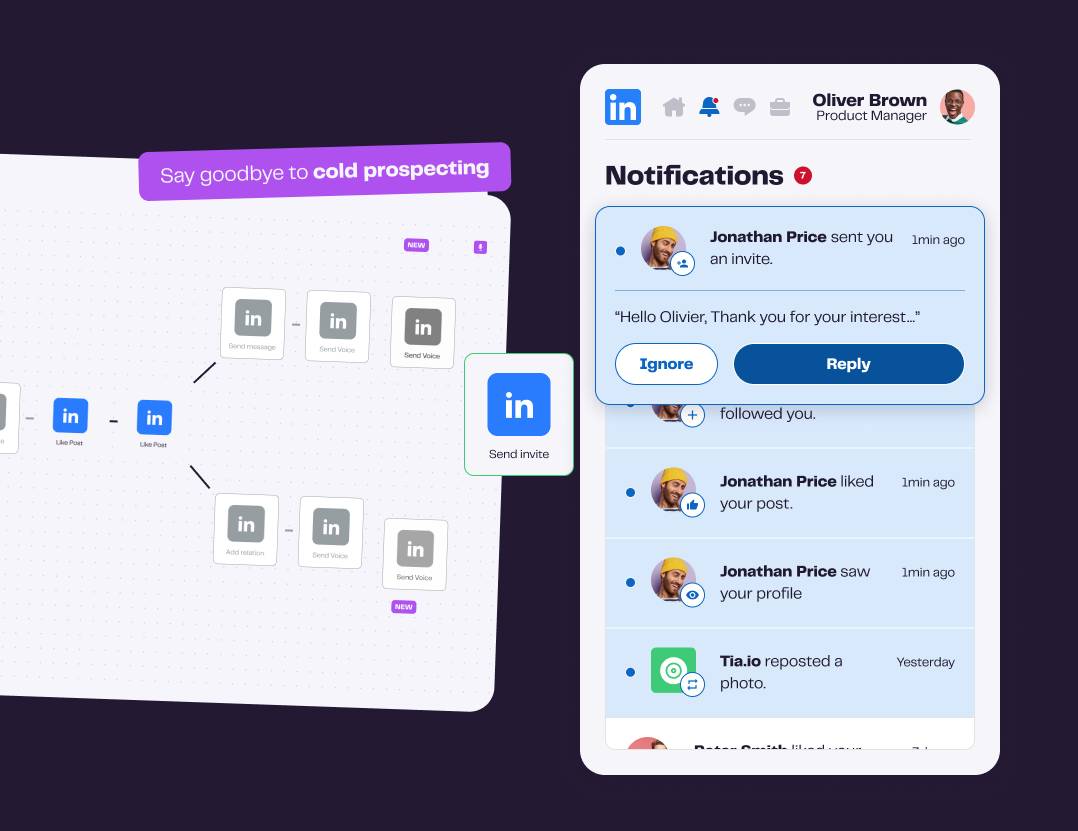
Tools like La Growth Machine combine LinkedIn + Email + Twitter outreach in one sequence, delivering 3.5x more responses than LinkedIn-only campaigns. You can set up a 10-touch sequence: InMail → Email → LinkedIn connection → Email follow-up → Phone call—all automated with personalized messaging.
This workflow costs $100/month (Sales Navigator) + €100/month (La Growth Machine Pro with multichannel + enrichment included) = ~$210/month total stack, but converts 3-4x better than Sales Navigator alone.
InMail Best Practices
You get 50 InMail credits monthly (Core and Advanced plans). Use them strategically—they’re your highest-value asset.
When to Send InMail vs Connection Request:
- Send InMail: Executive decision-makers (VP+), prospects outside your network with no mutual connections, time-sensitive opportunities
- Send Connection Request: Director-level and below, prospects with 5+ mutual connections, active LinkedIn posters you’ve engaged with
InMail Response Rates:
- Generic InMails: 3-7% response rate
- Personalized InMails (researched trigger, relevant value prop): 15-25% response rate
- Job change congratulations InMails: 30-40% response rate (send days 10-30 after job change)
High-Performing InMail Template (Job Change Congratulations):
Subject: Congrats on [New Company]
Hi [First Name],
Saw you recently joined [Company] as [Title]—congrats! I spent 3 years at [Similar Company] and know the first 90 days are a whirlwind.
I’m reaching out because you’re likely auditing your [tech stack area you impact] given the role change. We help [companies like theirs] [achieve specific outcome] without [common pain point].
[Social proof: Customer logo in their industry] saw [specific metric] in [timeframe] after switching from [incumbent solution].
Would a quick 15-minute call on [specific date/time] make sense to explore whether we’re a fit?
[Your name]
Why this works:
- Personalized trigger (job change, researched)
- Empathy (acknowledges they’re busy)
- Relevant value prop (tied to their role)
- Social proof (de-risks decision)
- Specific ask (15 min call with proposed time)
Send job change InMails within 10-30 days of role change. Too early (days 1-10) and they’re overwhelmed. Too late (60+ days) and they’ve already made vendor decisions.
Connection Request Strategy
Sales Navigator Core and Advanced users get 100 connection requests weekly (vs 20/week for LinkedIn free). Use this volume to build a network of prospects before pitching.
The Engage-Before-Connecting Approach:
Cold connection requests have 15-20% acceptance rates. Warm requests (after engagement) have 40-50% acceptance rates.
3-Step Pre-Connection Sequence:
- Day 1: Comment thoughtfully on prospect’s recent LinkedIn post. Add genuine insight, not “Great post!”
- Day 3: Send connection request referencing your comment: “Hi [Name], enjoyed your thoughts on [post topic]. Would love to connect and follow your insights on [their expertise area].”
- Day 7: If accepted, send message thanking them for connecting and suggesting low-pressure conversation
This approach establishes familiarity before asking for attention. They’ve seen your name twice before you request connection—you’re not a stranger.
Connection Request Message Rules:
LinkedIn limits connection request messages to 300 characters. Don’t waste them on “I’d like to add you to my professional network.”
Effective 300-character formula:
`[Personalized reference] + [Mutual interest/connection] + [Reason to connect]`
Example: “Hi Sarah, saw your post on ABM challenges at mid-market companies. We’re both focused on helping sales teams scale outbound—would love to exchange ideas on what’s working in 2026.”
Follow-Up Cadence
Single-touch outreach generates 5-8% response rates. Multi-touch sequences with 5-7 touches generate 25-35% response rates.
7-Day LinkedIn Follow-Up Sequence:
- Day 1: Send connection request with personalized message
- Day 3: If not accepted, send InMail with different angle (value prop vs networking)
- Day 5: If accepted but no reply, send follow-up message: “Hey [Name], curious if you saw my note about [topic]? Happy to share how [customer] achieved [result] if relevant to your [Q2/H2] priorities.”
- Day 7: Transition to email if no response (requires enrichment tool to find email)
14-Day Multi-Channel Sequence:
- Day 1: LinkedIn connection request (engage on post first)
- Day 3: InMail if connection not accepted
- Day 5: Email (if you have address) with case study
- Day 8: Phone call (if you have number)
- Day 10: LinkedIn message follow-up
- Day 14: Final email with breakup message: “Hey [Name], haven’t heard back so I’ll assume timing isn’t right. If circumstances change, here’s link to [helpful resource]. Good luck with [their initiative you researched].”
Breakup emails generate 15-20% response rates—many prospects simply forgot or were busy. Giving them an “out” re-engages them without pressure.
Advanced Tactics
These seven tactics extract maximum value from Sales Navigator’s hidden features.
Tactic 1: Target Active Members Only
Add “Posted on LinkedIn in Past 30 Days” filter to every search. Active members respond 2-3x more than inactive profiles.
Why it works: Active posters check LinkedIn frequently, engage with messages faster, and are more receptive to networking. Inactive profiles may not see your InMail for weeks.
Outreach angle: Reference their recent post in your InMail. “Loved your take on [post topic]—I’ve seen similar trends with [your customers]. Would you be open to a quick call to compare notes?”
This personalizes the message and shows you’re not spamming.
Tactic 2: Leverage TeamLink (Advanced Plans)
TeamLink shows how prospects connect to anyone on your sales team, not just you. A colleague’s connection can be your warm introduction.
How to use TeamLink:
- Run lead search with your filters
- Filter by “TeamLink: 2nd degree or closer”
- Review which teammate shares the connection (shown in profile)
- Ask teammate for introduction via email or Slack: “Hey [Teammate], I see you’re connected to [Prospect] at [Company]. Would you be open to introducing me? We have a strong use case for them based on [reason].”
Warm introductions close 4x more than cold outreach. Use this religiously if you have Advanced plan.
Tactic 3: Job Change Gold Mine
“Changed Jobs in Past 90 Days” is the highest-intent filter in Sales Navigator. People who recently changed roles are 62% more receptive to vendor conversations.
Why: New role = new priorities, fresh perspective, no legacy vendor relationships locked in. They’re evaluating everything.
Optimal timing: Days 30-60 after job change. Days 1-10 they’re too overwhelmed. Days 60+ they’ve made decisions.
Search setup:
- Your standard persona filters
- Add: “Changed Jobs: Past 90 Days”
- Save search with alert: “New Job Changes – [Persona Name]”
Check this saved search twice weekly. InMail message should congratulate them, acknowledge the transition chaos, and offer help specific to their new role challenges.
Tactic 4: View Similar Prospects
Sales Navigator’s “View Similar” feature clones your best prospects into lookalike audiences.
How to use it:
- Open profile of ideal prospect (best customer or high-fit lead)
- Click “More” button (three dots near their name)
- Select “View Similar Leads”
- Sales Navigator generates list of profiles matching job title, industry, company size, location
Advanced play: Run “View Similar” on 5-10 best customers. Export all results. Cross-reference to find prospects appearing in multiple “similar” lists—these are ultra-high-fit.
Use this for account-based marketing expansion within target accounts—find additional stakeholders who resemble your champion.
Tactic 5: Profile View Tracking
Who views your profile = warm leads showing interest. Sales Navigator tracks this in real-time with more detail than LinkedIn Basic.
How to leverage profile views:
- Navigate to “Who’s Viewed Your Profile” (top nav)
- Filter by your persona criteria (job title, industry, company size)
- Create saved search: “Profile Viewers – High Fit”
- Review weekly and prioritize outreach
Outreach message for profile viewers:
“Hi [Name], noticed you checked out my profile recently. I’m guessing you might be exploring [solution category]? Happy to share how [similar company] tackled [common challenge] if that’s useful context.”
This is warm outreach—they initiated interest by viewing your profile.
Pro tip: Post valuable content on LinkedIn (insights, data, case studies) to increase profile views. More content → More views → More warm leads.
Tactic 6: Account Mapping
Complex B2B deals require multi-threading—engaging 6-10 stakeholders per account. Sales Navigator’s account mapping helps identify the buying committee.
How to map accounts:
- Save target company as “Account” (not just leads)
- Navigate to Account page
- Click “View all leads at this company”
- Filter by decision-maker functions: Operations, IT, Finance, Procurement, Executive
- Review “Recommended Leads” tab—Sales Navigator suggests key stakeholders
Build buying committee list:
- Economic Buyer (final budget authority): CFO, CEO, COO
- Champion (internal advocate): Director/Manager who loves your solution
- Influencer (evaluates options): IT, Ops, or functional lead
- End User (will use product daily): IC or Manager
- Procurement (handles contract): Procurement, Legal
Add all to lead list named “[Company Name] – Buying Committee.” Track engagement across all stakeholders to avoid single-threading risk.
Sales cycles with 5+ engaged stakeholders close 67% faster than single-threaded deals.
Tactic 7: Intent Signals
Sales Navigator surfaces intent signals—news, hiring trends, funding—that indicate buying windows.
Where to find intent signals:
- Account Pages: “Recent Updates” section shows company news, new hires, funding announcements
- Lead Pages: “Recent Activity” shows posts, job changes, promotions
- Homepage Feed: “Recommended” section surfaces trending news at your saved accounts
High-intent signals to watch:
- Hiring spree (10+ open reqs): Growth signal, need tools to scale
- Funding announcement: Budget available, expansion mode
- New C-suite hire: New leader evaluates vendors, open to change
- Award/recognition: Company momentum, receptive to tools that maintain growth
- Negative news (layoffs, CEO departure): May pause spending or need efficiency tools
Outreach tied to intent signal:
“Hi [Name], saw [Company] just raised $50M Series B—congrats! Growth at that pace usually creates [specific challenge you solve]. [Customer similar to them] faced this during their Series B and used [your solution] to [achieve outcome]. Would a brief call make sense to explore if this is relevant for [their company]?”
Intent-based outreach converts 35-45% better than generic cold outreach.
Integration & Workflow Automation
Sales Navigator’s value multiplies when integrated with CRM, enrichment tools, and multi-channel platforms.
CRM Sync (Advanced Plus Only)
Advanced Plus plans embed Sales Navigator directly in Salesforce, HubSpot, or Microsoft Dynamics.
What CRM Sync Enables:
- View Sales Navigator profile cards inside CRM contact/account pages (no tab switching)
- Auto-import LinkedIn profile data to CRM (job title, company, tenure)
- Log InMails and messages to CRM activity timeline
- Sync lead lists to CRM campaigns
Setup: Navigate to Settings > CRM Sync > Connect [Your CRM]. Follow OAuth authentication flow. Map Sales Navigator fields to CRM fields (Job Title → Title, Company → Account Name, etc.).
ROI: Eliminates data entry. Reps save 30-60 min daily not copying LinkedIn info to CRM. Managers see LinkedIn activity tied to opportunities.
Limitation: Only Advanced Plus plans get true embedded sync. Core and Advanced plans require manual export/import.
Export Workflows
Most teams use Core or Advanced plans without embedded CRM sync. Export workflows bridge the gap.
3 Export Methods:
- Manual CSV export: Select up to 2,500 leads from list, click “Export,” download CSV with name, title, company, location (no emails/phones)
- Automation tools: Copy Sales Navigator search URL, paste into tool like Evaboot, Phantombuster, or Dripify. Tool scrapes results and exports to CSV with enriched emails (70-80% accuracy)
- API access (Enterprise only): Custom integration via Sales Navigator API to auto-sync leads to your database
Most common workflow (for teams without Advanced Plus):
- Build lead list in Sales Navigator (100 prospects)
- Copy list URL
- Paste URL into Evaboot ($49/month)
- Evaboot scrapes list and appends emails via Dropcontact/Hunter
- Export enriched CSV
- Import to CRM and multi-channel outreach tool
This semi-automated workflow costs $150/month total but provides contact data Sales Navigator lacks.
The Full Stack
High-performing outbound teams use Sales Navigator as one component of a 4-tool stack:
1. Sales Navigator ($99-149/month): Targeting and lead discovery
2. Enrichment tool ($50-100/month): Apollo, ZoomInfo, or Clay to append emails/phones
3. CRM ($25-100/user/month): Salesforce, HubSpot, or Pipedrive to manage pipeline
4. Multi-channel outreach (€100-150/month): La Growth Machine to sequence touches
The workflow:
Sales Navigator (find) → Enrichment (get contact data) → CRM (store) → Outreach tool (engage)
ROI comparison:
- Sales Navigator only: 8-12% response rate, $100/month, 10-15 leads/month = 1.2 replies/month → 0.24 meetings (assuming 20% meeting conversion) → $416/meeting
- Full stack: 28-35% response rate, ~$350/month, 50 leads/month = 14-17 replies → 3-4 meetings → $87-116/meeting
Full stack costs 3.5x more but generates 12-15x more meetings. Cost per meeting drops 72%.
La Growth Machine is particularly effective here because it natively combines LinkedIn, Email, and Twitter in one sequence without requiring separate tools or manual coordination. Teams report 3.5x more responses using multi-channel sequences compared to LinkedIn-only outreach, and the platform includes email enrichment, so you eliminate one tool from the stack.
Common Mistakes to Avoid
These seven mistakes waste your Sales Navigator investment:
Mistake 1: Using It as a Pitch Machine
Sales Navigator is a targeting tool, not a pitch distribution channel. New users blast generic InMails to 50 prospects hoping for 2-3 replies.
Why it fails: No personalization, no relevance, no differentiation. Your InMail looks like 20 others they received this week.
Do this instead: Spend 3-5 minutes researching each prospect. Find trigger (job change, company news, post topic). Reference trigger in InMail. Lower volume (10 personalized InMails/week) converts better than 50 generic ones.
Mistake 2: Sending Generic InMails
“Hi [Name], I help companies like yours achieve [vague benefit]. Do you have 15 minutes for a quick call?”
Response rate: 3-7%.
Why it fails: No reason to respond. They don’t know you, don’t understand value, haven’t seen proof.
Do this instead: Use trigger → value prop → proof → specific ask formula. “Saw you joined [Company] as [Title]. Guessing you’re evaluating [tech stack area]. [Customer] achieved [metric] in [timeframe] using [solution]. 15-min call on [date] to explore fit?”
Response rate: 18-25%.
Mistake 3: Not Engaging Before Connecting
Cold connection requests to strangers: 15-20% acceptance rate.
Do this instead: Comment on their post first (Day 1). Wait 48 hours. Send connection request referencing comment (Day 3). Acceptance rate: 40-50%.
Engagement creates familiarity. They’ve seen your name and profile before you ask to connect.
Mistake 4: Forgetting to Save Searches
You run a perfect search with 8 filters. Find 200 great prospects. Add 20 to lead list. Close Sales Navigator.
Next week you can’t remember which filters you used. You’ve lost 180 prospects.
Do this instead: Save every good search immediately. Name it descriptively: “VP Sales SaaS 100-500 US Active Posters.” Set weekly alerts. Sales Navigator notifies you when 10-15 new people match criteria each week. Autopilot lead flow.
Mistake 5: Ignoring Profile Viewers
50-100 people view your profile monthly. 20-30% match your ICP. You ignore them.
Do this instead: Check “Who Viewed Your Profile” 2x/week. Filter by persona criteria. Prioritize these for outreach—they showed interest by viewing you. InMail them: “Noticed you checked out my profile. Guessing you’re exploring [category]—happy to share how [customer] solved [challenge].”
Warm lead response rate: 25-35% vs 8-12% for cold outreach.
Mistake 6: Solo Channel Reliance
You send InMail. Prospect doesn’t respond. You move on.
Problem: Maybe they didn’t see InMail. Maybe they don’t check LinkedIn daily. Maybe they prefer email. You’ve given up after one channel.
Do this instead: Multi-channel sequence. InMail → Email (2 days later) → LinkedIn message (3 days later) → Phone call (4 days later). Same message, different channels. Response rate jumps from 8% to 30%.
Tools like La Growth Machine automate this multi-channel sequencing, ensuring prospects see your message regardless of preferred channel.
Mistake 7: Not Integrating With Other Tools
Sales Navigator provides LinkedIn profiles but no email addresses or phone numbers. You’re stuck with InMails and connection requests.
Problem: InMails cost credits (50/month limit). Connection requests require acceptance. You can’t reach executives who ignore LinkedIn.
Do this instead: Export leads to enrichment tool (Apollo, ZoomInfo, Clay). Append emails and phones. Import to multi-channel platform. Now you can touch via InMail + Email + Phone + LinkedIn message. Coverage increases 4x.
Conclusion
LinkedIn Sales Navigator transforms B2B prospecting when used correctly—precise targeting via 25+ filters, multi-threading via account mapping, and intent signals via job change and company news alerts.
But Sales Navigator alone isn’t enough. The highest-performing teams integrate it into a full stack: Sales Navigator for targeting, enrichment tools for contact data, CRM for pipeline management, and multi-channel platforms for sequencing touches across LinkedIn, Email, and Phone.
This workflow costs $250-350/month but generates 3.5x more responses and 10-15x more meetings than Sales Navigator standalone.
Your 7-Day Action Plan:
Day 1: Start 30-day Sales Navigator trial (Core plan). Set preferences and create first Persona.
Day 2: Master Boolean search. Run 5 searches using AND, OR, NOT operators. Save best 2 searches.
Day 3: Build 3 lead lists (ICP prospects, job changers, active posters). Add 50 leads total.
Day 4: Send 10 personalized InMails using job change or post engagement triggers.
Day 5: Set up export workflow (test Evaboot or Phantombuster to enrich 20 leads with emails).
Day 6: Test multi-channel sequence (InMail + Email follow-up 2 days later). Track response rates.
Day 7: Review results. If you booked 2+ meetings, convert trial to paid. If not, troubleshoot messaging and targeting before trial ends.
Sales Navigator is the sharpest targeting tool in B2B sales, but only if you pair it with enrichment, multi-channel outreach, and disciplined follow-up. Master those integrations and $100/month becomes your highest-ROI sales investment.