

Your LinkedIn network is sitting on goldmine potential, hundreds or thousands of business relationships that could transform into prospects, partnerships, and closed deals. But here’s the catch: that value stays locked away unless you can actually access, organize, and activate your connection data.
Whether you’re building targeted outreach lists, migrating to a new CRM, or creating segmented campaigns for your sales team, knowing how to export LinkedIn connections is a fundamental skill for any B2B sales professional. This guide walks you through everything—from LinkedIn’s native export feature to automated solutions that integrate connection data into multichannel prospecting workflows.
By the end, you’ll understand not just how to export contacts from LinkedIn, but what to do with that data to generate real pipeline opportunities.
Why export your LinkedIn connections?
Build a qualified prospecting database
Your LinkedIn network represents years of relationship building, conferences, client interactions, and strategic connections. When you export these connections, you’re creating an instantly qualified lead list based on genuine professional relationships.
Unlike cold lists purchased from third-party vendors, these are people who’ve already accepted your connection request. That existing relationship gives you a massive advantage when it comes to response rates and trust.
Integrate your network with your CRM
Modern sales teams live in their CRM. If your LinkedIn connections exist only on LinkedIn, you’re managing relationships in two separate systems—which means double the work and inevitable things falling through the cracks.
Exporting contacts from LinkedIn allows you to import them into HubSpot, Salesforce, Pipedrive, or whatever CRM your team uses. This creates a single source of truth for all prospect data and interaction history.
Back up your professional network
LinkedIn accounts can be restricted, suspended, or compromised. If you’ve spent years building a network of 2,000+ connections and something happens to your account, having a backup CSV file means you don’t lose access to those relationships entirely.
Think of it as insurance for your professional network.
Analyze and segment your connections
Raw LinkedIn profiles don’t give you the bird’s-eye view you need to spot patterns. Once you export your connections to a spreadsheet, you can analyze:
- Which companies are most represented in your network
- Job titles and seniority levels of your connections
- Geographic distribution
- Industries you’re connected to
- Connection growth over time
This analysis helps you identify gaps in your network and opportunities for targeted campaigns.
Method 1: Export LinkedIn connections using LinkedIn’s native feature
LinkedIn provides a built-in tool to export your connection data. It’s completely free, requires no third-party tools, and gives you a clean CSV file with all your first-degree connections. Here’s exactly how to do it.
Step 1: Access your LinkedIn settings
Log into your LinkedIn account and click on your profile picture in the top-right corner. From the dropdown menu, select Settings & Privacy. This takes you to LinkedIn’s settings dashboard where you control everything from privacy settings to data management.
Step 3: Request your data archive
Click on Get a copy of your data. You’ll see two options:
- Want something in particular? This lets you select specific data categories
- Want the works? This downloads everything
For exporting LinkedIn connections, choose the first option: Want something in particular? This allows you to download just your connections list without waiting for LinkedIn to compile your entire data archive (which can include messages, posts, and more).
Step 4: Select “Connections” data
You’ll see a list of data categories you can download. Check the box next to Connections. You can also select other relevant data like Contacts (which includes additional contact information) or Messages if you want conversation history.
Once you’ve made your selection, click Request archive. LinkedIn will start preparing your data file.
Step 5: Download and extract your connections file
LinkedIn will send you an email when your data archive is ready to download. This typically takes 10 minutes to 24 hours, depending on how much data you requested and LinkedIn’s current processing queue.
The email will contain a download link. Click it, log back into LinkedIn if prompted, and download the ZIP file to your computer.
Extract the ZIP file. Inside, you’ll find a CSV file named Connections.csv—this is your exported LinkedIn connections list.
Step 6: Open your connections CSV file
You can open the CSV file with:
- Microsoft Excel – Just double-click the file if Excel is your default program
- Google Sheets – Upload the file to Google Drive and open with Sheets
- Any spreadsheet software – Numbers (Mac), LibreOffice Calc, etc.
The file will contain columns for first name, last name, company, position, email address (when available), and the date you connected.
Understanding your LinkedIn connections export file
Now that you’ve got your connections CSV file, let’s break down what you’re actually looking at.
What data is included in the export
LinkedIn’s native export provides these fields for each connection:
- First Name and Last Name – Basic contact information
- Email Address – Only included if your connection has shared their email with you or made it publicly visible on their profile
- Company – Current company name at the time of export
- Position – Current job title
- Connected On – The date you connected with this person
This is relatively basic information, but it’s a solid foundation for building targeted outreach lists.
What data is NOT included
Here’s what you won’t find in LinkedIn’s native export:
- Full contact information – Phone numbers, direct email addresses (unless explicitly shared), or company email formats
- Detailed profile data – LinkedIn headlines, summaries, skills, endorsements, or recommendations
- Engagement metrics – Who’s engaging with your posts, who’s viewed your profile, or connection activity
- Company details – Company size, industry tags, or company LinkedIn URLs
- Profile URLs – Direct links to individual LinkedIn profiles
If you need this additional data, you’ll need to either manually enrich your list or use automation tools that can extract more comprehensive profile information.
Limitations of LinkedIn’s native export method
LinkedIn’s built-in export is free and official, but it comes with significant limitations that become problematic as your prospecting needs grow.
Manual and time-consuming process
Every time you want fresh data, you need to manually go through the entire export process again—navigate to settings, request the archive, wait for the email, download the ZIP file, extract it, and open the CSV.
For sales teams running ongoing campaigns, this manual process doesn’t scale.
Export delays (up to 24 hours)
LinkedIn doesn’t generate your export immediately. Depending on their server load and how much data you’re requesting, you might wait anywhere from 10 minutes to a full day.
If you need connection data urgently for a campaign launching tomorrow, that delay can be a real problem.
Limited data fields
As mentioned earlier, you’re getting basic information only. No phone numbers, no detailed firmographic data, and most critically—email addresses are only included if your connection explicitly shared theirs with you.
In practice, this means you’ll get email addresses for maybe 10-20% of your connections at most. The rest require additional enrichment before you can use them for email outreach.
No ongoing sync or updates
The CSV file is a static snapshot. If someone in your network changes jobs, updates their title, or you add new connections, your export becomes outdated immediately.
There’s no automatic refresh, no sync feature, and no way to keep your exported data current without repeating the entire export process.
Restrictions for large networks (2,500+ connections)
While LinkedIn doesn’t explicitly limit how many connections you can export, users with very large networks (5,000+ connections) sometimes report incomplete exports or extended processing times.
The native export works best for networks under 2,500 connections.
Method 2: Export LinkedIn connections with automation (advanced)
If LinkedIn’s native export limitations are slowing down your prospecting workflow, automation tools offer a more sophisticated approach to managing connection data.
When you need an automated solution
Consider automation if you:
- Run regular prospecting campaigns that require up-to-date connection data
- Need more than basic contact information (email addresses, phone numbers, detailed company data)
- Want to integrate LinkedIn connections directly into multichannel sequences
- Manage multiple LinkedIn accounts or team members
- Need real-time data rather than day-old exports
Automation isn’t about replacing LinkedIn’s export—it’s about building a prospecting system that doesn’t require manual data wrangling every time you want to reach out to your network.
How La Growth Machine handles LinkedIn connection data
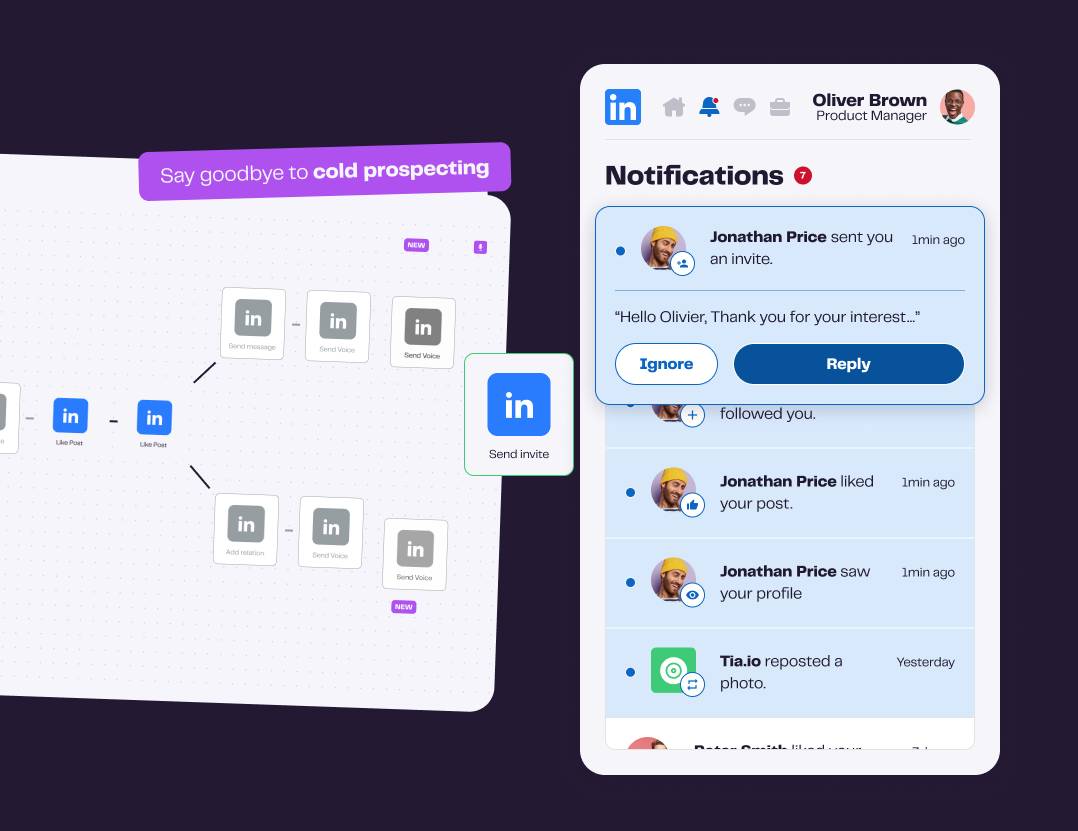
La Growth Machine takes a different approach to connection management. Instead of exporting static CSV files, it treats your LinkedIn network as a dynamic prospecting database that integrates seamlessly with multichannel outreach.
Here’s how it works: you canimport leads directly from LinkedIn (whether from search results, Sales Navigator, your existing connections or even comments on a LinkedIn post), La Growth Machine enriches each profile with up to 28 data points, far beyond the basic fields LinkedIn provides in exports.
This includes verified email addresses through waterfall enrichment (using multiple data providers to maximize accuracy), company information, job titles, and social profiles. That enriched data then flows directly into prospecting sequences that combine LinkedIn messages, email, and even X (Twitter) outreach.
The key difference: you’re not manually exporting, enriching, and importing data. It’s a connected workflow where your LinkedIn network becomes immediately actionable for campaigns.
Benefits of automated connection management
Real-time data: No waiting 24 hours for exports. Access connection information instantly and use it in campaigns right away.
Automatic enrichment: Get verified email addresses and detailed contact data without manually cross-referencing multiple sources.
Multichannel sequencing: Turn LinkedIn connections into multichannel prospects—message them on LinkedIn, follow up via email, engage on X—all from a single campaign.
CRM integration: Automatically sync connection data and all interactions (messages, replies, email opens) to HubSpot, Pipedrive, or your CRM of choice.
Ongoing updates: As connections change jobs or update profiles, your data stays current without manual re-exports.
Real-time data vs. static exports
LinkedIn’s native export gives you a snapshot. It’s like taking a photo of your network. The second after you download that CSV, it starts becoming outdated.
Automation platforms maintain a living connection to your LinkedIn network. When someone in your connections list changes companies, the data updates automatically. When you add new connections, they flow into your system without manual imports.
For sales teams running continuous outbound campaigns, this shift from static exports to dynamic data makes a massive difference in campaign performance and time saved.
What to do after exporting your LinkedIn connections
Getting the export is just the beginning. Here’s how to actually use that data to generate pipeline.
Clean and organize your data
First, remove duplicates, fix formatting inconsistencies, and delete irrelevant connections (people you don’t remember, old coworkers from unrelated industries, etc.).
Create custom columns to tag connections by:
- Potential fit for your product/service
- Industry or vertical
- Decision-making role (ICP vs. influencer vs. irrelevant)
- Priority level
This cleanup work is tedious but essential. You want quality over quantity when building outreach lists.
Import connections to your CRM
Most CRMs allow CSV imports with field mapping. Import your cleaned connections list and ensure:
- Names map to the correct first name/last name fields
- Company and title information populates properly
- You create a tag or list to identify these as “LinkedIn Network” leads
- You add a source field noting they came from your connection export
Now your LinkedIn network lives in your CRM alongside other leads, giving you a complete view of your pipeline.
Build targeted outreach campaigns
Don’t blast your entire network with generic messages. Use the segmentation you created to build targeted campaigns.
For example:
- Campaign 1: Marketing managers at B2B SaaS companies (if that’s your ICP)
- Campaign 2: Former colleagues who’ve moved to target accounts
- Campaign 3: Connections who recently changed jobs (often receptive to new tools)
Each segment should get messaging tailored to their specific situation and pain points.
Enrich contact data with email addresses
Remember: LinkedIn’s export includes email addresses for maybe 10-20% of your connections. For the rest, you’ll need enrichment.
Options include:
- Manual research: Check company websites or use tools like Hunter.io to find email patterns
- Enrichment services: Tools like Dropcontact, Lusha, or Apollo can append email addresses to your CSV
- Waterfall enrichment: Platforms like La Growth Machine use multiple data providers sequentially to maximize email finding rates (often 60-70%+ coverage)
Without email addresses, your LinkedIn connection data is only useful for LinkedIn-only outreach—which severely limits your multichannel options.
Create segmented lists based on criteria
Beyond basic industry and title filtering, look for:
- Engagement signals: Connections who’ve liked or commented on your posts recently
- Warm introductions: Mutual connections who could facilitate introductions to target accounts
- Geographic targeting: Connections in specific regions if you’re running local campaigns
- Company size: Filter by startup vs. enterprise if your product fits different segments
The more precisely you segment, the more relevant your outreach becomes—and relevance drives response rates.
Best practices for managing exported LinkedIn connections
Having connection data is powerful. Using it responsibly is essential.
Keep your data updated
Set a cadence for refreshing your exports—monthly or quarterly depending on how actively you network on LinkedIn. Outdated data leads to bounce emails and irrelevant messaging when people change roles.
If you’re using automation tools, ensure they’re set to update profile information regularly so your data doesn’t go stale.
Respect privacy and data protection regulations (GDPR)
Just because someone connected with you on LinkedIn doesn’t mean they’ve consented to receive marketing emails from your company. GDPR and similar privacy regulations require:
- Legitimate interest or consent: You need a legal basis to process personal data and send marketing communications
- Easy unsubscribe options: Every email must include a clear way to opt out
- Data minimization: Only collect and store data you actually need
- Right to deletion: Be prepared to delete someone’s data if they request it
Don’t treat your LinkedIn export as an automatic email marketing list. Use it for genuine relationship-based outreach, not spam.
Use data responsibly for outreach
Your LinkedIn connections trusted you enough to accept your connection request. Honor that trust by:
- Personalizing messages based on your actual relationship or mutual interests
- Providing value rather than immediately pitching
- Respecting “no” or “not interested” responses
- Avoiding aggressive follow-up sequences
The fastest way to damage your reputation is to export your network and immediately blast everyone with sales pitches.
Combine LinkedIn data with other sources
Your LinkedIn export is most powerful when combined with:
- Company research: Layer in firmographic data like employee count, funding stage, tech stack
- Intent signals: Combine with website visitor tracking or content engagement data
- CRM history: Check if contacts already exist in your system with past interaction history
Multi-source data creates a complete picture that enables truly personalized outreach.
Common issues when exporting LinkedIn connections (and how to fix them)
Even following the steps perfectly, you might hit roadblocks. Here’s how to solve common problems.
Export file not arriving
If it’s been more than 24 hours and you haven’t received the download link email:
- Check spam/junk folders: LinkedIn emails sometimes get filtered
- Verify your email address: Go to Settings > Account > Email addresses to confirm LinkedIn has the right email
- Request again: Sometimes exports fail silently—just submit a new request
- Contact LinkedIn support: If repeated requests fail, there may be an account issue
Incomplete connection list
If your CSV has fewer connections than your LinkedIn profile shows:
- LinkedIn may be filtering: Connections who’ve deactivated accounts won’t appear in exports
- Removed connections: People who’ve disconnected from you won’t be included
- Processing errors: Large networks (3,000+ connections) sometimes export incompletely—try requesting just connections rather than your full archive
CSV file won’t open properly
If the file opens as gibberish or plain text:
- Try a different program: If Excel fails, try Google Sheets or vice versa
- Use import features: Instead of double-clicking the CSV, open Excel/Sheets first, then use File > Import and select CSV with proper encoding (UTF-8)
- Check file integrity: Re-download from LinkedIn in case the file got corrupted
Missing email addresses or contact information
This is expected behavior, not a bug. LinkedIn only includes email addresses in exports if:
- The connection has explicitly shared their email with you
- Their privacy settings allow connections to see their email
- They’ve listed an email on their public profile
Most LinkedIn users keep emails private, which is why enrichment is necessary for email outreach campaigns.
Frequently asked questions
Can I export someone else’s LinkedIn connections?
No, not through official LinkedIn tools. You can only export your own connections, people who’ve accepted your connection requests.
Some third-party scraping tools claim to extract other people’s connection lists, but this violates LinkedIn’s Terms of Service and can result in account suspension. It’s also ethically questionable and potentially illegal depending on data privacy laws in your jurisdiction.
How often should I export my LinkedIn connections?
For active networkers, quarterly exports make sense. If you’re adding 50+ connections per month or running regular prospecting campaigns, monthly exports keep your data fresh.
If you use automation tools with real-time sync, manual exports become less necessary—you only need them for backup purposes or to move data into systems that don’t integrate directly.
Can I export LinkedIn connections to Excel directly?
LinkedIn’s export comes as a CSV file, not native Excel (.xlsx) format. However, CSV files open seamlessly in Excel—just double-click the file and Excel will display it as a spreadsheet.
If you want to save it as an actual Excel file with formatting preserved, open the CSV in Excel and then use File > Save As > Excel Workbook.
Does exporting connections violate LinkedIn’s terms of service?
Using LinkedIn’s official data export feature is completely compliant with their Terms of Service—it’s a feature they built specifically for users to access their own data.
Where you can get into trouble:
- Scraping tools that automate exports: Third-party browser extensions or bots that circumvent LinkedIn’s intended export process
- Exporting other people’s connections: Only your own connections are fair game
- Excessive automated exports: Repeatedly hammering LinkedIn’s servers with export requests
Stick to LinkedIn’s native export feature or authorized partners in their Application Directory, and you’ll be fine.
What are other ways to import LinkedIn connections?
Beyond manually exporting your connections as a CSV file, La Growth Machine offers several automated import methods that save time and provide richer data. You can import leads directly from Sales Navigator searches or saved lists, LinkedIn Basic search results, people who engaged with LinkedIn posts (likes or comments), event attendees, or followers of your company page.
Learn more about how to import leads from LinkedIn with LGM.
What’s the maximum number of connections I can export?
LinkedIn doesn’t officially cap connection exports. Whether you have 500 or 5,000 connections, the native export should include all of them.
In practice, users with 10,000+ connections (those who’ve unlocked LinkedIn Open Profile / “30,000+ connections” status) sometimes report slower export processing times, but the full list still comes through eventually.
Conclusion
Exporting LinkedIn connections transforms your professional network from a static list of names into an actionable prospecting database. Whether you use LinkedIn’s native export for a one-time download or implement automation for ongoing campaign management, the goal is the same: turn relationships into revenue opportunities.
The native LinkedIn export method works perfectly for occasional needs—backing up your network, one-off CRM imports, or basic list building. It’s free, official, and straightforward.
But if you’re running sophisticated B2B prospecting campaigns, you’ll quickly hit its limitations. Manual exports, missing email addresses, and static data create friction that slows down your sales team.
That’s where a platform like La Growth Machine makes the difference. Instead of exporting, enriching, and importing data manually, your LinkedIn network becomes part of an integrated prospecting system—automatically enriched with verified emails, synced with your CRM, and ready to use in multichannel sequences that combine LinkedIn, email, and X outreach.
Get 3.5X more leads!
Do you want to improve the efficiency of your sales department? With La Growth Machine you can generate on average 3.5x more leads while saving an incredible amount of time on all your processes.
By signing up today, you’ll get a free 14-day trial to test our tool!