

Want to master LinkedIn search by name in 2026? Whether you’re ready to search by name and last name or need to do a LinkedIn search without logging in, this guide will help you find the right people — no matter your starting point.
“Just search their name on LinkedIn” sounds simple enough, right? But if you’ve tried it, you know it’s not always that straightforward. Between privacy settings, countless John Smiths, and LinkedIn’s evolving search features, finding the right decision-makers who match your ideal customer profile can feel overwhelming.
For sales pros focused on LinkedIn outreach, business owners seeking industry leaders, or anyone hoping to find that standout connection from last week’s conference, this guide has you covered.
Why use LinkedIn search by name?
With almost 1 billion users, LinkedIn is the world’s largest professional networking platform, and using LinkedIn’s search feature is one of the easiest ways to find specific people.
Searching by name is your secret weapon for precise prospecting, whether you’re:
- Researching a prospect before a call with them
- Looking for a specific person but don’t know their LinkedIn profile URL
- Finding professionals in a certain industry or company
- Building lists of decision-makers who match your ideal customer profile
The key is understanding how to use LinkedIn’s search capabilities strategically — not just typing in names and hoping for the best.
Understanding how LinkedIn’s search algorithm works
Before you start searching, it helps to know why certain profiles show up first in your results. LinkedIn’s search algorithm doesn’t just alphabetically list every “John Smith” on the platform — it ranks results based on several factors designed to surface the most relevant matches for you.
What factors influence search results ranking
LinkedIn’s algorithm weighs multiple signals when deciding which profiles to show you first:
Mutual connections: Profiles with shared connections get priority because LinkedIn assumes these are more relevant to your network. If you share 20 connections with someone, they’ll typically appear higher than someone with zero mutual connections.
Profile completeness: Profiles with complete information (headline, summary, experience, skills) rank higher. LinkedIn rewards users who invest in their profiles by making them more discoverable.
Recent activity: Profiles of users who are active on the platform — posting content, engaging with others, updating their experience — get a visibility boost. Inactive profiles gradually sink in search rankings.
Relevance to your search terms: If you search for “marketing manager,” profiles with “marketing manager” in the headline or current position will outrank those who have it buried in past experience.
How connection degrees affect search visibility
LinkedIn organizes your network into three degrees:
1st-degree connections: People you’re directly connected to. These always appear with full profile visibility and are easiest to contact.
2nd-degree connections: Friends of friends. You share at least one mutual connection with these profiles. You can send connection requests without needing InMail.
3rd-degree connections: Three steps away from you. Visibility is more limited, and reaching out typically requires InMail unless you share a LinkedIn Group.
The closer someone is to your network, the higher they’ll rank in search results — assuming other factors are equal.
Why profile completeness matters for search
Here’s the reality: incomplete profiles are harder to find. If someone hasn’t filled out their headline, location, or current company, they simply won’t appear when you filter by those criteria. This is why some people seem “invisible” on LinkedIn — they exist on the platform, but their sparse profiles make them unsearchable.
When you’re optimizing your own profile for discoverability, completeness matters. For prospecting purposes, understanding this helps you adjust expectations when searching for harder-to-find contacts.
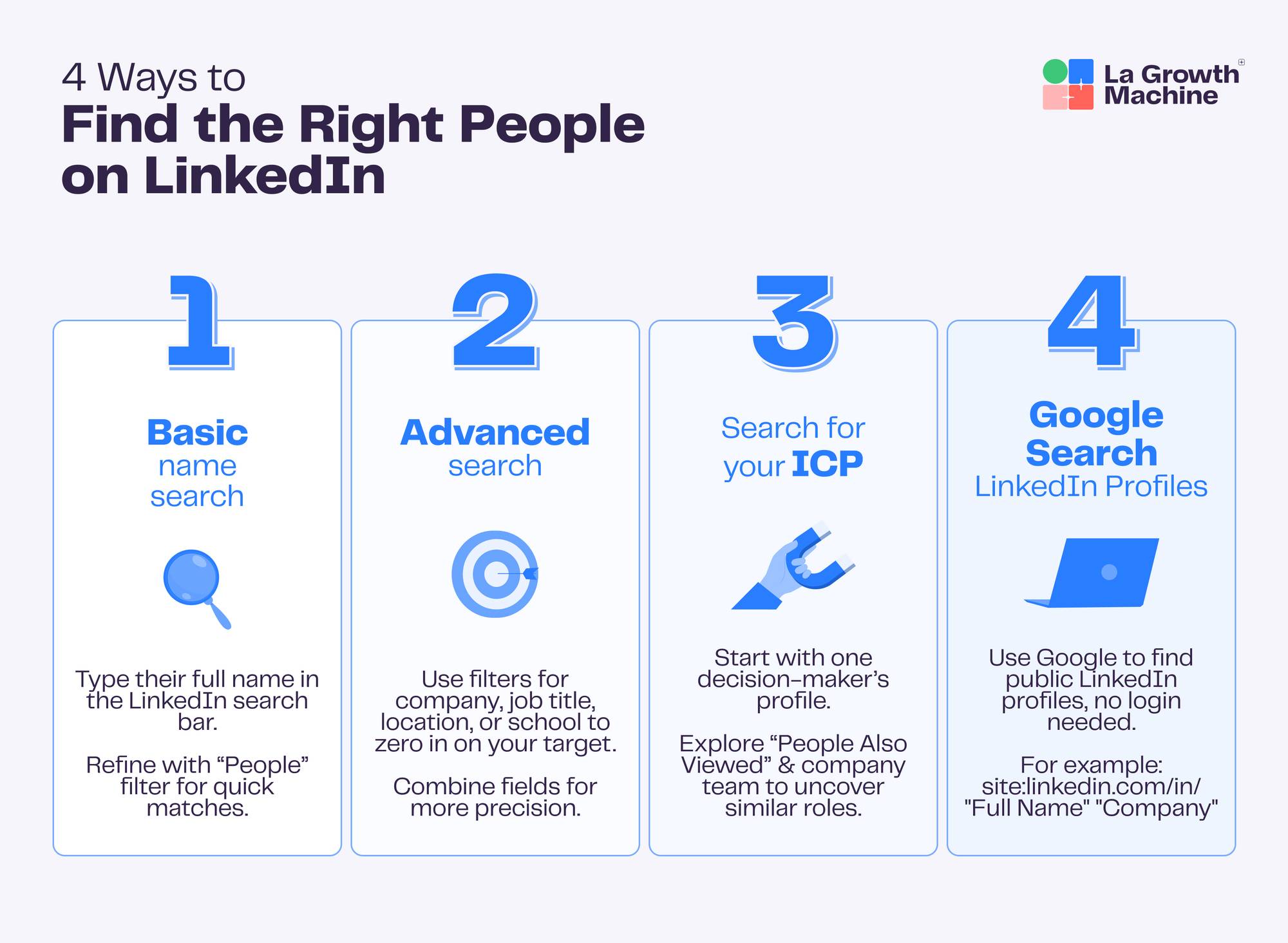
1. How to find someone on LinkedIn by name (Basic Search)
To find someone on LinkedIn using basic search, you’ll need two key pieces of information:
- Their full name (first and last)
- At least one additional detail (company, location, industry, etc.), in case there are multiple people with the same name
Desktop Search Process
Here’s the quickest way to search on desktop, step-by-step:
Step 1: Log into LinkedIn.com
Step 2: Type the full name in the search bar at the top of any LinkedIn page
Step 3: Select their profile directly from the dropdown (if they’re a 1st-degree connection)
Step 3.1: Or click “See all results” for a complete list of matching profiles

Step 4: Filter results to “People” to remove companies, jobs, and other content types
Step 5: Browse the matching profiles

Mobile Search Process
The mobile experience is slightly different but follows the same logic:
Step 1: Open the LinkedIn app on your phone
Step 2: Tap the search icon at the top of your feed
Step 3: Enter the person’s full name
Step 4: Tap “People” to filter results
Step 5: Scroll through matches and apply additional filters if needed by tapping “All Filters”
Mobile search is particularly useful when you meet someone at an event and want to connect immediately, or when you’re reviewing profiles on the go.
2. How to search LinkedIn by name using advanced search

Once you’re on the search results page, you can use the advanced search functionalities to filter your results with additional information:
- Job title: Zero in on decision-makers by their exact role (e.g., “VP Sales,” “Head of Marketing”)
- Company: Target people at specific organizations (current or past employers)
- Industry: Narrow your focus to your target market (e.g., “Computer Software,” “Financial Services”)
- Location: Refine by geographic territory or market
- Connections: Leverage your network’s reach (filter by 1st, 2nd, or 3rd-degree connections)
- School: Tap into alumni networks when relevant
Connection Degree Filtering
The connection filter is particularly powerful for sales prospecting. Here’s how to use it strategically:
Filter for 2nd-degree connections when you want warm introductions. You can see your mutual connection and potentially ask for an intro, which dramatically increases response rates compared to cold outreach.
Filter for 3rd-degree connections when you’re doing broader market research or building lists for targeted campaigns where you’ll use multiple touchpoints.
Exclude 1st-degree connections when building prospecting lists — you’re already connected to these people, so they shouldn’t be in your cold outreach campaigns.
Location, Company, and Industry Filters
Combining these filters creates powerful targeting. For example:
- Search for “David Chen” + “San Francisco” + “Computer Software” to find tech industry professionals in the Bay Area
- Search for “Sarah Martinez” + “Series B” + “SaaS” to find decision-makers at growth-stage software companies
- Search for “Michael Johnson” + “Adobe” to find everyone with that name at a specific company
The more specific you are, the fewer results you’ll get — but they’ll be far more relevant to your needs.
School and Education Filters
Don’t overlook the school filter, especially if you’re leveraging alumni networks. Searching for “marketing director” + “your alma mater” can uncover warm connections based on shared educational background, which is a strong conversation starter.
3. How to use Boolean Search Operators on LinkedIn
Want to take your LinkedIn search skills to the next level? Boolean search operators let you create complex, precise searches that surface exactly the profiles you need.
LinkedIn supports several Boolean operators that work in the main search bar (note: some advanced Boolean searches work better in Sales Navigator, but these core operators function in free LinkedIn):
AND Operator for multiple requirements
Use AND (in all caps) to find profiles that meet multiple criteria. For example:
- marketing AND director finds people with both terms in their profile
- sales AND “software engineer” finds sales professionals who also have engineering backgrounds
The AND operator narrows your search by requiring all terms to be present.
OR operator for alternative matches
Use OR (in all caps) to find profiles that match any of several terms:
- CEO OR founder OR “managing director” finds profiles with any of these titles
- “growth marketing” OR “demand generation” finds professionals in either specialty
This expands your search to include alternative matches, which is useful when people use different terms for similar roles.
NOT operator to exclude terms
Use NOT (in all caps) to exclude profiles with specific terms:
- manager NOT intern finds managers while excluding internship roles
- developer NOT junior finds experienced developers
This helps filter out irrelevant results when certain keywords are causing noise in your search results.
Quotation marks for exact phrases
Put phrases in quotation marks to find exact matches:
- “head of sales” finds only profiles with that exact phrase
- “business development manager” excludes variations like “manager of business development”
This precision is crucial when searching for specific job titles.
Parentheses for complex searches
Combine operators with parentheses to create sophisticated search queries:
- (CEO OR founder) AND (SaaS OR software) NOT consultant
- (“vice president” OR VP) AND sales AND (Boston OR “New York”)
Boolean search separates amateur prospectors from pros. Master these operators, and you’ll uncover profiles others miss.
4. How to use LinkedIn search by name to find your Ideal Customer Profile (ICP)
Most sales teams start with a single name, but the real power of LinkedIn search is in identifying patterns, so you can uncover whole groups of prospects who match your Ideal Customer Profile (ICP).
Transform single contacts into ICP-rich prospect lists:
Step 1 – Find your starting point: Start with one perfect example of your ideal buyer (like “Sarah Lee, Head of Marketing at Acme Corp”). This profile becomes your blueprint for finding similar decision-makers across your target market.
Step 2 – Leverage network intelligence: Your initial contact opens doors to similar profiles. The “People Also Viewed” section and company pages are goldmines for discovering other relevant stakeholders, buying committee members, and decision-makers in similar roles.
Step 3 – Scale your search strategically: Put LinkedIn’s advanced filters to work:
- Map entire buying committees within key accounts
- Surface similar roles across your target industries
- Filter by territory, company size, and market segment
- Identify decision-makers at companies matching your ICP
Step 4 – Build quality lists: Focus on prospects who truly match your ICP criteria — think company size, market maturity, decision-making authority, and territory fit. This targeted approach sets you up for higher response rates.
Remember: quality beats quantity. Ten highly relevant prospects are worth more than 100 generic leads.
5. How to find someone on LinkedIn using a Google Search
If you’re struggling to find someone on LinkedIn — maybe you only remember part of their name, aren’t sure about the spelling, or want to perform a LinkedIn search without login — using Google can be a quick workaround.
By combining Google’s search capabilities with LinkedIn’s public profiles, you can often track down the right person quickly.
When to use Google instead of LinkedIn
Google search is particularly useful when:
- You’re not logged into LinkedIn or don’t have an account
- You’ve hit LinkedIn’s monthly search limit (more on that below)
- LinkedIn’s search isn’t returning the profile you expect
- You want to search for someone using information that’s not filterable on LinkedIn
- You’re doing research and want to see public profile information only
Google Search string formulas
Here’s how to use Google to find LinkedIn profiles with just a few simple steps:
Step 1: Go to Google.com
Step 2: Use this search string: site:linkedin.com/in/ “firstname lastname” “company name”
Add other relevant details like title or location to refine further.
Step 3: The matching LinkedIn profile typically appears as the first result
Finding profiles without login
Here are some example Google search queries you can use:
- site:linkedin.com/in/ “John Doe” marketing “San Francisco”
- site:linkedin.com/in/ “Sarah Chen” “VP Sales” SaaS
- site:linkedin.com/in/ “Michael Rodriguez” Adobe
The beauty of this method is that it works even if you’re not logged into LinkedIn — you’ll see the public-facing version of their profile, which often includes enough information for initial research.
Pro tip: Google’s search can sometimes surface profiles that LinkedIn’s internal search struggles with, especially for people with common names or incomplete profiles.
6. How to search LinkedIn anonymously (Private Mode)
Sometimes you want to research prospects without alerting them to your interest. That’s where LinkedIn’s Private Mode comes in.
Enabling Private Mode step-by-step
Here’s how to browse LinkedIn profiles without leaving a trace:
Step 1: Click on your profile icon in the top right corner
Step 2: Select “Settings & Privacy”
Step 3: Click on “Visibility” in the left sidebar
Step 4: Select “Profile viewing options”
Step 5: Choose “Private mode” (you’ll browse in private)
When Private Mode is enabled, people won’t see that you viewed their profile. Instead, they’ll see “Someone viewed your profile” or a generic “LinkedIn Member” notification.
Trade-offs of anonymous browsing
Here’s the catch: Private Mode is a two-way street. When you browse privately, you also lose the ability to see who’s viewed your profile.
This means you’re trading visibility for privacy. For some prospecting scenarios, this is worth it — especially when you’re researching competitors, doing extensive market research, or checking out profiles you’re not ready to engage with yet.
When to use Private Mode for prospecting
Consider using Private Mode when:
- Researching competitors or their employees
- Doing broad market research before narrowing your target list
- Checking out profiles you might reach out to later (you don’t want multiple views alerting them before you’re ready)
- Investigating companies you’re interviewing with
However, don’t use Private Mode when profile views could work in your favor. Sometimes having a prospect see that you viewed their profile creates curiosity and leads to them viewing your profile back — which is a form of engagement through social warming.
7. Understanding LinkedIn Search limits
Here’s something LinkedIn doesn’t advertise prominently: there are monthly limits on how many searches you can perform and how many results you can view.
Free account monthly search limits
With a free LinkedIn account, you’re limited to approximately 1,000 search results per month. This isn’t 1,000 searches — it’s 1,000 individual profile views from search results.
For casual users, this is plenty. But for sales professionals running active prospecting campaigns, you can hit this limit quickly, especially if you’re researching broad job titles or companies with large headcounts.
Strategies to stay within your search quota
If you’re working with search limits, here are smart ways to maximize your quota:
Be strategic with your searches: Don’t browse aimlessly. Know your ICP criteria before you start searching, so every search view counts toward building your target list.
Use Boolean operators: More precise searches mean fewer irrelevant profile views, conserving your quota for qualified prospects.
Export and organize as you go: Don’t revisit the same profiles repeatedly. Export prospect information to a spreadsheet or CRM as you find them.
Leverage tools like La Growth Machine: Rather than manually viewing hundreds of profiles, use prospecting tools that can enrich lead data and build lists more efficiently, saving your LinkedIn quota for genuine research and relationship-building.
Troubleshooting common LinkedIn search issues
Even with perfect search technique, you’ll sometimes run into challenges. Here’s how to solve the most common LinkedIn search problems:
Issue: Too many results for common names
The problem: Searching for “Michael Johnson” returns 50,000+ results
The solution: Stack multiple filters to narrow results. Add company, location, industry, and job title filters simultaneously. Use quotation marks around exact job titles. Try the Google search method with additional context like “Michael Johnson” “VP Sales” “Seattle” SaaS.
Issue: Can’t find someone you know exists
The problem: You met someone at a conference, but their profile isn’t showing up in search
The solution: They might use a different name on LinkedIn (nickname vs. legal name), have an incomplete profile that lacks searchable details, or have strict privacy settings enabled. Try variations of their name, search by their company and browse employees, or use the Google search method.
Issue: Profile visibility/privacy settings
The problem: You find someone in search results, but can’t view their full profile
The solution: This person has restricted their profile visibility to connections only. You can send a connection request with a personalized note explaining why you’d like to connect. Alternatively, if you have Sales Navigator, you may have expanded viewing permissions.
Issue: Misspelled or alternative names
The problem: Someone might spell their name differently than you expect (e.g., “Jon” vs. “John,” “Cathy” vs. “Catherine”)
The solution: Try common spelling variations. Use the OR operator: Jon OR John Smith. Search by company and browse through employees if you know where they work.
Issue: Inactive or deleted profiles
The problem: Someone mentioned they’re on LinkedIn, but you can’t find any trace of their profile
The solution: They may have deactivated their account, deleted their profile, or never created one (people sometimes say they’re on LinkedIn when they’re not actively using it). If it’s important, try reaching them through other channels to confirm their LinkedIn URL directly.
Frequently Asked Questions
1. How do I perform a LinkedIn search by name and last name?
Start with the basics: enter their full name in LinkedIn’s search bar. Working with a common name like “David Smith”? Use filters like location, company, or role to zero in on the right professional. Add job title, industry, or connection degree filters to narrow results further.
2. How do I find someone on LinkedIn if I only have limited information?
Start with what you know — whether it’s their role, company, or shared connections. LinkedIn’s advanced filters are your allies here, helping you narrow down results even with minimal information. Try the “People Also Viewed” section if you find someone similar to your target.
3. Can I do a LinkedIn search by name without login?
Yes! Even if you don’t have a LinkedIn account or aren’t logged in, you can use Google to search public LinkedIn profiles. Type site:linkedin.com/in/ “firstname lastname” “company name” into the Google search bar to find publicly visible LinkedIn profiles.
4. How do I find someone on LinkedIn without them knowing?
Enable Private Mode in your LinkedIn privacy settings to browse profiles discreetly. Your profile visits won’t show up in others’ “Who’s viewed your profile” section. Keep in mind that this also prevents you from seeing who’s viewed your profile.
5. Can non-LinkedIn members search for my profile?
Your public profile visibility depends entirely on your privacy settings. Non-members can find public profiles through search engines like Google — adjust your settings under “Settings & Privacy” > “Visibility” > “Edit your public profile” if this concerns you.
6. Why can’t I find someone on LinkedIn?
Several factors could be at play: privacy settings, name variations, incomplete profiles, or profile visibility restrictions. Try adding more context to your search, like their company or location, to improve results. They may also use a nickname instead of their legal name on LinkedIn.
7. How do I search for people on LinkedIn and export the results?
While LinkedIn doesn’t offer direct exports from basic or advanced search, you can build targeted prospect lists manually or with Sales Navigator. Tools like La Growth Machine allow you to import LinkedIn search results and automatically enrich them with contact data for outreach campaigns.
8. What are LinkedIn’s monthly search limits?
Free LinkedIn accounts can view approximately 1,000 search results per month, while Sales Navigator subscribers get around 2,500 monthly search results. This counts individual profile views from search results, not total searches performed.
9. How do Boolean operators work on LinkedIn?
Boolean operators (AND, OR, NOT) let you create complex searches. Use AND to require multiple terms, OR for alternative terms, NOT to exclude terms, quotation marks for exact phrases, and parentheses to combine operators. Example: (CEO OR founder) AND SaaS NOT consultant.
10. What’s the difference between 1st, 2nd, and 3rd degree connections?
1st-degree connections are people you’re directly connected to. 2nd-degree are “friends of friends” who share at least one mutual connection with you. 3rd-degree connections are three steps away in your network. Closer connections rank higher in search results and are easier to reach.
How to scale your LinkedIn efforts
Now that you know how to search for people on LinkedIn by name — whether using the built-in search or even Google — you might be wondering how to take your outreach to the next level.
Scaling your LinkedIn strategy means reaching more of the right people, with less manual effort.
Today’s best practices focus on leveraging smart search techniques, advanced filters, and reputable tools to streamline your workflow. For example, you can:
- Use advanced Boolean search operators directly on LinkedIn to find profiles that match your ideal criteria (think: search by name and last name, job title, location, and more)
- Organize your search results to create lists of qualified leads ready for outreach
- Use La Growth Machine to automatically enrich your LinkedIn prospects with verified professional data, then launch personalized multichannel campaigns that connect with them where they’re most responsive
La Growth Machine helps you move from manual prospecting to automated, multichannel outreach. Import your LinkedIn search results, enrich them with verified email addresses, and create sequences combining LinkedIn messages, emails, and even voice messages — all while keeping your outreach personal and compliant.
Conclusion
Finding the right decision-makers on LinkedIn requires more than just typing names into a search bar. While LinkedIn offers various search capabilities — from basic name searches to Boolean operators to advanced filtering — the key is knowing how to leverage these features strategically.
Think of LinkedIn as your professional radar: the better your search technique, the more precisely you can identify potential prospects, partners, and connections who matter to your business.
Master the fundamentals covered in this guide — from understanding LinkedIn’s search algorithm to using Boolean operators, Private Mode, and Google search alternatives — and you’ll unlock a prospecting advantage that most sales professionals never achieve.