Your LinkedIn URL is your profile’s direct web address—essential for networking, job applications, and professional branding. This guide shows you exactly how to find, copy, customize, and share your LinkedIn profile link across all devices in under 2 minutes.
What is a LinkedIn URL?
A LinkedIn URL is your profile’s unique web address that allows others to access your professional profile directly. Every LinkedIn account automatically gets a default URL containing random numbers and letters (e.g., linkedin.com/in/john-smith-a1b2c3d4).
You can customize this URL to create a cleaner, more professional link (e.g., linkedin.com/in/johnsmith) that’s easier to share on business cards, resumes, and email signatures. Your LinkedIn URL serves as your professional digital identity, making it simple for recruiters, clients, and contacts to find you online.
Custom URLs improve SEO, making your profile more discoverable in Google searches when someone looks for your name.
How to Find My LinkedIn URL
On Desktop/Laptop
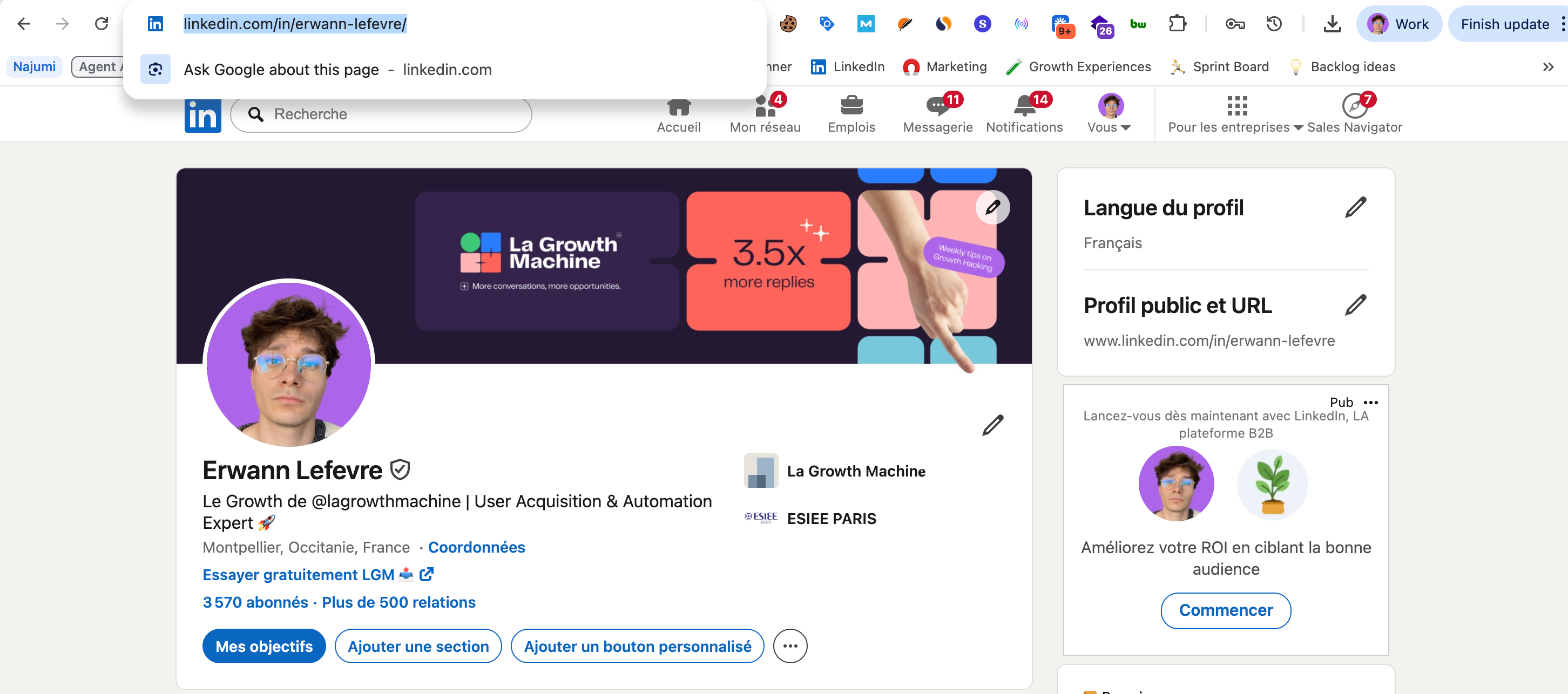
Method 1 (Direct from profile):
- Log into LinkedIn and click “Me” icon (top right)
- Select “View profile”
- Your URL appears in the browser address bar (e.g., linkedin.com/in/yourname-123456)
- Copy the entire URL from the address bar
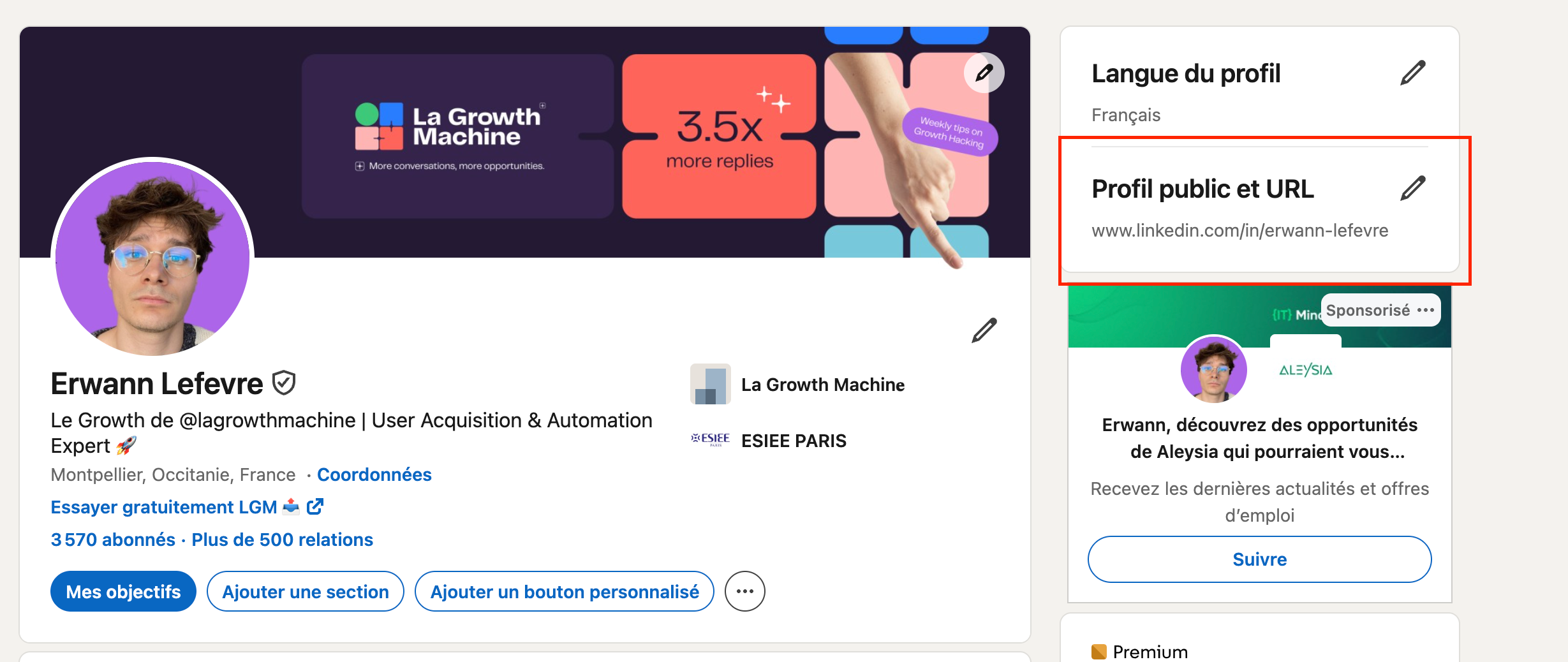
Method 2 (From settings):
- Click “Me” icon → “Settings & Privacy”
- Navigate to “Visibility” → “Edit your public profile”
- Find “Your public profile URL” in the right panel
- Copy the displayed URL
On Mobile App
iOS & Android:
- Open LinkedIn app and tap your profile photo (top left)
- Tap “View profile”
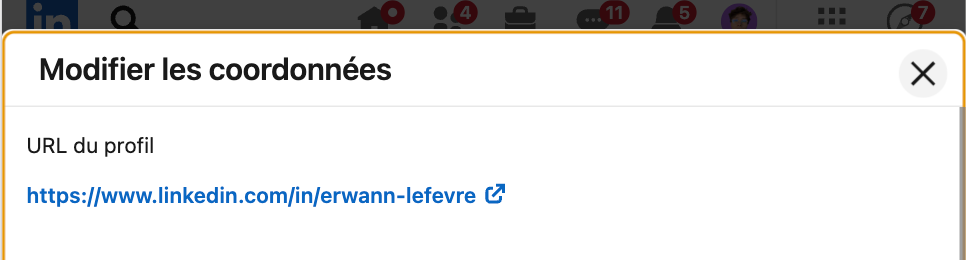
- Tap “Contact info” (below your headline)
- Scroll to find “Your Profile” section
- Your LinkedIn URL is listed there—tap to copy
Alternative: Tap the three dots (⋯) on your profile → “Share profile via” → “Copy link”
In Mobile Browser
Open LinkedIn in Safari/Chrome, tap the address bar once your profile loads, and copy the URL directly. The URL format remains identical to desktop: linkedin.com/in/your-profile-name.
How to Copy Your LinkedIn Profile Link
Desktop: Click the address bar when viewing your profile and press Ctrl+C (Windows) or Cmd+C (Mac). Alternatively, right-click the URL and select “Copy.”
Mobile App: Use the share icon on your profile → “Copy link to profile.” This copies the URL to your clipboard instantly.
From Contact Info: Tap “Contact info” on your profile, find the URL under “Your Profile,” and tap to copy. This method works across all devices and ensures you copy the exact public-facing URL.
The copied link can be pasted anywhere—emails, documents, or messaging apps—and remains active indefinitely unless you delete your profile.
Where to Use Your LinkedIn URL
Strategic placements for maximum visibility:
Job applications: Include in resume header, cover letters, and application forms where social profiles are requested
Digital presence: Email signature, Twitter/X bio, personal website footer, GitHub profile, Medium author bio
Marketing materials: Business cards (printed or digital), portfolio PDFs, speaker bios, author profiles for guest posts
Networking: Cold outreach emails, conference follow-ups, introduction requests, Slack community profiles
Content marketing: Blog author bylines, podcast show notes, webinar registration pages, course instructor bios
Including your LinkedIn URL typically increases profile views by 30-40% and establishes credibility by connecting your work to your professional identity.
How to Find Someone Else’s LinkedIn URL
Method 1 (Direct search):
Search the person’s name on LinkedIn, click their profile, and copy the URL from the browser address bar. The URL format is always linkedin.com/in/their-profile-name.
Method 2 (From messages/posts):
If you’ve interacted via LinkedIn messages or seen their posts, click their name anywhere it appears. This opens their profile, revealing the URL in the address bar.
Use cases:
- Recruitment: Save candidate URLs in spreadsheets for easy access
- Networking: Collect URLs from conference attendees to connect later
- Research: Build lists of industry experts or potential partners
- Sales prospecting: Store decision-maker profiles for outreach campaigns
Note: You can only view public profiles of people outside your network if they’ve enabled public visibility in their privacy settings.
How to Customize Your LinkedIn URL
Customizing your URL creates a professional, memorable link that’s easier to share and improves search engine visibility.
Steps to customize:
- Go to your LinkedIn profile page
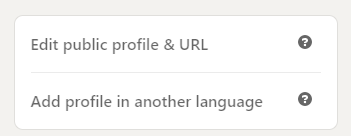
- Click “Edit public profile & URL” (right panel on desktop)
- Under “Edit your custom URL,” click the pencil icon
- Enter your desired URL (3-100 characters: letters, numbers, hyphens only)
- Click “Save”
Why customize: Default URLs contain random characters (linkedin.com/in/john-a1b2c3), while custom URLs are clean (linkedin.com/in/johnsmith), easier to remember, and rank better in Google searches for your name.
Availability: If your preferred URL is taken, try variations like firstname-lastname, firstnamemiddleinitial, or firstname-industry.
Limitations: You can change your custom URL but only a limited number of times (typically 3-5 changes), and changes don’t redirect old URLs automatically—update all references.

Tips for Choosing a Custom LinkedIn URL
Essential guidelines:
- ✓ Use your full name: firstname-lastname format (e.g., linkedin.com/in/sarah-johnson)
- ✓ Keep it simple: Avoid numbers, underscores, or special characters unless necessary
- ✓ Match other platforms: Use consistent naming across Twitter, GitHub, and your website
- ✓ Consider SEO: Your name as URL helps your profile rank when people Google you
- ✓ Add credentials if needed: For common names, append designations (linkedin.com/in/johnsmith-cpa)
- ✗ Avoid: Random numbers, multiple hyphens, nicknames that don’t match your professional name, URLs longer than 50 characters
If your name is taken: Try firstname-middlename-lastname, firstname-lastname-city, or firstname-lastname-title (e.g., linkedin.com/in/john-smith-marketing).
Professional consistency: Your LinkedIn URL should align with how you’re addressed professionally—use the name on your resume and business cards.

FAQ
Can I have multiple LinkedIn URLs?
No. Each LinkedIn account gets exactly one profile URL. You cannot create multiple public URLs for the same profile or have multiple profiles (LinkedIn’s terms prohibit duplicate accounts). If you need separate professional identities, consider using a LinkedIn Company Page for your business alongside your personal profile.
Can I change my LinkedIn URL multiple times?
Yes, but with limitations. LinkedIn allows 3-5 URL changes per account lifetime (the exact limit isn’t publicly disclosed). Changes take effect immediately but don’t redirect old URLs—anyone with your previous URL will get a “profile not found” error. Update all references (resume, business cards, email signature) after changing.
What if my name is already taken?
Try variations: add middle initial (john-m-smith), location (john-smith-nyc), credential (john-smith-mba), or industry (john-smith-marketing). Avoid numbers unless absolutely necessary. Consistency with other professional platforms matters more than perfection—choose a variation you’ll use everywhere.
Does changing my LinkedIn URL affect SEO?
Temporarily, yes. Google needs time to re-index your new URL (typically 2-4 weeks). Previous backlinks to your old URL will break unless you manually update them. Long-term, a custom URL containing your name improves SEO by matching common search queries. Set your URL once and avoid frequent changes.
Can I use special characters in my LinkedIn URL?
No. LinkedIn allows only letters (A-Z), numbers (0-9), and hyphens (-). Spaces, underscores, periods, and other special characters are prohibited. URLs must be 3-100 characters long. The hyphen is useful for separating name components (john-smith) but avoid multiple consecutive hyphens.
Customize your LinkedIn URL now
Finding and customizing your LinkedIn URL takes under 2 minutes but significantly impacts your professional brand. Use your custom URL consistently across resumes, email signatures, and business cards to increase profile visibility and establish credibility.
Your LinkedIn profile is your digital business card in today’s connected world. Make it easy for opportunities to find you by ensuring your LinkedIn URL is clean, accessible, and prominently displayed across all your professional materials. You can also be found more easily in LinkedIn’s search function with a custom URL.