
TL;DR
Overwhelmed by Gmail’s sending limits for your prospecting? Discover how to send emails without getting blocked, how many per day, and what to do if you’re detected.
– Understand Gmail limits (500/day) and Workspace limits (2000/day), and the “sandbox” for new accounts.
– Adopt a gradual approach: start with 10-100 emails/day and progressively increase your volume.
– Avoid common mistakes like sending to invalid addresses or overwhelming a single contact.
– Explore solutions like external email (SMTP) or multiple addresses to scale your outreach.
If you’ve ever wanted to email a lot of people, you might have stopped without knowing the consequences. We love that you’re thinking smart. Here’s information that will help you answer all of Gmail’s email sending rules regarding sending and receiving limits and what email limits Gmail has.
When sending a large number of emails to capture leads, there are a few things you have to consider beforehand. For starters, make sure that what you are sending is relevant to who you are sending it to. You’ll also want to consider your options when it comes to contacting.
There are many different ways to contact people you’d like to build a business relationship with, and sending, cold email copywriting on LinkedIn is a good option, in addition to the ones you already have. But if you have a list of emails that you haven’t reached out to (at all or in a long time), this is a great opportunity to do so. Try these tips to do so via Google.
Want to check your Gmail limits?
Sending too many emails can hurt your account. Use our simulator to calculate the duration of your lead prospecting campaigns and the impact of the number of emails sent per day on their duration.
Different Types of Gmail Accounts
There are two main types of Google email accounts: Gmail and Workspace (formerly G Suite), with Gmail being the everyday user, and Workspace being a professional account generally for businesses with numerous users.
You likely have a Workspace account if the domain (the part that appears after the @ sign in your email) is your company’s name and not “Gmail.com”. If you created your account on Gmail, you did so for free, whereas on Workspace – unless you’re on a trial – you did not (or your company did).
Gmail Email Limits: What is the “Sandbox”?
The Sandbox is a term created for the period of time between the creation of a new email on your platform and the time they consider you not to be a bot. In other words, when you start a new account on Gmail or Workspace from scratch.
This is the time that passes between determining whether you are a human or a bot. To improve your vision on this, you can read our article on DKIM, SPF, and everything that helps you improve your deliverability.
When starting a new account, you are essentially on probation for approximately 4-8 weeks. Only Google knows the exact logic behind this. They expect the natural sending of emails from a real person to increase progressively. If they see too many emails being sent too quickly, you will receive two warnings and then be banned.
In addition to tracking whether you are sending emails progressively, they look at whether you are also receiving emails with attachments and photos, as well as normal plain text. An important part of this is that they open your emails, and especially that they do not mark them as spam.
Essentially, they are looking to know if you are a real person. Google knows that if you have a new email, especially within a company, you will primarily receive internal emails for the first few days. Over time, they will see that you will start sending and receiving external emails and performing “normal” email activity. Some of these will naturally have attachments, others images, and others a fully designed email.
After a few weeks, you will typically be integrated and part of the team. The algorithm then labels you as a real human and takes you out of the sandbox. Although this takes a few weeks, generally for new emails you will be out of these restrictions.
Why is there a limit on sending and receiving emails?

Unfortunately, there are bad companies and people who try to cheat the system. They try to bypass spam laws and blockers by creating mass emails and using spam bots to scam people.
Therefore, Gmail puts these limits because it wants to maintain its sending reputation so as not to be labeled as spam by other email platforms. This is especially true for business emails that have strong email systems built for protection against them.
Because of this, you want your legitimate email to actually be received by the person it’s intended for, right? So follow these rules and you won’t get blocked.
What are Gmail’s sending limits?
Gmail does not advertise its exact algorithm. Partly because it can vary from day to day, let alone from account to account. Therefore, what the system generally looks for is a way to determine if you are a human or a bot trying to take advantage.
What this means for you is that you will have to make sure that you are not sending emails in bulk. This type of activity makes you look like a spam bot and will quickly be labeled as such. This is in line with what we discussed earlier about the sandbox. Google will be able to detect if you are sending emails gradually and not 500 in one day suddenly.
According to Google, “normal” behavior is a gradual increase. They do not expect to see a large amount when you have previously been sending 2 to 10 per day. The best way to start sending more emails to potential clients or connections is to do so with a purpose.
The reason?
- Gmail tells you that you can send up to 500 emails per day.
- Google tells you that you can send up to 2,000 emails per day on Workspace.
What they don’t tell you
If you reach those numbers suddenly in a few days, they will flag your account. If you continue sending that amount, you will be quickly blocked. Below you will see how you can deal with this and why you should never send the maximum they allow.

To ensure your email is not banned, you have to be mindful of sending amounts. Based on our experience and our campaigns, this is what we recommend sending per day if you have a regular use email:
| Gmail | Workspace | Recently Created Email |
| Super safe: 40 | Super safe: 100 | Gmail: 10-50 |
| Safe: 90 | Safe: 150 | Workspace: 20-50 |
| Aggressive: 150 | Aggressive: 500 |
If you follow these guidelines – again, incrementally over time – you will stay off Google’s blacklist.
Is there a limit to receiving emails on Gmail accounts?
Get 3.5x More Leads!
Looking to improve your sales department’s efficiency? LaGrowthMachine allows you to generate an average of 3.5x more leads, while saving an incredible amount of time on all your processes. By signing up today, you get a 14-day free trial to test our tool!
Fortunately, there is no penalty for receiving a large number of emails. This tends to lean more towards Google seeing you as a legitimate person and not a bot. They do have recommended limits as to the quantity, but this is not commonly achieved. Most people, even if they send a large amount, do not end up receiving the same amount back.
In fact, if you receive a lot back, it may even help you get out of the famous Sandbox faster! Sending emails that are relevant to the recipient is a good start. Make sure your subject line (to start) is not announcing a free iPad or something similar. It will basically guarantee deletion.
You should also encourage people to respond. Ask questions, invite responses about things they might need, find out if they use a particular tool or not and if it works for them. Try not to link too much to external websites either. Whatever it is, the more direct responses you can get, the better your email sending status will be.
The different Gmail error messages
If you cross the line, you will receive some kind of error message or warning. Depending on which rule you have broken, they will inform you of what has happened to your email(s).
The three most common are:
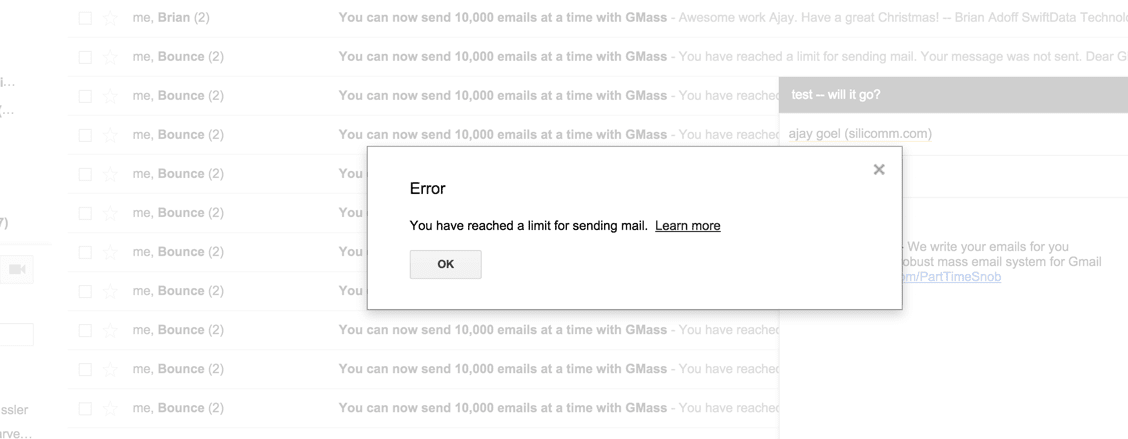
- “You have reached a limit for sending mail“. You will have to wait at least a day before sending more emails. Do so with caution (do not send another 500) when you do so that you are not banned.
- “The messages you sent could not be delivered“. This means the emails you are sending are bouncing/not being received. Remove these messages from your contacts.
- “A contact is receiving too much mail“. This means you have sent too many emails to the same address. Check for duplicates on your list or stop sending to that person for a couple of days.
Whatever the error message, make sure to fix it quickly. Repeated violations only make your account more susceptible to suspension. Monitor these notices carefully and make sure you receive them. They may seem like a jumble of emails with technical terms, but they will be key to knowing what you are doing wrong.
Is there any way to avoid Gmail’s sending limits?
If you want to send a large number of emails, start by following the steps above to build a solid relationship with Google. Additionally, you can use these capabilities to allow yourself to do a bit more, a bit faster:
External Email
A good way to send more emails per day is to use a setup in your external email service (like Microsoft Mail or Outlook) via an SMTP connection. Most commonly, companies use API connections, and there are separate guides for the general protocol of sending emails outside of specific services like Google.
Using SMTP allows any email service to send up to 10,000 emails per day, but we only recommend sending about 2,000. Despite coming from this independent email service, the recipient’s provider (Gmail, Yahoo, etc.) may still flag you as spam.
Multiple Email Addresses
Another option is to use these external email systems and create separate identities/emails for them. This way you will not be able to send from a single personal and consistent email. It will also be more difficult for you to maintain. This goes for responding to emails received, as well as managing your list.

If you have LaGrowthMachine, you can create numerous identities for each person on your team. Each person will then have their own list and limits. You can track emails for each team member, connect it with the workflow you want, and include multichannel contacts.
Google Groups
Another option is to use Google Groups. This is an option that you can use to send – according to their rules – up to an unlimited amount of “members”. However, they limit the amount of members you can add when starting a new group to about 100. This is only until the algorithm trusts that you are not spamming people.
Gmail Sending Limit Simulator
When it comes to sending an email message campaign to a larger list of people, we have imagined a safe way to determine how many you can and want to send per day versus how many you should.
If you want to know how many days it will take to send your entire campaign, you can simulate it here: