

You’ve identified the perfect prospect. You know their name, their company, their LinkedIn profile. The only thing standing between you and a conversation is their email address.
Finding that email address used to be a manual, time-consuming process. In 2026, between enrichment APIs, browser extensions, and search patterns, it takes under 60 seconds for most contacts — if you know the right methods.
But not all methods are equal. Some work reliably at scale; others are LinkedIn-dependent and increasingly blocked. Some are free; others require paid subscriptions. And some carry GDPR risk if you’re prospecting into European companies.
We’ve tested all of these across thousands of outbound campaigns at La Growth Machine. This guide covers the 10 methods that consistently deliver verified, deliverable email addresses — ranked from fastest to most manual.
What You’ll Learn
By the end of this guide, you’ll be able to:
- ✅ Find professional email addresses for any prospect using free and paid methods
- ✅ Verify that the emails you find are valid before sending
- ✅ Understand which methods scale and which are one-off
- ✅ Stay GDPR-compliant when enriching European contacts
- ✅ Integrate email finding into a multichannel outreach workflow
Time required: 5–60 seconds per contact (depending on method) Level: Beginner to intermediate
Prerequisites
Before you start, you’ll need at minimum:
- [ ] The prospect’s full name
- [ ] Their company name or company domain (e.g.,
company.com) - [ ] A free account on at least one email finder tool (links below)
The company domain is often the limiting factor. If you only have a company name, a quick Google search usually surfaces the domain.
Method 1 — Email Finder Tools (Fastest & Most Reliable)
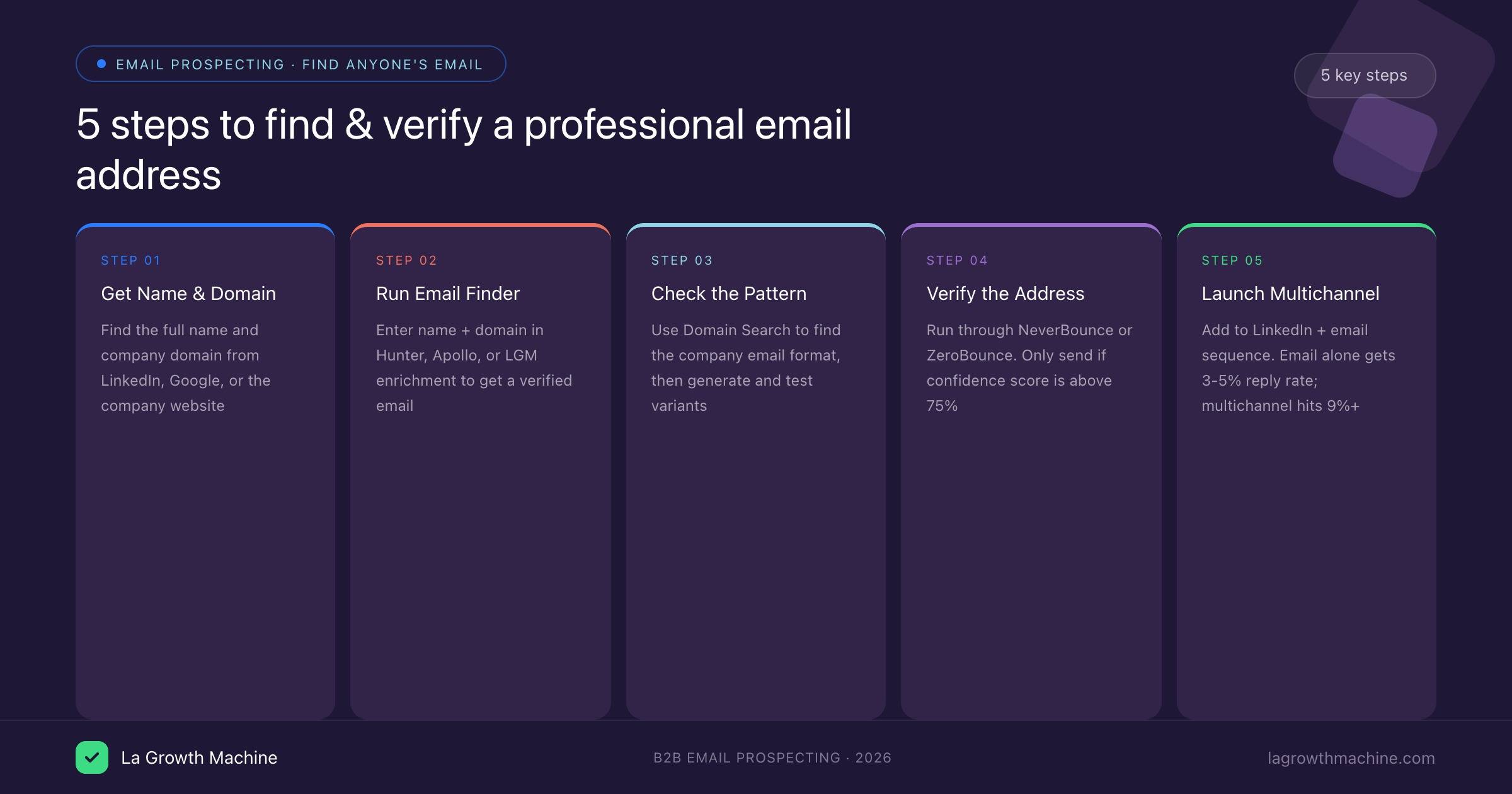
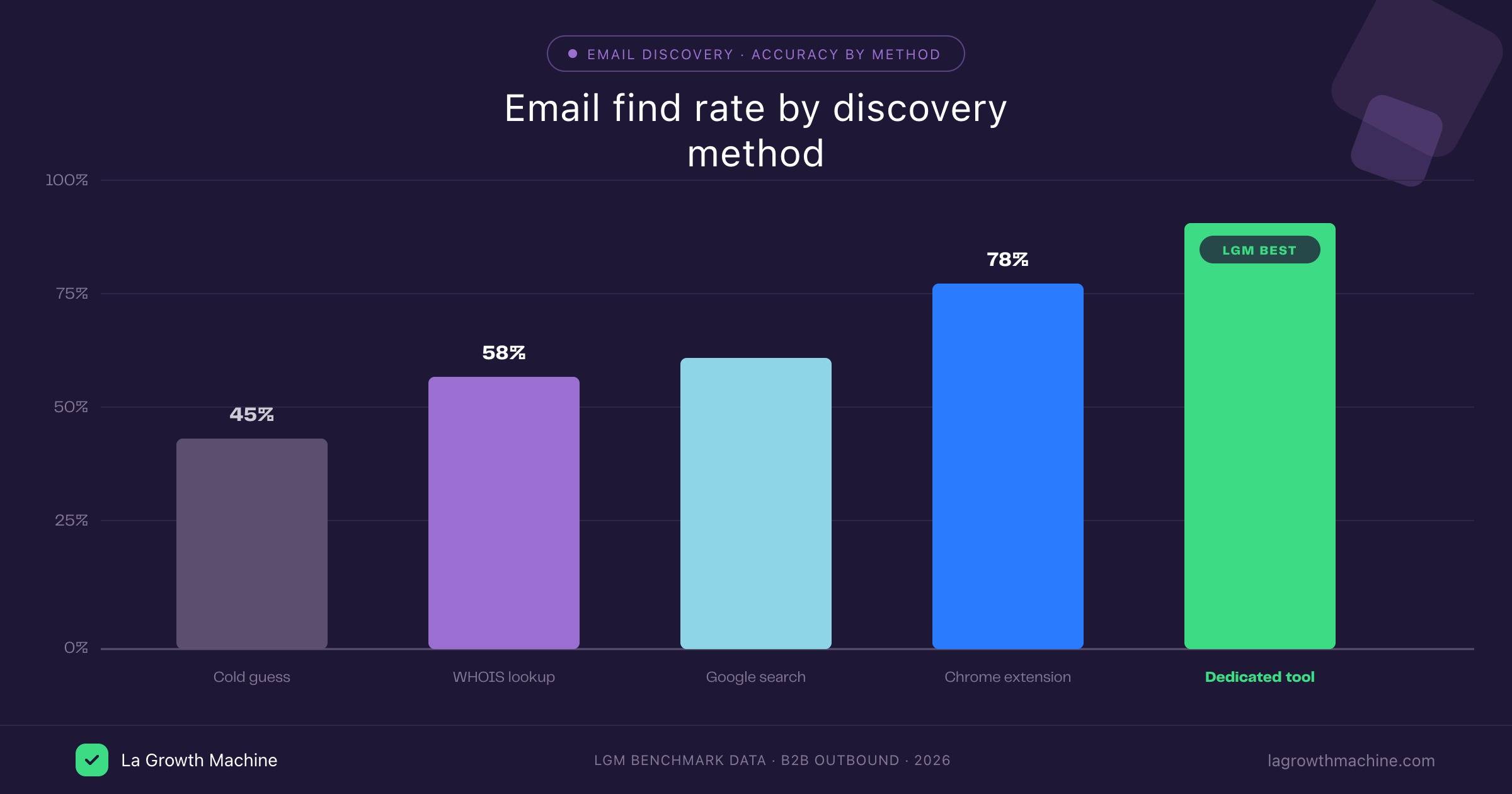
This is where 80% of your email finding should happen. Email finder tools take a name + domain and return a verified email address. The best ones also validate deliverability before returning results.
How it works:
- Enter the prospect’s first name, last name, and company domain
- The tool searches its database and/or applies pattern-matching logic
- It returns the most likely email with a confidence score and verification status
Top tools for 2026:
| Tool | Free tier | Database size | Best for |
|---|---|---|---|
| Hunter.io | 25 searches/month | 200M+ | Quick lookups, domain search |
| Apollo.io | 50 credits/month | 275M+ | Full prospecting platform |
| Dropcontact | Paid only | EU-focused | GDPR-safe enrichment |
| Snov.io | 50 credits/month | 500M+ | Bulk enrichment + verification |
| Clearbit | API-based | 200M+ | Developer/integration use |
Step-by-step with Hunter.io (free tier):
- Go to hunter.io → click Email Finder
- Enter: First name, Last name, Company domain (e.g.,
acme.com) - Hunter returns the email with a confidence score (0–100%)
- Score above 80% → safe to use. Score below 50% → verify before sending
Pro tip: If Hunter doesn’t have the specific contact, use the Domain Search feature. It shows all known email patterns for a company (e.g., {first}.{last}@company.com) — which tells you the format even if your specific prospect isn’t indexed.
LGM native: La Growth Machine has built-in enrichment that finds email addresses automatically during sequence enrollment — no separate tool needed. When you add a prospect from LinkedIn, LGM enriches email, phone, and professional data in one step.
Method 2 — LinkedIn + Chrome Extension
LinkedIn is the world’s largest directory of B2B professionals. Most prospects have an up-to-date profile. The gap: LinkedIn doesn’t show email addresses. Chrome extensions fill that gap.
How it works: Extensions run in the browser while you visit a LinkedIn profile. They cross-reference the profile against email databases and surface the associated email in a sidebar.
Top extensions:
- Hunter for Chrome — shows email directly on the LinkedIn profile page, free tier
- Apollo Chrome Extension — full contact card with email, phone, job title
- Kaspr — particularly strong for European contacts
- Lusha — good for US/UK contacts, free tier with 5 credits/month
Step-by-step:
- Install the Chrome extension (we’ll use Hunter as example)
- Log into LinkedIn and navigate to your prospect’s profile
- The extension panel appears on the right side of the page
- Click Find email — the tool searches in real time
- If found: email appears with confidence score
- If not found: fall back to Method 3 or 4
Limitation: LinkedIn has tightened restrictions on data scraping since 2024. Extensions work on individual profile visits but will hit rate limits if you try to visit 100+ profiles per day. For volume, use a dedicated enrichment tool or the LGM workflow described at the end of this guide.
Method 3 — Email Permutator + Verification
Even without a database match, you can find most professional emails by generating likely combinations and verifying which one exists.
The logic: Most companies use one of a handful of email formats:
Step-by-step:
- Visit mailmeteor.com/email-permutator (free tool)
- Enter first name, last name, and domain
- The tool generates all common variants (usually 10–15 combinations)
- Copy the list into a free email verifier:
– NeverBounce (100 free verifications/month) – ZeroBounce (100 free/month) – Hunter Verifier (included in free tier)
- The verifier pings each address to check if it exists on the mail server
- One address will come back Valid — that’s your email
When to use this method: When your email finder tool doesn’t have a record for the specific contact but you know the company email format (from Domain Search or a colleague’s known email).
Accuracy: ~85–90% success rate when you have the right domain and the prospect hasn’t recently changed jobs.
Method 4 — Google Search Operators
Google can surface email addresses that are publicly visible but not indexed by email finder databases. This method is slower but effective for senior contacts, academics, and people who maintain personal websites.
Search patterns to try:
"firstname lastname" "@company.com"
site:company.com "firstname lastname"
"firstname lastname" "email" site:linkedin.com
"firstname lastname" contact filetype:pdf
Step-by-step:
- Open Google and try the patterns above in order
- First pattern often works for executives who publish their email in press releases, whitepapers, or event bios
- The
site:company.compattern finds internal pages that list employee contacts (team pages, speaker bios) - The
filetype:pdfpattern works well for conference speakers and academic contacts who list email in presentation PDFs - If any result shows the full email address, copy it; if it shows a partial (e.g.,
john@[...]), you have the format — combine with Method 3
Pro tip for senior contacts: CEOs and founders frequently publish their email in media interviews, investor updates, and LinkedIn articles. A targeted Google search often surfaces these faster than any tool.
Method 5 — Company Website & Team Pages
Simple but often overlooked: a significant percentage of companies publish contact emails directly on their website.
Where to look:
/teamor/about-us→ individual employee profiles sometimes include emails/contact→ generic contact form, but sometimes shows a direct email- Press releases → journalists’ contact often includes a direct email, which reveals the format
- Blog posts → author bio sometimes includes email
- Investor Relations page → if the company is public, IR contacts are always listed
Step-by-step:
- Visit the company website
- Check the URL patterns above
- If you find any employee’s email (even not your target), you now have the email format for the company
- Apply that format to your target contact using Method 3’s verification step
Method 6 — WHOIS Domain Lookup
For small companies and consultants, the person who registered the company domain often used their personal or primary business email — which is publicly visible in the WHOIS registry.
Step-by-step:
- Go to whois.domaintools.com or who.is
- Enter the company domain (e.g.,
company.com) - Check the Registrant Email field
- If not redacted: you have a direct email for whoever registered the domain (often the founder/CEO)
Limitation: Since GDPR implementation in 2018, many registrars automatically redact personal information in WHOIS for .com and EU domains. This method works best for:
- Recently registered domains (before the registrar set up privacy protection)
- Non-EU companies in registrars that don’t auto-redact
- B2B contacts at very small companies where the founder registered the domain themselves
Method 7 — Twitter / X Bio and Replies
Twitter/X remains a source of professional emails that most sales reps ignore. Many B2B professionals — especially in sales, marketing, and tech — list their email in their bio or have mentioned it in replies.
Step-by-step:
- Search for the person on Twitter/X
- Check their bio (many people put
[email protected]orDM for email) - Search
from:@username emailto see if they’ve mentioned it in a tweet - Use Twitter/X advanced search:
from:@username "@company.com"— this often surfaces if they’ve ever posted their email
When this works best: SaaS founders, sales leaders, and developer-facing roles are most likely to have their email publicly visible on Twitter. Enterprise procurement contacts: almost never.
Method 8 — LinkedIn “Contact Info” Section
This is obvious but genuinely missed by many teams. A subset of LinkedIn users voluntarily list their email address in the Contact Info section of their profile — visible to 1st-degree connections.
Step-by-step:
- Visit the prospect’s LinkedIn profile
- Click Contact info (below their profile photo and summary)
- Check for Email — if listed, it’s there directly
- If you’re not connected: send a connection request. Once accepted (typically 30–50% acceptance rate for personalized requests), the Contact Info becomes visible
Bonus method: Some people list their email in their profile’s About section or in their Featured posts. Run Ctrl+F for @ on their profile page — it catches emails scattered anywhere in the visible text.
Method 9 — Professional Enrichment APIs (For Teams at Scale)
If you’re finding emails for hundreds or thousands of contacts, manual methods don’t scale. Enrichment APIs let you submit a batch of names + domains and receive verified emails back.
Top enrichment APIs:
- Clearbit Enrichment — best-in-class data coverage for North America and Europe
- Dropcontact — best for GDPR-compliant EU enrichment, no manual review needed
- Hunter Bulk — upload a CSV of name + domain pairs, get emails back
- Apollo Bulk Export — pull enriched contact data for full lists
Typical workflow:
- Export your prospect list as a CSV (name, company, domain)
- Upload to the enrichment tool’s bulk feature
- Download enriched CSV with email addresses and confidence scores
- Filter for confidence ≥ 80%, validate the rest with a verification tool
Cost: Most bulk enrichment plans start at $49–99/month for 1,000–5,000 credits. At scale, the time savings easily justify the cost — enriching 500 contacts manually would take 4–8 hours; bulk enrichment takes 10 minutes.
Method 10 — La Growth Machine Native Enrichment
If you’re running multichannel outreach sequences (LinkedIn + email), there’s no reason to find emails as a separate step. La Growth Machine enriches contacts automatically as part of the sequence setup.
How it works:
- Add a prospect from LinkedIn (via the LGM Chrome extension or CSV import)
- LGM automatically triggers enrichment in the background — finding email, phone, and additional professional data
- The sequence only moves to the email step once a valid email has been found and verified
- If no email is found, the sequence runs LinkedIn-only — no failed sends, no bounces
Why this matters: Disconnecting the “find email” step from the “send email” step creates friction and data quality problems. Enriched emails that are 3 days old have higher deliverability than those found weeks in advance (job changes). LGM’s real-time enrichment solves this by enriching at the point of outreach.
Choosing the Right Method for Your Use Case
| Use case | Best method |
|---|---|
| 1–10 contacts, quick lookup | Hunter.io or Apollo free tier |
| LinkedIn-based prospecting | Chrome extension (Hunter/Apollo) |
| 100–1,000 contacts at once | Bulk enrichment API or LGM |
| EU contacts, GDPR required | Dropcontact or LGM |
| Senior executives | Google operators + company website |
| Founders at small companies | WHOIS lookup |
| Tech/developer contacts | Twitter bio + GitHub profile |
| Full multichannel sequence | La Growth Machine (enrichment included) |
How to Verify Emails Before Sending
Finding an email address is only half the battle. Sending to an invalid address hurts your sender reputation and deliverability. Always verify before you send.
Verification methods:
1. Built-in tool verification — Hunter, Apollo, and Snov.io all verify emails as part of their finding process. Trust confidence scores above 75%.
2. Dedicated verifier — For emails found via Google or permutator:
- NeverBounce (100 free/month)
- ZeroBounce (100 free/month)
- Bouncer.io (paid, high accuracy)
3. Catch-all domains — Some company mail servers accept all email regardless of whether the specific address exists (this is called a “catch-all” configuration). Verifiers return “catch-all” or “risky” for these. If you see this status:
- Use the email cautiously — it may work or may not
- Check if multiple contacts at the same company also return “catch-all”
- Prioritize LinkedIn outreach for catch-all domains
Email validity benchmark: Good enrichment tools deliver 85–95% valid emails. If you’re consistently seeing 20%+ bounce rates, switch tools or add a verification layer.
GDPR and Email Finding: What You Need to Know
If you’re prospecting into European companies or targeting EU-based contacts, you need to understand the rules.
The short version:
- Finding a professional email address from public sources (LinkedIn, company website, directory) for legitimate business outreach is generally permissible under GDPR’s “legitimate interest” legal basis
- You need a plausible professional reason for outreach — cold outreach to random contacts without relevance is a grey area
- You must provide an opt-out mechanism in your first email
- You must delete data on request if the contact asks you to
What this means in practice:
- Outreach to a VP Sales at a company whose profile matches your ICP = generally fine
- Mass-purchased email lists without any targeting = high risk
- Using Dropcontact for EU contacts is the safest enrichment path — they guarantee GDPR compliance and don’t store personal data
Always include in first email to EU contacts:
You can opt out of future emails at any time by replying to this message.
Common Mistakes That Kill Deliverability
Mistake 1: Sending without verification
An unverified list with 10% bounce rate can get your domain blacklisted within days. Never skip verification.
Mistake 2: Using personal emails for B2B outreach
[email protected] should almost never be used for B2B outreach. If someone’s business email is unavailable, their LinkedIn is the better channel.
Mistake 3: Enriching once, never refreshing
People change jobs every 2–3 years. A list enriched 6 months ago may have 10–15% stale emails. Re-enrich lists before sending, especially for enterprise contacts.
Mistake 4: Finding the email but ignoring the channel
Email alone gets a 3–5% reply rate on average. The same prospect reached via LinkedIn + email sees 2–3x higher response. Finding the email is step 1 — building a multichannel sequence is how you actually book the meeting.
Mistake 5: Using too many enrichment tools simultaneously
Different tools return different emails for the same contact. Using three tools in parallel creates data conflicts. Pick one primary source and one verification layer.
What to Do After Finding the Email
Finding the email is the research phase. The outreach phase is where pipeline actually gets generated.
The most effective approach is not to send a single cold email — it’s to build a coordinated multichannel sequence that references the same context across channels:
- LinkedIn connection request with personalized note
- Email #1 with signal-relevant subject line and value prop
- LinkedIn follow-up (if connected) 3 days after email
- Email #2 with a relevant case study or social proof
- Final LinkedIn message with a soft close
This sequence structure — with the email you just found as the backbone — consistently delivers 3–5x more replies than a single cold email.
La Growth Machine orchestrates this entire workflow: enrichment, sequence building, multichannel delivery, and CRM sync. Start your free 14-day trial →
Tools Quick Reference
| Tool | Type | Free tier | Best use |
|---|---|---|---|
| Hunter.io | Finder + Verifier | 25/month | Quick lookups |
| Apollo.io | Finder + CRM | 50 credits/month | Full prospecting |
| Dropcontact | GDPR-safe enrichment | Paid only | EU contacts |
| Snov.io | Finder + bulk | 50/month | Bulk enrichment |
| NeverBounce | Verifier only | 100/month | Verification layer |
| Kaspr | LinkedIn extension | 5/month | EU + LinkedIn |
| Mailmeteor Permutator | Permutator | Free | Format guessing |
| La Growth Machine | Enrichment + outreach | 14-day trial | End-to-end workflow |
FAQ
Is it legal to find someone’s email address for cold outreach?
Yes, finding and using professional email addresses for relevant B2B outreach is generally legal in most jurisdictions. In the US, CAN-SPAM compliance requires a physical address and opt-out mechanism. In the EU, GDPR requires legitimate interest, relevance, and an easy opt-out. Always target contacts relevant to your product and include opt-out instructions.
What’s the best free email finder tool in 2026?
Hunter.io (25 searches/month) and Apollo.io (50 credits/month) offer the most useful free tiers. For occasional lookups, Hunter’s Domain Search is particularly useful because it shows the email pattern for any company even if it doesn’t have your specific contact indexed.
How accurate are email finder tools?
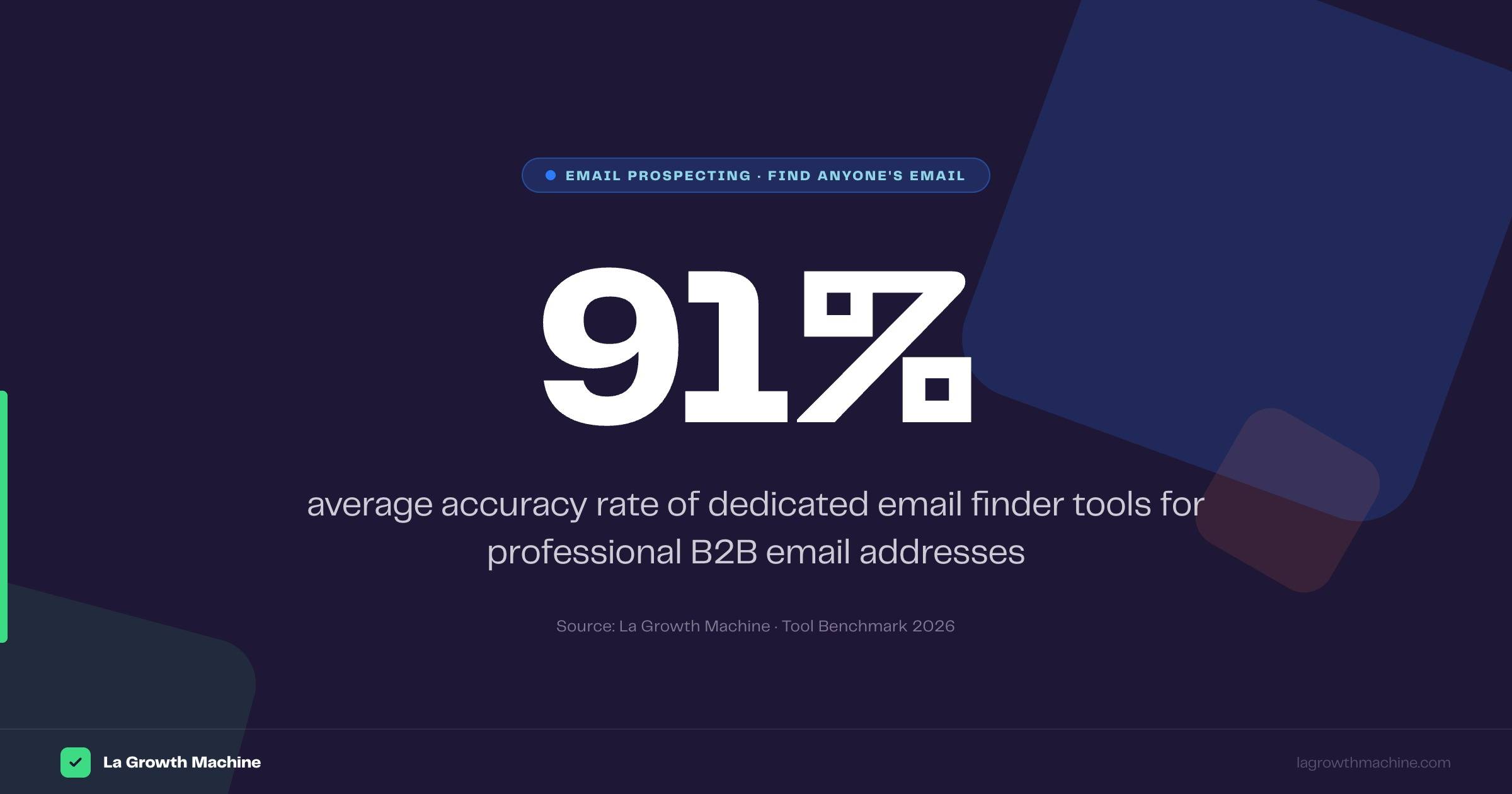
Top tools (Hunter, Apollo, Dropcontact) consistently deliver 85–95% accuracy on professional email addresses. Accuracy drops for very small companies, freelancers, and contacts who have changed jobs recently. Always run a verification pass before sending.
Can I find email addresses from LinkedIn for free?
Yes — several Chrome extensions (Hunter, Apollo, Kaspr) offer a free tier that lets you find emails from LinkedIn profiles. Free tiers range from 5 to 50 lookups per month depending on the tool.
What is a catch-all email domain?
A catch-all domain is configured to accept all incoming emails regardless of whether the specific address exists. This means a verifier can’t confirm or deny individual addresses — it returns “catch-all” or “risky” status. Use caution with catch-all domains: the email may work, but you can’t verify in advance.
How do I find an email address if I only have the person’s name?
Start with LinkedIn to find their current company, then use an email finder tool with their name + company domain. If the domain isn’t obvious, search Google for "firstname lastname" site:linkedin.com to find their profile, then check their company’s website for the domain.
What’s the difference between email finding and email verification?
Email finding discovers what someone’s email address likely is. Verification checks whether that address actually exists and can receive mail. Both steps are necessary — finding without verifying leads to high bounce rates, and verifying without finding gives you nothing to send to.
How many emails can I find for free per month?
Combining free tiers across tools: Hunter (25), Apollo (50), Snov.io (50), NeverBounce verification (100) = roughly 125 verified emails per month at zero cost. For higher volumes, paid plans typically start at $49–99/month for 1,000–5,000 credits.
What should I do if I can’t find someone’s email?
If an email finder, Google search, and permutator all fail, the contact’s email is either very well protected or they’ve recently changed companies. In this case:
- Connect on LinkedIn and message there
- Check if they have a Twitter profile with contact info
- Look for a generic company contact (
[email protected]) and ask to be forwarded - Find a mutual connection who can make a warm introduction
How does La Growth Machine handle email finding?
LGM includes built-in enrichment that automatically finds and verifies email addresses when you add a prospect from LinkedIn. The enrichment runs in real time — the sequence only progresses to the email step once a valid email is confirmed. This eliminates the manual enrichment step and keeps data fresh by enriching at the point of outreach, not weeks in advance.
Next Steps
- Set up your email finder stack — Create a free account on Hunter.io and install the Chrome extension
- Test on 10 prospects — Run your next 10 target contacts through the finder + verifier workflow
- Build a multichannel sequence — Finding the email is step 1. Use La Growth Machine to turn that email into a structured LinkedIn + email sequence that actually books meetings
Related guides:
- Cold Email Deliverability: How to Land in the Inbox, Not Spam
- LinkedIn Automation in 2026: Scale Without Getting Banned
- Buying Signals: The Complete Guide to Signal-Based Outreach