
TL;DR
– A Claude Skill is a folder with a SKILL.md (name + description + instructions) and optional scripts; Claude loads it automatically when your request matches.
– Install it in Claude Code (/plugin, ~/.claude/skills or .claude/skills, or git clone) or enable skills in Claude.ai under Settings then Capabilities.
– Use it by describing the task in plain language, no need to call the skill by name. Create your own by writing a SKILL.md and dropping the folder in.
– Real example: La Growth Machine ships open-source GTM skills (campaign-builder, reply-manager, ICP-finder); the full stack installs with one command.
A Claude Skill is a folder that packages instructions, metadata, and optional scripts so Claude knows how to do a specific task. To use one, you install the skill, then just ask Claude in plain language: it loads the skill automatically when your request matches the skill’s description. You don’t call it by name or copy a prompt. Skills work in Claude Code, Claude.ai, Claude Desktop, and the API.
This guide explains what a Claude Skill is, how skills work under the hood, how to install and invoke one, how to create your own, and a real example: the open-source GTM skills La Growth Machine ships for sales and marketing teams.
What is a Claude Skill
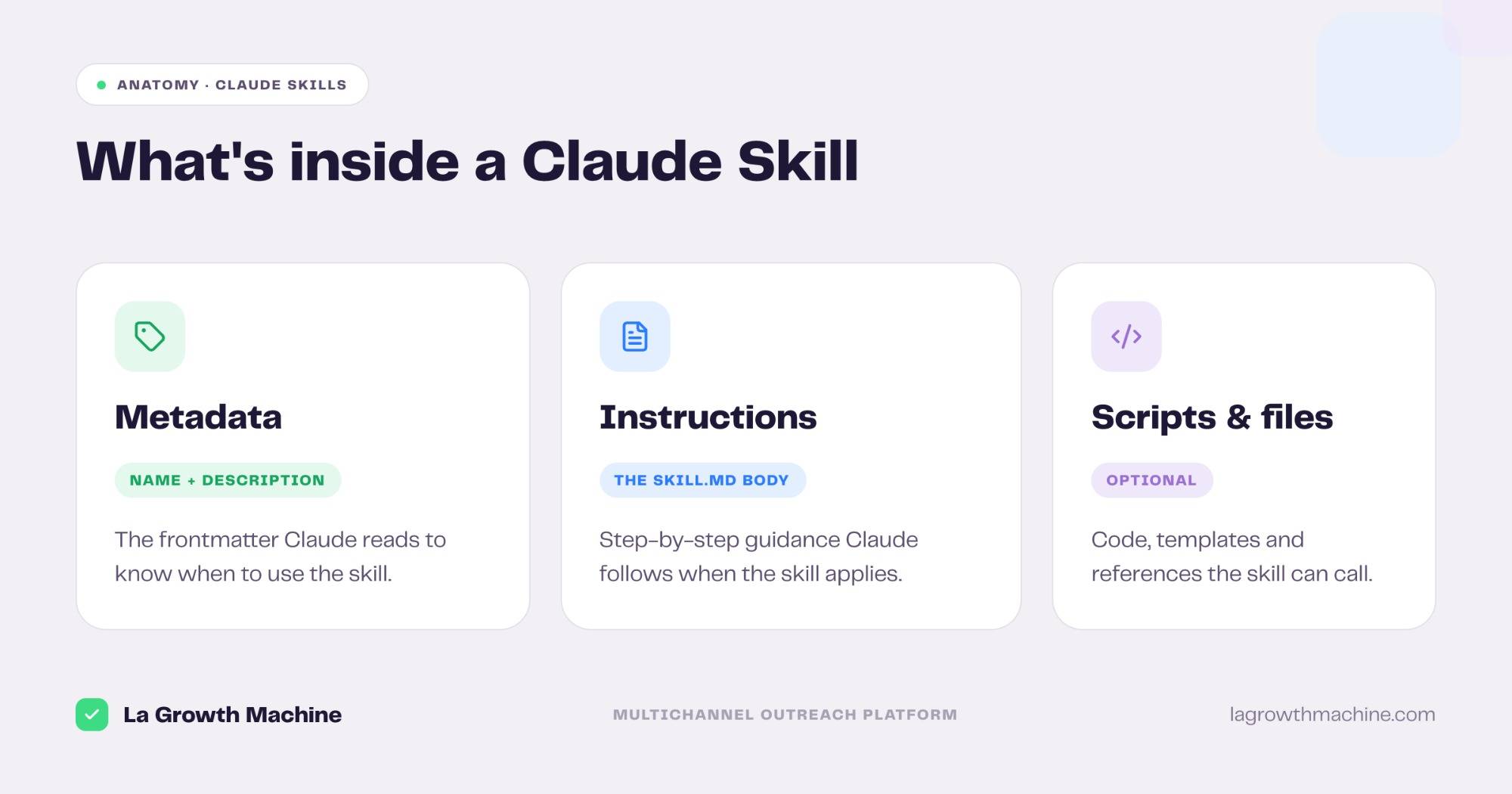
A Claude Skill (officially an Agent Skill) is a modular capability that extends Claude. Each skill is a directory containing at minimum a SKILL.md file, with optional scripts, templates, and reference files alongside it. The SKILL.md starts with YAML frontmatter holding two required fields, name and description, followed by the instructions Claude should follow when the skill applies.
---
name: pdf-filler
description: Fill, merge, and extract text from PDF files.
---

# PDF Filler

When the user asks to fill a form, merge documents, or pull text
from a PDF, use the scripts in this folder. Steps:
1. ...
That’s the whole idea: a skill is instructions plus optional code, written once and reused whenever the task comes up. Skills are part of the broader Claude ecosystem alongside MCP servers; a skill tells Claude how to do something, while an MCP server gives Claude the connection to your data and tools.
How Claude Skills work
When a session starts, Claude preloads only the name and description of every installed skill into its context, not the full instructions. This is called progressive disclosure: the metadata is just enough for Claude to know a skill exists and when it applies. When your request matches a skill’s description, Claude loads the rest of that skill and follows it.
The practical effect: you can have dozens of skills installed without bloating the context, and you never have to remember which one to use. You describe the task, and Claude picks the right skill on its own.
Step 1: Find or create a skill
You have two starting points. Use an existing skill from a marketplace or repo, or write your own.
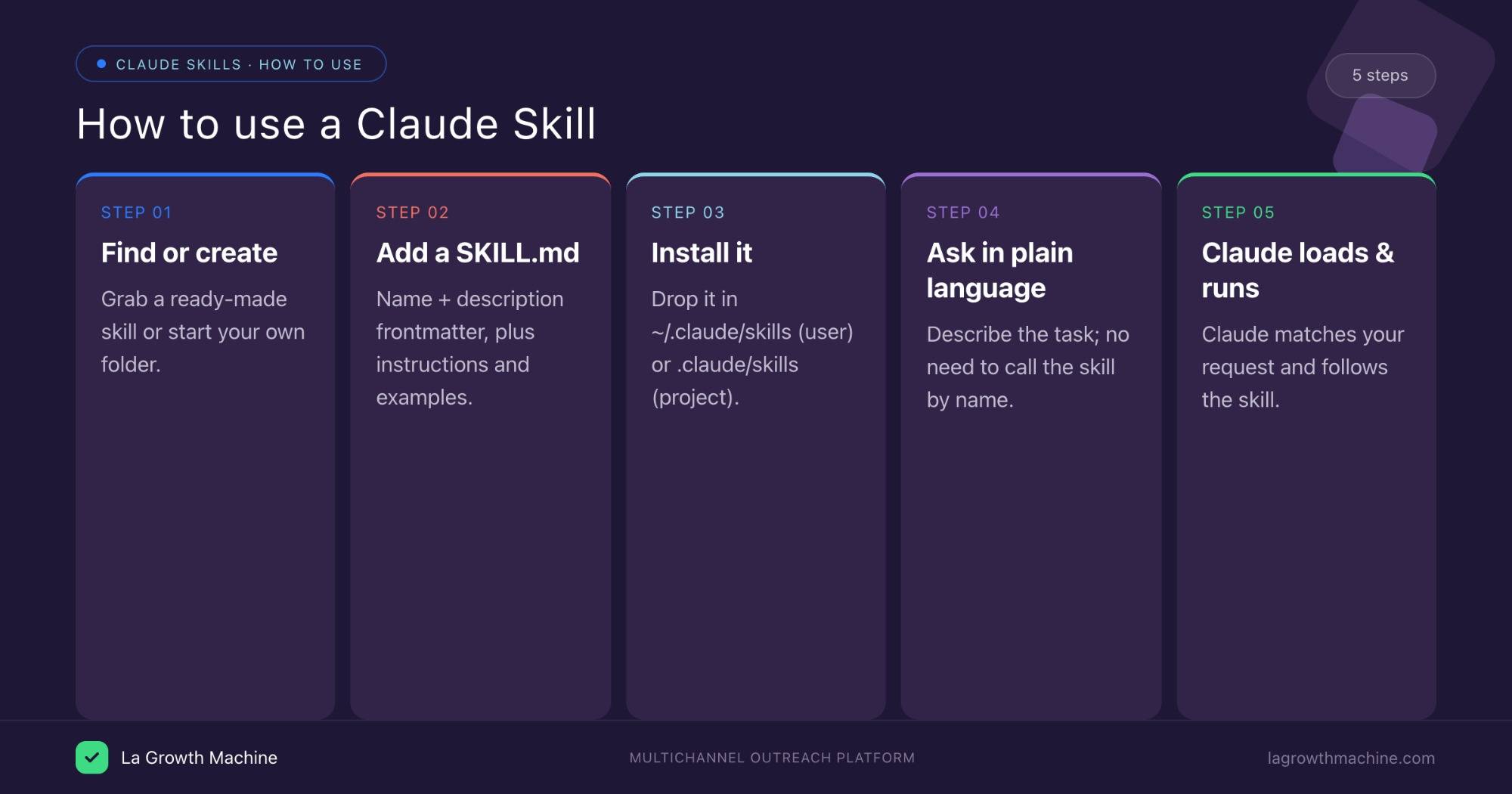
For ready-made skills, Anthropic ships a set out of the box (document skills like pptx, xlsx, docx, and pdf), and there are public catalogs such as the official anthropics/skills repository and community lists. To build your own, the fastest route is to install Anthropic’s native skill-creator skill: it scaffolds the folder, writes a starter SKILL.md with the right frontmatter, and follows the conventions for you, so creating a skill becomes its own guided task (more in Step 4).
Step 2: Install a skill
How you install depends on the host. In Claude Code there are three common ways.
- Plugin browser: type
/plugin, find the skill, and install it. Claude asks for a scope, User (~/.claude/skills/, available in every project) or Project (.claude/skills/, this repo only). - Manual: unzip or copy the skill folder into
~/.claude/skills/(user) or.claude/skills/(project). - Git clone: clone a skill repo straight into one of those directories.
# Manual install of a skill folder, available everywhere
cp -r ./pdf-filler ~/.claude/skills/
In Claude.ai and Claude Desktop, you enable skills in Settings under Capabilities, then upload or toggle the skills you want. The API exposes skills through the skills parameter alongside code execution.
Step 3: Invoke a skill
There are two ways to invoke a skill. If the skill is well written, simply mentioning the action triggers it: Claude matches your request to the skill’s description and loads it, no name needed. If you’d rather be explicit, call it directly with /skill-name.
- “Turn this data into a formatted Excel report.” → the
xlsxskill, triggered automatically. - “Write me a multichannel campaign for SaaS founders.” → the Multichannel Campaign Builder skill, triggered automatically, or run it explicitly with
/multichannel-campaign-builder.
The takeaway: a well-described skill needs no special syntax, you just talk. The /skill-name form is there when you want to force a specific skill or run it without describing the task.
Step 4: Create your own skill
Building a skill takes minutes. The structure is the constraint, not the code.
- Create a folder named in kebab-case (1–64 characters), for example
weekly-report. - Add a
SKILL.mdwith the required frontmatter and clear instructions. Include example inputs and outputs so Claude understands what success looks like. - Add scripts or templates next to it if the task needs them, and list any dependencies in the frontmatter.
- Drop the folder into
~/.claude/skills/(or.claude/skills/for a project) and it’s live.
You can also do all of this by hand, no tooling required: create the folder, write the SKILL.md yourself, add any scripts, and place it in your skills directory. The walkthrough below shows the full manual flow from empty folder to a working, deployed skill.
Two rules matter most. Make each skill do one job well, a focused skill is more reliable than a catch-all. And never embed API keys or tokens in a skill file; use environment variables or an MCP connection for authentication instead.
A real example: the La Growth Machine skills library
A document skill is a good way to learn, but skills get powerful when they encode a real team workflow. La Growth Machine publishes an open Claude Skills library for sales and marketing teams. Each skill carries the real copywriting rules, positioning, and steps a GTM team would otherwise repeat by hand, so the output is on-brand without prompting from scratch. Here are five, with the kind of output each one produces.
Multichannel Campaign Builder
Turns a one-line brief into a full multichannel sequence. From “target Heads of Sales at French B2B SaaS startups,” it returns a 5-touch, 8-day sequence, connection note, problem-first email, a LinkedIn DM with a proof point, a follow-up on a new angle, and a break-up email with a meeting ask, every message ready to copy → Multichannel Campaign Builder
Cold outbound to Heads of Sales at French B2B SaaS startups. Lead angle: “your reps spend 40% of the week on manual prospecting.”
Won-Deal ICP Finder
Audits your closed-won deals to surface your proven ICP and the channel that won them. A sample run reads “47 won deals · €612k” split into ICP archetypes (Scaling B2B SaaS 42%, Agencies 24%, Enterprise RevOps 15%), ranks Outbound (LGM) as the top channel at 38% of won revenue, and outputs a lookalike Sales Navigator search per archetype → Won-Deal ICP Finder
Three archetypes account for 81% of closed-won revenue over the last 12 months. Each comes with a one-click Sales Nav search to find more.
Software Development · 51–200 · HubSpot stack · Series A–B
Marketing & Sales agencies · 11–50 · founder-led buying
Tech / Internet · 201–500 · Salesforce · multi-seat
Campaign Impact Analyzer
Ranks your campaigns by real pipeline by cross-referencing La Growth Machine with your CRM. A 90-day run shows 14 campaigns and €128k pipeline with a verdict each: RevOps/HubSpot stack €61k (Scale), Founders/Seed-Series A €39k (Scale), cold enterprise list €0 (Stop), so you optimize for revenue, not reply rate → Campaign Impact Analyzer
14 La Growth Machine campaigns cross-referenced against your HubSpot deals — ranked by the pipeline each one actually generated.
Browse the full set in the La Growth Machine Claude Skills library.
Tips and best practices
- One skill, one job. Reliability beats novelty. A narrow skill triggers correctly and produces trustworthy output.
- Write the description for the matcher. Claude decides when to use a skill from its
description. Make it specific about the task and the trigger. - Show examples. Example inputs and outputs in the
SKILL.mdteach Claude what good looks like. - No secrets in files. Use environment variables or MCP configuration for credentials.
- Scope deliberately. Install team-wide skills at the user level and repo-specific ones at the project level.
Frequently asked questions
What is a Claude Skill? A folder containing a SKILL.md (instructions plus name and description metadata) and optional scripts. Claude loads it automatically when your request matches the description.
How do I install a Claude Skill? In Claude Code, use the /plugin browser, copy the folder into ~/.claude/skills/ or .claude/skills/, or git clone a skill repo there. In Claude.ai and Desktop, enable skills under Settings then Capabilities.
How do I use a skill once it’s installed? Just describe the task. Claude matches your request to a skill’s description and loads it, no need to call it by name.
Do I need to code to use Claude Skills? No. Using an existing skill needs no code. Creating one requires writing a SKILL.md, and only some skills include scripts.
What’s the difference between a skill and an MCP server? A skill tells Claude how to do a task (instructions and steps). An MCP server gives Claude the connection to external data and actions. They complement each other.
Where can I find good skills? Anthropic’s built-in document skills, the official anthropics/skills repo, community catalogs, and vendor skills like La Growth Machine’s GTM set.