

TL;DR
– LinkedIn X-Ray search finds public LinkedIn profiles for free using Google Boolean operators — no Premium needed, but no email addresses or automation.
– Sales Navigator gives advanced search filters and real-time data but still requires a separate tool for outreach automation.
– La Growth Machine turns any LinkedIn profile list into an automated multichannel sequence — connection request, follow-ups, email enrichment, all from €60/month.
– Use X-Ray or Sales Navigator to build your list, then import into LGM to automate outreach and book meetings at scale.
LinkedIn X-Ray search uses Google’s site: operator to search LinkedIn profiles without needing Sales Navigator or a Premium subscription. It’s free, surprisingly powerful, and completely overlooked by most sales teams. While most guides focus on finding emails or building massive lists, X-Ray search is genuinely useful for targeted prospecting when you know exactly who you’re looking for. This guide covers exactly how to use it, what the real limitations are, and what to do once you’ve found your prospects. Because finding a list of profiles is only half the job.
What Is LinkedIn X-Ray Search?
Google indexes the vast majority of public LinkedIn profiles. That means you can use Google’s own search interface to query LinkedIn’s data, without logging into LinkedIn, without a Premium subscription, and without paying for Sales Navigator.
X-Ray search is the practice of combining Google Boolean search operators with the site:linkedin.com/in/ filter to narrow down results to specific LinkedIn profile URLs. The term “X-Ray” comes from the idea of looking through a website’s surface to search its indexed content directly.
A few things worth understanding before you start:
- Works without any LinkedIn account or Premium subscription
- You see the Google snippet (name, headline, location) rather than the full profile, unless you’re logged in to LinkedIn
- Results are drawn from Google’s index of LinkedIn, not from LinkedIn’s own database
- It’s completely free and requires no tools or extensions
The limitation is real: you’re working with Google’s snapshot of LinkedIn, not a live feed. But for targeted searches, it works remarkably well.
The Basic LinkedIn X-Ray Formula
The core formula is straightforward:
` site:linkedin.com/in/ “[job title]” “[company]” “[location]” `
Each term in quotes tells Google to find profiles where that exact phrase appears. The site: prefix restricts results to LinkedIn profile URLs only.
Real examples:
site:linkedin.com/in/ "head of sales" "SaaS" "Paris"site:linkedin.com/in/ "VP Marketing" "fintech" "London"site:linkedin.com/in/ "SDR" OR "BDR" "B2B" "New York"
The third example uses the OR operator to catch profiles that mention either SDR or BDR, which is useful when job titles vary across companies.
Start with two or three terms. Too many constraints return zero results. Too few return noise. The goal is to narrow down to a manageable, relevant list, not to recreate Sales Navigator’s database.
Advanced X-Ray Operators
Once you’re comfortable with the basic formula, a few additional operators significantly improve precision.
AND / OR / – (exclude)
Use AND between required terms, OR between alternatives, and - to exclude terms you don’t want:
` site:linkedin.com/in/ “sales director” -“assistant” `
This returns profiles that include “sales director” but excludes any profile that also mentions “assistant director” or “executive assistant.” Useful for filtering out executive assistants who have “director” adjacent titles.
Exact phrases with quotes
Always wrap multi-word job titles in quotes. Without quotes, Google treats each word separately and the results get noisy fast:
` site:linkedin.com/in/ “head of growth” “e-commerce” “Berlin” `
Location targeting
Add the city name in quotes. Google typically indexes location data from the LinkedIn profile header, so this works reliably for major cities:
` site:linkedin.com/in/ “chief revenue officer” “Amsterdam” `
Industry signals
Since you can’t filter by industry directly, use company names or industry keywords that appear in profiles:
` site:linkedin.com/in/ “product manager” “Stripe” OR “Brex” OR “Ramp” `
The intitle: operator
This restricts matches to the HTML page title only, which on LinkedIn corresponds to the person’s name and job title. It’s more precise than a general query:
` intitle:”sales manager” site:linkedin.com/in/ `
Combining with Sales Navigator imports
If you do have Sales Navigator, X-Ray is a good complement: use it to find specific individuals that Sales Navigator filters miss (because their profiles are public but not fully indexed in Navigator’s database), then export the profile URLs to import into your outreach tool.
LinkedIn X-Ray Search: Limitations
X-Ray search is genuinely useful, but it has real constraints that you need to plan around.
Only public profiles are visible. If someone has set their LinkedIn profile to private, Google can’t index it. Depending on your target audience, this can mean a significant portion of the people you’re looking for are invisible.
No email addresses. You get the name, headline, and LinkedIn profile URL. No contact information, no direct message button, no email. You’ll need a separate enrichment step to get contact details.
No contact info or direct messaging. Even if you find the right person, you can’t reach out from the search results. You need to go to their profile, connect, and then message, or find their email another way.
Google rate limiting. Google may slow down or temporarily block searches if you run too many queries in quick succession. This is not a scalable data extraction method. For volume prospecting, Sales Navigator or a dedicated database is more appropriate.
Index lag. Google’s snapshot of LinkedIn can be days or weeks behind. Job title changes, new hires, and company changes may not appear in Google’s index yet. Someone who became Head of Sales last week might still show as Sales Manager in X-Ray results.
No advanced filters. You can’t filter by number of connections, company headcount growth, years of experience, or seniority level. If those filters matter for your ICP (Ideal Customer Profile), X-Ray alone won’t get you there.
For small, highly targeted lists, these limitations are manageable. For building a database of 500 contacts, you need a different approach.
What Happens After X-Ray Search? The Missing Step
Most guides stop at “here’s how to find profiles.” The real question is: what do you do with a list of 50 LinkedIn profile URLs?
This is where most people hit a wall. You have a list of names and LinkedIn URLs. Now what?
The manual approach: visit each profile, send a connection request, write a personalized note, wait for acceptance, then send a follow-up. If no response, try to find their email manually, send an email, follow up again. For 50 people, that’s hours of work. For 200 people, it’s not realistic.
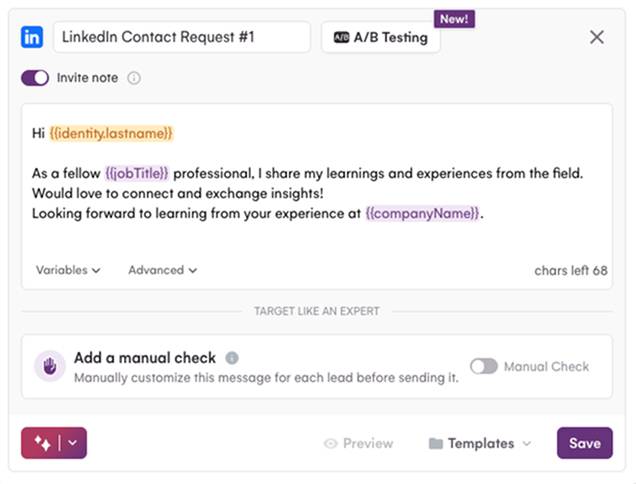
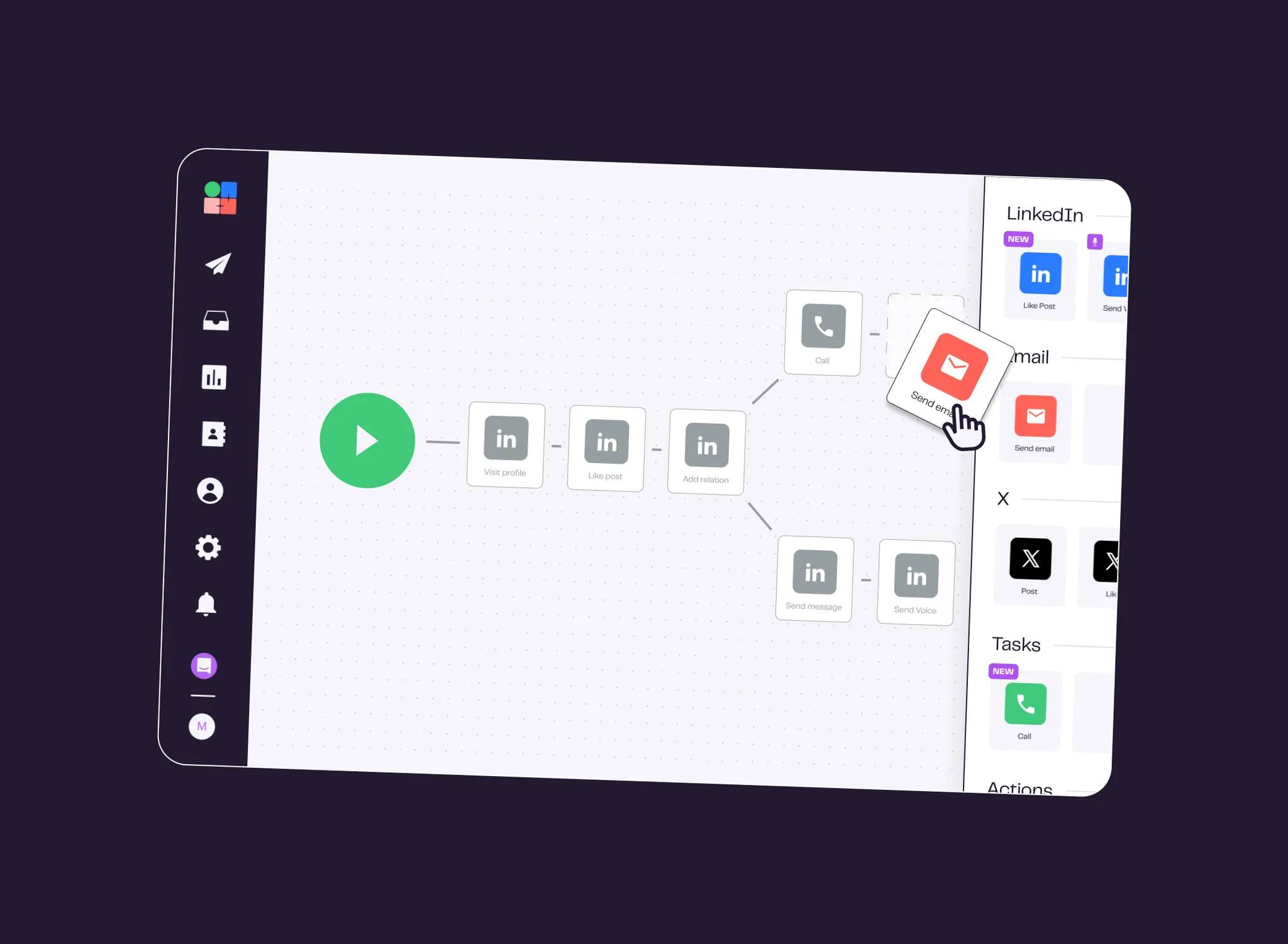
The LGM approach: import the LinkedIn profile URLs directly into La Growth Machine. From there, the entire sequence runs automatically: Social Warming before the connection request (LGM visits the profile and likes a recent post, so your name is familiar before you even connect), automated connection request with a personalized note, two or three follow-up messages on LinkedIn, and if no connection is accepted after seven days, an automatic switch to email, with the email address found via waterfall enrichment.
LGM features that make X-Ray lists actionable:
- Import LinkedIn profile URLs directly: paste the URLs from your Google results, LGM handles the rest
- Social Warming: LGM visits the profile and likes a post before sending a connection request, which increases acceptance rates significantly
- Automated connection request and follow-up sequence: set it once, LGM sends at the right intervals
- Waterfall enrichment: if you need email addresses, LGM queries multiple providers in sequence until it finds a verified address
- Automatic channel switching: if no LinkedIn connection after a set number of days, the sequence switches to email automatically, without manual intervention
- Unified inbox: all replies, from LinkedIn and email, in one place
The X-Ray list is the starting point. LGM is what turns it into actual meetings.
X-Ray Search vs Sales Navigator: Which Is Better?
The honest answer is: it depends on your use case and budget.
| X-Ray Search (Free) | Sales Navigator ($99/month) | |
|---|---|---|
| Cost | Free | $99/month |
| Search filters | Basic (Google operators) | Advanced (50+ filters) |
| Results per search | ~10 at a time | Unlimited |
| Real-time data | No | Yes |
| Email addresses | No | No |
| Automated outreach | No | No |
| Works with LGM | Yes | Yes |
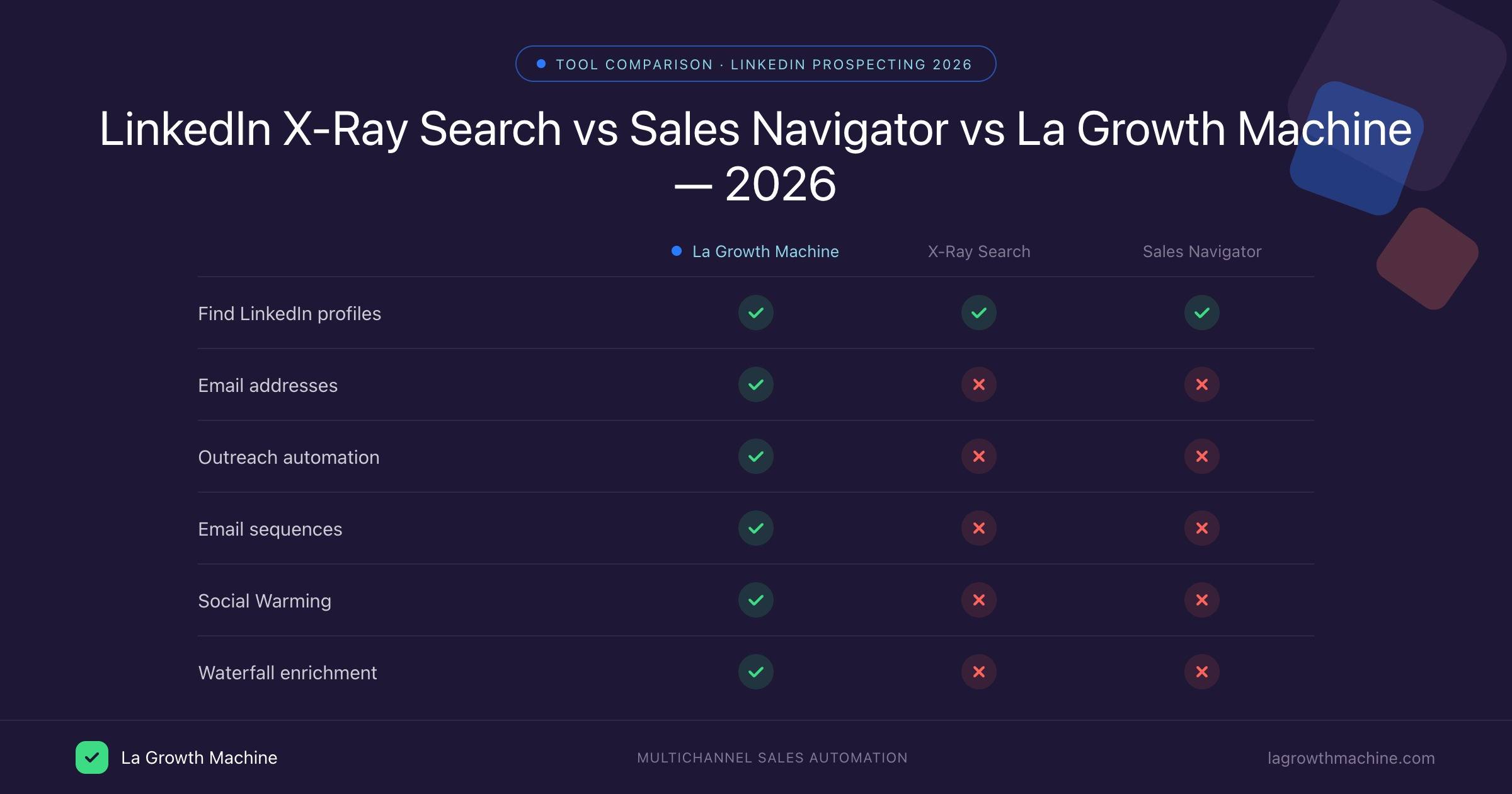
When X-Ray wins: you have a very specific target (a handful of people at specific companies), you’re testing a new market segment without committing to a Sales Navigator subscription, or you need a quick list for a one-off campaign.
When Sales Navigator wins: you’re prospecting at volume, you need filters like company headcount growth or seniority level, or you need real-time data to catch job changes.
The key insight: neither tool sends emails, neither tool follows up, neither tool enriches contact data. Both are list-building tools. Both require a separate outreach tool to actually convert prospects into conversations. LGM works with both: you can import profile URLs from X-Ray searches or export leads directly from Sales Navigator into LGM.
The workflow is the same either way: build the list, import into LGM, run the multichannel sequence.
Step-by-Step: X-Ray Search to LGM Campaign
Here’s the full workflow from Google search to booked meeting:
Step 1: Run X-Ray search on Google
Use the formulas above to build your search. For each search result page, copy the LinkedIn profile URLs manually or use a browser extension to collect them. Aim for 30 to 100 profiles per campaign segment, quality over quantity.
Step 2: Import URLs into LGM audience
In La Growth Machine, create a new audience and import your LinkedIn profile URLs. LGM will enrich each profile with name, job title, company, and any available contact data.
Step 3: Enable Social Warming
In the campaign builder, enable Social Warming. This tells LGM to visit each profile and like a recent post a few days before sending the connection request. This small step significantly improves connection acceptance rates because the prospect has already seen your name.
Step 4: Set up connection request and follow-up messages
Write your connection request note (keep it short, personalized, no pitch). Add two follow-up messages: one after acceptance, one a few days later. Use LGM’s variables to personalize with name, company, and job title.
Step 5: Set up the email fallback
If a prospect doesn’t accept within seven days, LGM triggers waterfall enrichment to find their email address, then switches to an email sequence automatically. Set up two or three email follow-ups for this branch.
Step 6: Track replies in the unified inbox
All replies, whether from LinkedIn messages or emails, appear in LGM’s unified inbox. Respond directly from there, or connect LGM to your CRM to sync everything automatically.
The full sequence runs without manual intervention. Your job is to write good messages and review replies.
FAQ
What is LinkedIn X-Ray search?
LinkedIn X-Ray search is the practice of using Google’s site:linkedin.com/in/ operator combined with Boolean search terms to find public LinkedIn profiles via Google. It works without a LinkedIn account or Premium subscription and is completely free.
Is LinkedIn X-Ray search free?
Yes, entirely free. You’re using Google’s search engine to query publicly indexed LinkedIn profiles. No tools, subscriptions, or extensions required. The only cost is time spent manually collecting URLs from search results.
What is the X-Ray search formula for LinkedIn?
The basic formula is: site:linkedin.com/in/ "[job title]" "[company or industry]" "[location]". For example: site:linkedin.com/in/ "head of sales" "SaaS" "Paris". Add OR for alternatives and - to exclude unwanted terms.
Can I use LinkedIn X-Ray search without a Premium account?
Yes. X-Ray search queries Google, not LinkedIn directly. You don’t need a LinkedIn account at all. The limitation is that you’ll only see the Google snippet (name, headline, URL) rather than the full profile unless you’re logged into LinkedIn.
How do I automate outreach after LinkedIn X-Ray search?
Import the LinkedIn profile URLs into La Growth Machine. LGM handles Social Warming, connection requests, follow-ups, email enrichment, and channel switching automatically. You can go from a list of 50 URLs to a running multichannel campaign in under 30 minutes.
Start Turning LinkedIn Searches Into Conversations
LinkedIn X-Ray search is a legitimate, underused prospecting tool. It won’t replace Sales Navigator for high-volume teams, but it’s genuinely useful for targeted searches, quick tests, and situations where you know exactly who you’re looking for.
The bottleneck has never been finding profiles. It’s converting a list of names into actual replies and meetings. That’s what La Growth Machine handles: import your X-Ray list, set up your sequence, and let the automation run while you focus on conversations that are already happening.
Try La Growth Machine free for 14 days, no credit card required.