

TL;DR
Exporting your Gmail contacts to Excel centralizes your data for CRM, prospecting, and automation.
– Export names, emails, phone numbers, birth dates, companies, and job titles in CSV format
– Quick method: Gmail > Contacts > Export > CSV format in a few clicks
– Alternative: Google Takeout downloads a complete ZIP (takes minutes to hours depending on size)
– 3 CSV formats: Google, Outlook, or Apple (Outlook/Apple recommended for Excel)
– Import into Salesforce, HubSpot, Pipedrive, Zoho for complete CRM integration
Many companies have chosen to use Gmail for their email needs. If you work in sales or as a Growth Marketer, you will sometimes need to export your contact information to Excel.
What is the point of exporting your Gmail contacts? How to use Excel and Gmail to export your contact data?
In this article, we will show you how and why it can be useful to export your contacts to a spreadsheet like Excel or Gsheet for your digital prospecting needs.
Why export your Gmail contacts to Excel?
For your lead generation process, you will likely need to have as much information as possible about your contacts. Indeed, the more you know about a prospect, the easier it will be to sell them your product or service.
When you are looking to create a prospect database, starting with your Gmail contact list can therefore be a good solution!
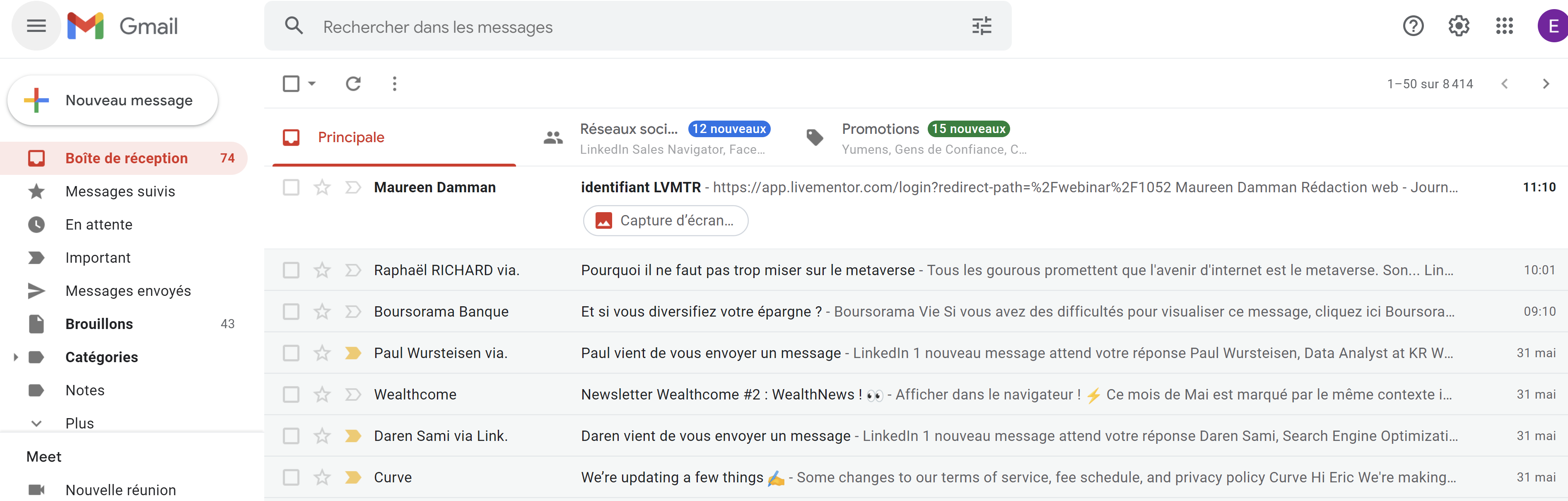
If you store your contact details in Gmail, know that it is possible to export this data to Excel or Gsheet to analyze and use it effectively.
This can be particularly useful if you have a fairly large prospect database.
With Excel, you can create exhaustive lead lists, and then plug them into different tools:
- CRM;
- sales automation software (like LaGrowthMachine!);
- emailing tools
- etc…
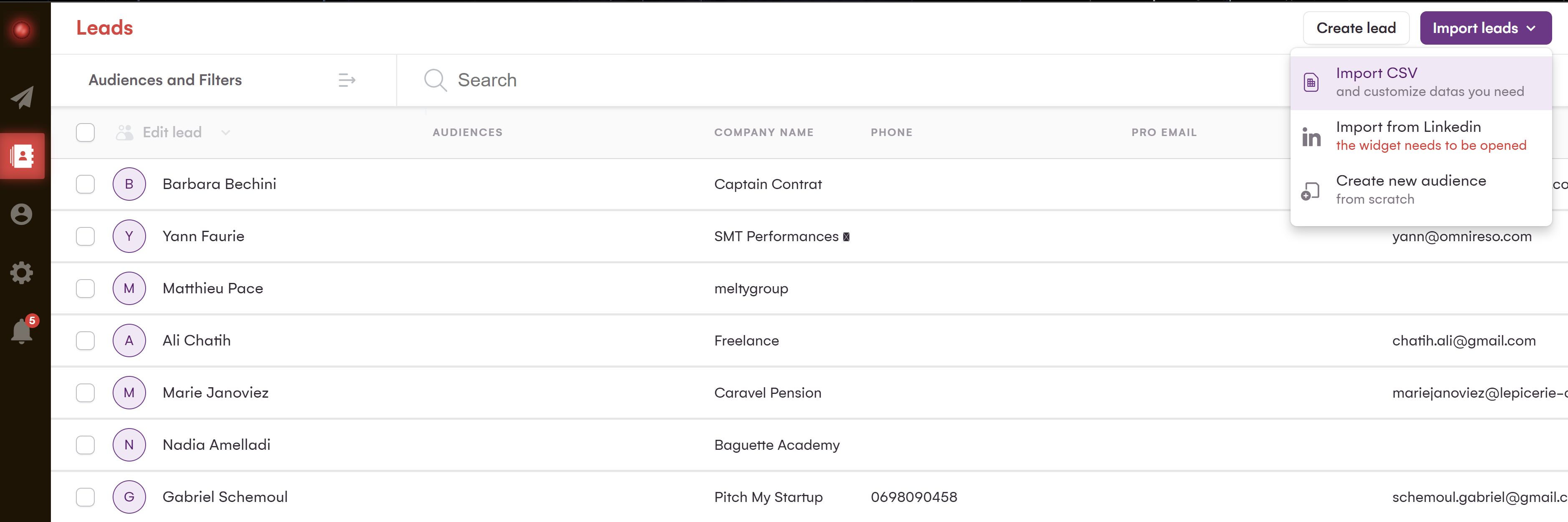
To import your CSV files from Gmail to LaGrowthMachine, it couldn’t be simpler!
You just need to click on the “import leads” tab and drag & drop your CSV file.
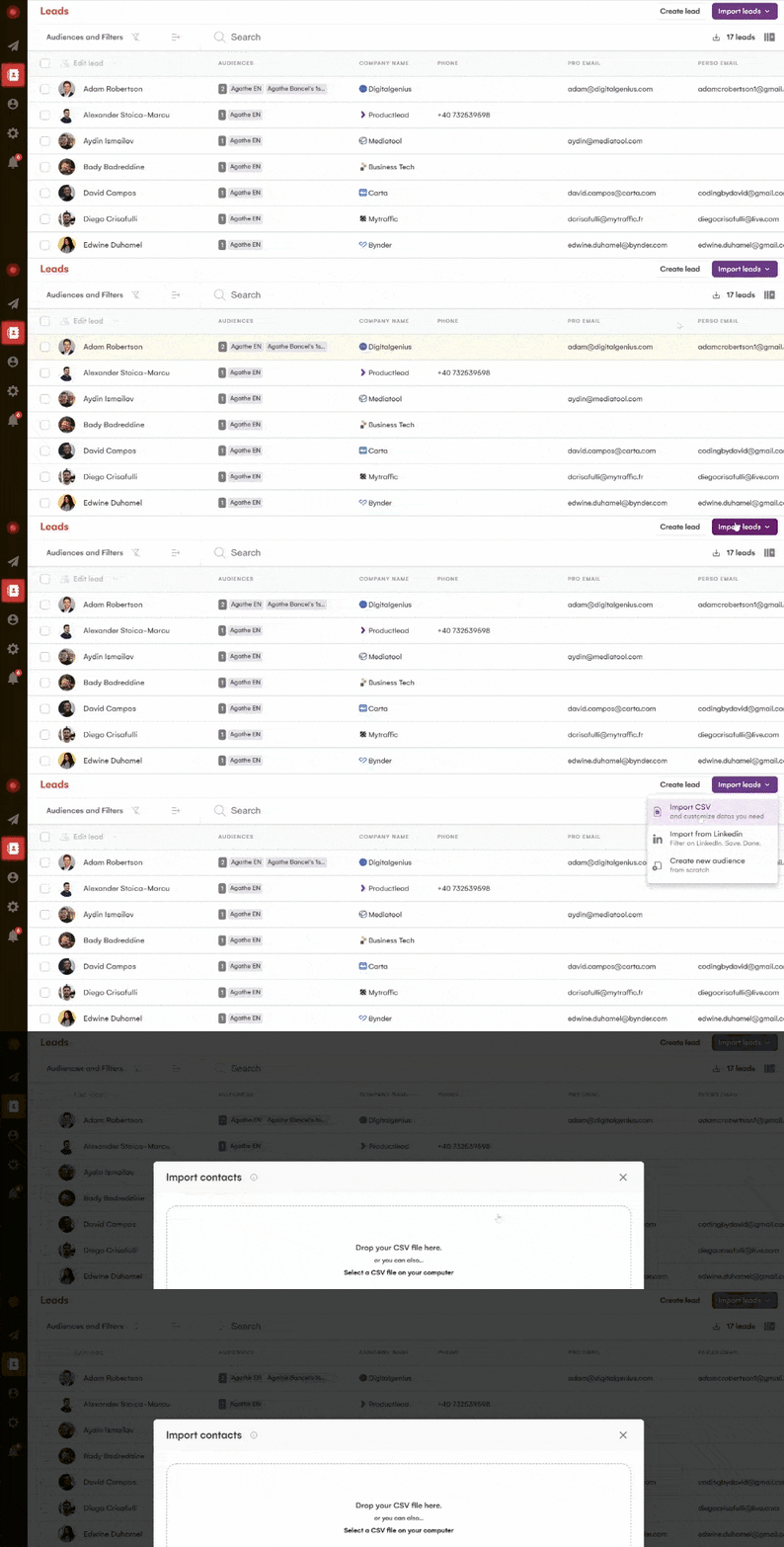
LaGrowthMachine will then take care of enriching your lead data using web scraping methods that we developed in-house.
Exporting your Gmail contacts to Excel using Gmail Automation will therefore allow you to have better visibility on your database and optimize your prospecting processes – especially for B2B!
What data can you export from Gmail?
In Gmail, you can export several types of data related to your contacts:
- Name;
- First name;
- Email address;
- Phone number;
- Date of birth;
- Company;
- Job title/Position
- … And much more!
The data is then exported into a CSV file which you will need to convert to see the correct information appear in the correct rows and columns.
To what format should you export your Gmail contacts?
When you export your email address lists from your Google messaging solution, you have no other option than to do it to a CSV file. However, be aware that the procedure requires you to choose between three versions of CSV:
- A Google friendly CSV
- An Outlook friendly CSV
- An Apple friendly CSV
If you work with Excel, we recommend using the Outlook CSV version (if you work on PC) or Apple (if you work on Mac). It will be very easy for you to convert the .csv to an .xlsx and work directly from the Microsoft Excel spreadsheet.
If you work on Google Sheet (Gsheet), it’s best to export a Google CSV, which will be encoded to adapt to Gsheet without any problems. You will just need to upload the file directly to Gsheet, and your database should be perfectly configured.
Good to know 💡
In any case, it will be very easy for you to convert any CSV to Excel format (if you want to work in Excel). Likewise, whatever your CSV file choice, you should be able to use it without any problem on Google Sheet.
How to export your Gmail contacts to Excel?
There are several methods to export your Gmail contacts to Excel.
The quick (and simple) method
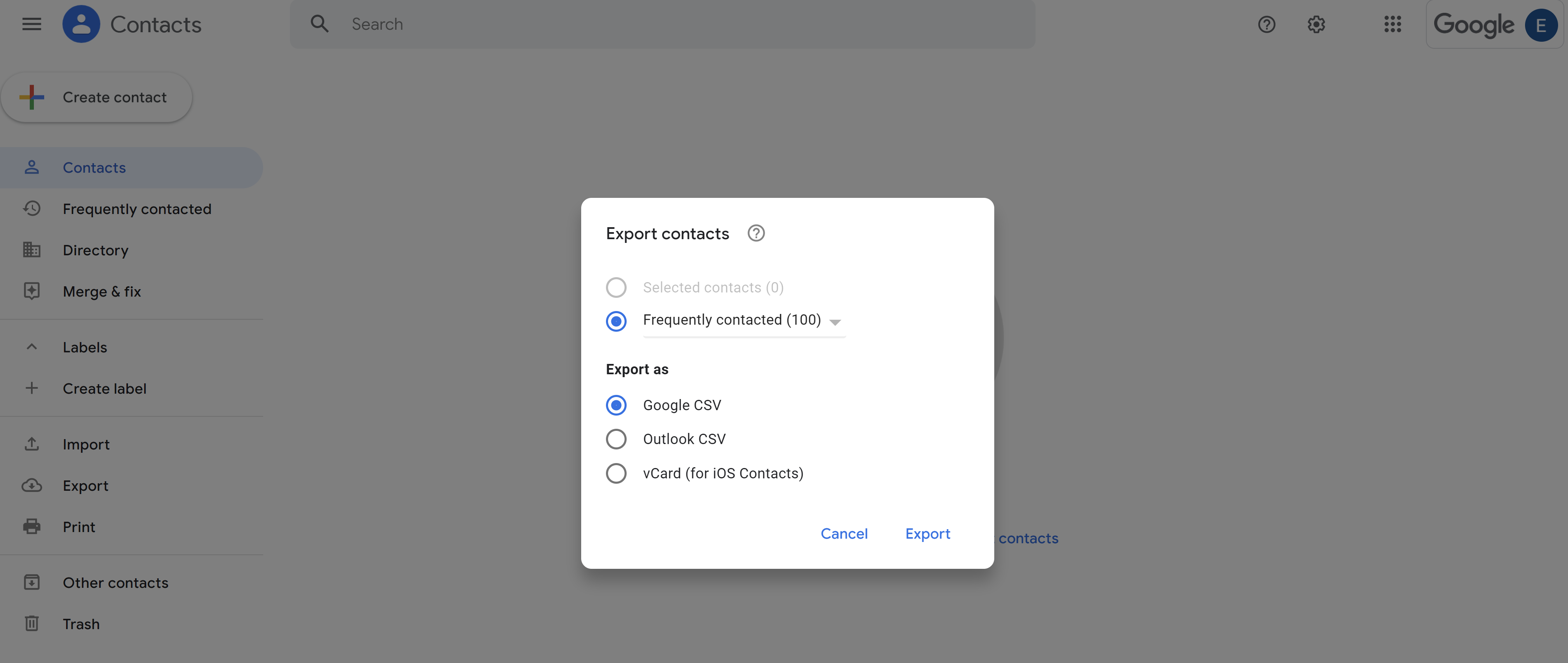
Start by opening your Gmail account and go to the “Contacts” tab. Then, click on “Export” and select “CSV for Google contacts export”.
Once you have clicked on “Export”, a confirmation message will appear. You will then just need to click on “Open file” to download your CSV file.
Once the download is complete, all you have to do is open the CSV file with Excel or Gsheet! Your contacts will then be perfectly organized and ready to be used for your prospecting or lead generation needs.
The longer method
If for any reason the first method doesn’t work, know that you can use a third-party tool to download your contacts from Gmail.
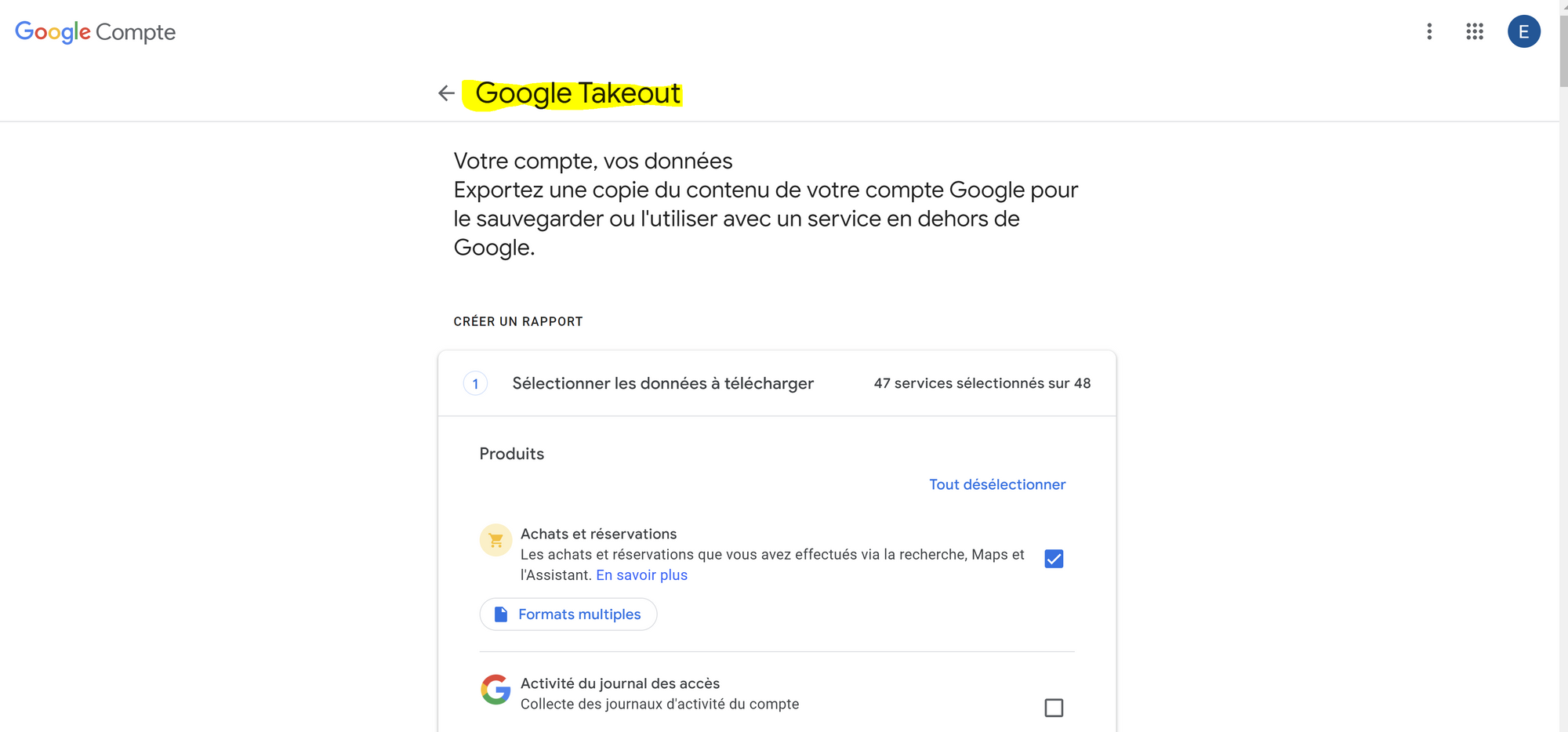
To do this, we recommend using Google Takeout. This tool is developed by Google and allows you to download your personal data stored on Google’s various services (Gmail, Drive, Calendar, etc.).
Once you have clicked on “Create an archive”, Google Takeout will start working in the background to generate a ZIP file containing all your Gmail contacts.
This may take a few minutes, or even an hour or two depending on the size of your database. Once the download is complete, all you have to do is extract the ZIP file and open the CSV file with Excel or Gsheet!
For both methods, you can consult the FAQs of the different solutions at any time, or ask for help from the Google or Microsoft communities: there are many discussions and messages that can provide you with answers.
Good to know 💡
There are many third-party solutions that allow you to export Gmail contact data to Excel (most are paid). We advise you not to use them if you are a beginner (or if your contact base is not too large): the two methods mentioned above will already help you a lot and will save you money.
How to import your contacts into CRM software?
Once your contact list has been exported to Excel or Gsheet, it is easy to import them into a CRM software to automate your prospecting processes.
Most CRM software allows you to import a CSV file directly. You will therefore just need to upload your CSV file to your CRM and follow the on-screen instructions.
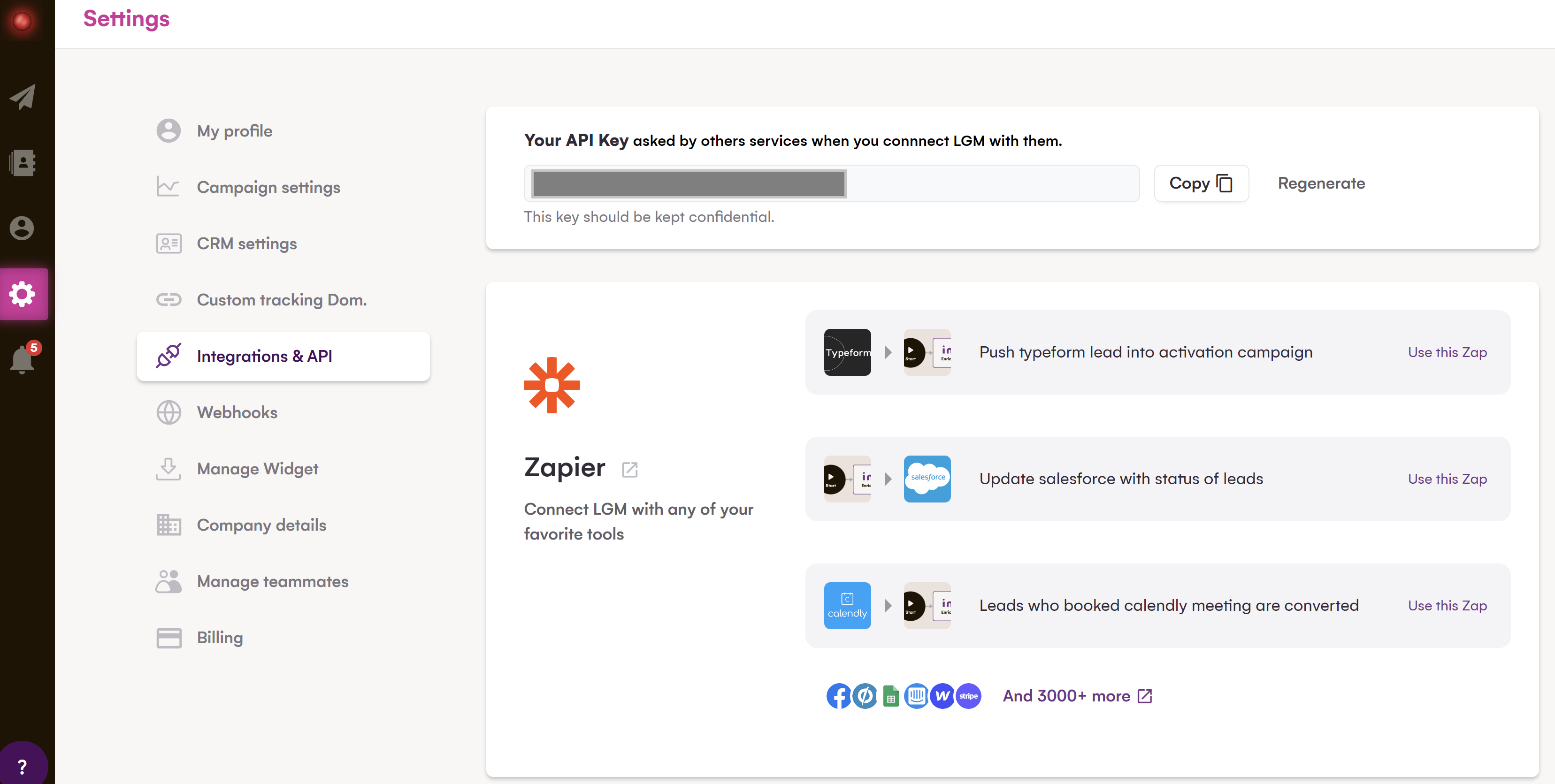
If you use Salesforce, Hubspot, Pipedrive, or Zoho CRM, know that LaGrowthMachine offers native integrations to facilitate the import of your Gmail contacts into these solutions!
Using LaGrowthMachine to enrich your Gmail leads
Before thinking about importing your contact data from Gmail to a CRM tool, the best advice we can give you is to go through LaGrowthMachine.
Our sales automation tool will automatically enrich your data using various databases and LinkedIn Scraping methods, for multichannel commercial prospecting purposes.
From a simple first name, last name, and email, we can generate over 25 data clusters that will be useful for prospecting.
You can then plug LaGrowthMachine into your CRM to generate B2B leads continuously while tracking each of your leads!

Conclusion
In conclusion, exporting your Gmail contacts to Excel is an excellent way to gain better visibility on your database and optimize your prospecting processes. Whether for working in Excel or for importing your contacts into CRM software that will facilitate your email marketing actions, this operation is very simple and should not take you more than a few minutes.