

TL;DR
– Cloud-based tools (like La Growth Machine) are significantly safer than Chrome extensions for account security
– Respect daily limits: 20-30 requests (new accounts), 40-60 (established), 60-80 (Sales Navigator)
– Multichannel campaigns (LinkedIn + Email) achieve 42% reply rate vs 12% for LinkedIn-only
– Personalization beats volume: Use dynamic variables, custom CSV data, and AI assistance for better results
– Your Social Selling Index (SSI) score determines safe limits: Start with 10-20 actions/day, scale based on SSI growth
– Account warm-up is essential for new accounts: Gradual 2-3 week ramp-up prevents restrictions
– Growth hacks like content retargeting achieve 72% acceptance rates when done correctly
Manual LinkedIn prospecting doesn’t scale.
You can only send so many connection requests per day. You can only write so many personalized messages. You can only follow up with so many prospects before your inbox becomes impossible to manage.
LinkedIn automation solves this problem by handling the repetitive tasks—profile visits, connection requests, follow-up messages, data entry—while you focus on the conversations that actually close deals.
This guide covers everything you need to know about LinkedIn automated messaging: what it is, how it works, how to stay safe, and how to build campaigns that generate consistent replies and meetings.
What is LinkedIn automated messaging?
LinkedIn automated messaging is the use of software tools to automatically send connection requests, messages, and follow-ups on LinkedIn without manual intervention.
Instead of manually visiting profiles, clicking “Connect,” and typing messages one by one, automation tools handle these tasks for you based on predefined sequences and triggers you set up.
Here’s what you can automate:
- Profile visits
- Connection requests (with or without personalized notes)
- Messages to 1st-degree connections
- Follow-up messages based on time delays or prospect actions
- InMail messages (if you have LinkedIn Premium or Sales Navigator)
- Profile engagement (likes, endorsements, comments)
The goal isn’t to spam people. It’s to scale personalized outreach so you can reach more relevant prospects while maintaining the human touch that drives conversations.
When done correctly—with proper personalization, targeting, and safety measures—LinkedIn automated messaging helps sales teams book 3-5x more meetings per month than manual outreach.
How LinkedIn message automation works
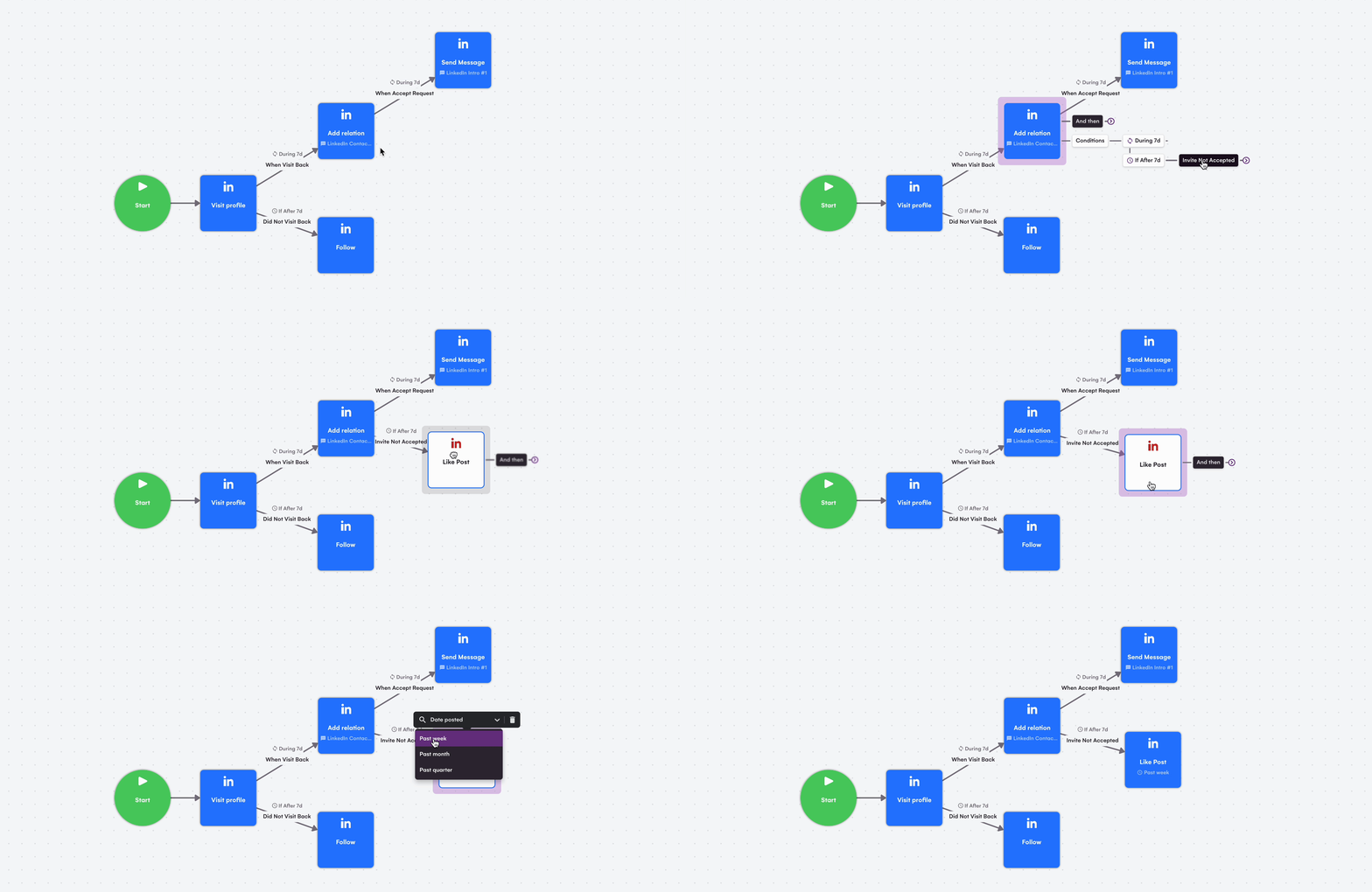
LinkedIn automation tools operate in one of three ways: Chrome extensions, desktop applications, or cloud-based platforms. Understanding the difference is critical for account safety.
Types of messages you can automate
Connection requests with notes
The first step in most LinkedIn prospecting sequences. You can send connection requests with personalized notes (up to 300 characters) or blank requests (which some studies show have higher acceptance rates for cold outreach).
Messages to 1st-degree connections
Once someone accepts your connection request, you can send them direct messages. This is where most sales conversations begin.
InMail messages
If you have LinkedIn Premium or Sales Navigator, you can send InMail to people you’re not connected with. Most automation tools support InMail automation, but you’re limited by your monthly InMail credits (20-50 depending on your plan).
Messages to event attendees and group members
You can message people who attended the same LinkedIn events or belong to the same LinkedIn groups without being connected. This is a powerful warm-outreach tactic.
Chrome extensions vs cloud-based vs desktop tools: Complete comparison
Not all automation tools are created equal. The infrastructure matters—a lot. Here’s a comprehensive breakdown of each type:
Chrome extensions (Dux-Soup, Zopto, etc.)
- Run on your local browser while you’re logged into LinkedIn
- LinkedIn can easily detect them (they leave digital fingerprints)
- Higher risk of account restrictions
- Require your computer to be on and Chrome running
- Generally cheaper but less safe
Desktop applications (Expandi, We-Connect)
- Run on your computer but in a dedicated application
- Slightly safer than Chrome extensions
- Still require your computer to be on
- Better randomization and human behavior simulation
Cloud-based platforms (La Growth Machine, Lemlist, HeyReach)
- Run on remote servers, not your computer
- Much harder for LinkedIn to detect
- Work 24/7 without your computer being on
- Better IP rotation and behavior randomization
- Most expensive but safest option
Detailed comparison: Which type should you choose?
| Criteria | Cloud-based (La Growth Machine) | Chrome Extensions | Desktop Tools |
|---|---|---|---|
| Security | ⭐⭐⭐⭐⭐ Very High Runs on secure servers with encryption | ⭐⭐ Low Requires broad browser permissions | ⭐⭐⭐ Medium Depends on your VPS/IP setup |
| Detectability | ⭐⭐⭐⭐⭐ Very Low Dedicated IPs, human-like pacing | ⭐⭐ High Browser automation easily detected | ⭐⭐⭐ Medium Varies with IP hygiene |
| Reliability | 24/7 Operation Works even when laptop is off | Browser-dependent Needs stable session | Computer-dependent Requires VPS for 24/7 |
| Scalability | Unlimited accounts Manage everything centrally | Limited Usually single account | Heavy setup Needs multiple VPS to scale |
| Setup Time | < 10 minutes Web-based onboarding | < 5 minutes Quick install but brittle | 30+ minutes System configurations needed |
| Features | Rich feature set Multichannel, AI, integrations | Basic actions Limited safeguards | Mixed Powerful but manual work |
| Collaboration | Built-in Team roles, shared workspaces | None Single-user only | Limited Manual file sharing |
| Cost | $$ Subscription-based | $ Cheap or one-time fee | $$$ License + VPS costs |
Recommendation: Use cloud-based tools for serious prospecting. LinkedIn’s detection algorithms are sophisticated, and Chrome extensions are low-hanging fruit for them. Cloud-based platforms like La Growth Machine invest heavily in safety infrastructure that mimics human behavior patterns.
LinkedIn limits and safety rules for automated messaging
LinkedIn restricts how many actions you can perform daily to prevent spam and maintain platform quality. Violating these limits will get your account restricted or banned.
Understanding and respecting these limits is the difference between successful automation and a restricted account.
Daily and weekly limits by account type
LinkedIn’s limits vary based on account age, type, and behavior patterns. Here’s a comprehensive breakdown:
| Account Type | Connection Requests/Day | Messages/Day | Profile Visits/Day | InMail/Month |
|---|---|---|---|---|
| Free Account (New) | 20-30 | 50-80 | 80-100 | 0 |
| Free Account (Established) | 40-60 | 100-150 | 150-200 | 0 |
| Premium Account | 50-70 | 150-200 | 200-250 | 20 |
| Sales Navigator | 60-80 | 200-250 | 300+ | 50 |
Important notes:
- “New” accounts = less than 6 months old or low activity history
- “Established” accounts = 6+ months old with consistent usage
- Always start at the low end of these ranges and increase gradually
- LinkedIn tracks weekly limits too (generally 7x daily limits)
- Never exceed 100 pending connection requests at any time
Account warm-up: Why it matters and how to do it
If you’re starting with a new LinkedIn account or haven’t used automation before, jumping straight to 50 connection requests per day is a recipe for disaster. You need to warm up your account gradually.
What is account warm-up?
Account warm-up is the process of gradually increasing your LinkedIn activity over 2-3 weeks to establish a natural usage pattern. This builds trust with LinkedIn’s algorithms and improves your SSI score before scaling to higher volumes.
Recommended warm-up schedule:
| Week | Daily Connection Requests | Daily Messages | Profile Visits | Focus |
|---|---|---|---|---|
| Week 1 | 10-15 | 15-20 | 30-50 | Build initial activity pattern |
| Week 2 | 15-25 | 25-40 | 50-80 | Increase volume gradually |
| Week 3 | 25-35 | 40-60 | 80-120 | Approach target volume |
| Week 4+ | Full limits | Full limits | Full limits | Scale to optimal levels |
Pro tip: La Growth Machine includes automatic warm-up mode that gradually ramps up your daily activity based on your SSI score and account age. This removes guesswork and ensures safe scaling.
Actions that count toward limits
LinkedIn tracks multiple action types. Here’s what counts:
- Connection requests sent
- Messages sent (both new conversations and replies)
- Profile visits
- InMail sent
- Post likes and comments (yes, even these count toward “suspicious activity” thresholds)
Pro tip: Use multichannel prospecting to work around LinkedIn limits. If you hit your daily connection request limit, your automation tool can automatically pivot to email outreach for the same prospect. Tools like La Growth Machine excel at this multichannel approach.
How to avoid LinkedIn’s spam filters and “Other” tab
LinkedIn uses spam filters to protect users from unwanted messages. If your messages get flagged, they end up in the “Other” inbox folder where prospects rarely check.
What triggers LinkedIn’s spam detection:
- Sending identical messages to multiple people
- Including external links in connection request notes
- Sending messages too quickly (less than 30 seconds between actions)
- Low acceptance rate on connection requests (below 20%)
- High “Report Spam” rate from recipients
- Using spam trigger words: “buy now,” “limited time offer,” “click here,” “investment opportunity”
- Having 500+ pending connection requests (signals poor targeting)
How to stay in the “Focused” inbox:
- Personalize every message – Use dynamic variables (first name, company, recent activity, mutual connections)
- Build rapport before pitching – First message should be conversational, not salesy
- Keep acceptance rates above 30% – Target carefully, don’t mass-connect
- Use natural language – Write like you’re messaging a colleague, not sending a marketing email
- Vary your message timing – Use random delays between actions (2-5 minutes minimum)
- Respond to replies quickly – LinkedIn rewards accounts that engage in real conversations
- Withdraw old pending requests – Keep pending invites under 500, ideally under 200
Warning signs your account is at risk:
- Connection requests get automatically restricted
- Messages not being delivered
- Profile views suddenly drop
- You receive a warning message from LinkedIn
- Acceptance rate drops below 20%
If you see any of these signs, immediately pause all automation for 7-14 days and resume at 50% of your previous volume.
Why you need LinkedIn automated messaging
LinkedIn is the world’s largest professional network with 930+ million users. Your prospects are there. Your competitors are reaching out to them. The question isn’t whether to use LinkedIn for prospecting—it’s how to do it at scale without burning out your team.
The math problem of manual prospecting
Let’s say you’re a salesperson with a quota of 20 new meetings per month.
Here’s what manual prospecting looks like:
- Average connection acceptance rate: 25-30%
- Average message reply rate: 15-20%
- Average meeting booking rate from replies: 30-40%
To book 20 meetings, you need:
- ~65 replies (20 ÷ 0.30 = 67)
- ~390 messages sent (65 ÷ 0.17 = 382)
- ~1,560 connection requests sent (390 ÷ 0.25 = 1,560)
At 10 connection requests per hour (including research, personalization, and follow-up), that’s 156 hours of manual work per month—nearly 4 full-time work weeks just on LinkedIn prospecting.
Automation handles this in the background while you focus on the conversations.
The multichannel advantage
Here’s the real leverage: LinkedIn automation tools that integrate with email outreach perform significantly better than LinkedIn-only campaigns.
Data from La Growth Machine campaigns:
- LinkedIn-only campaigns: ~12% reply rate
- Email-only campaigns: ~8% reply rate
- Multichannel campaigns (LinkedIn + Email): ~42% reply rate
Why? Because not everyone responds to LinkedIn messages. Some prospects prefer email. Some accept your connection request but don’t check LinkedIn messages. Multichannel sequences adapt to prospect behavior automatically.
Example multichannel flow:
- Send LinkedIn connection request
- If accepted → Send LinkedIn message
- If not accepted after 3 days → Send email instead
- If email bounces → Try Twitter outreach
- If no response after 5 days → Send follow-up via the channel that worked
This adaptive approach ensures you reach prospects where they’re most likely to engage.
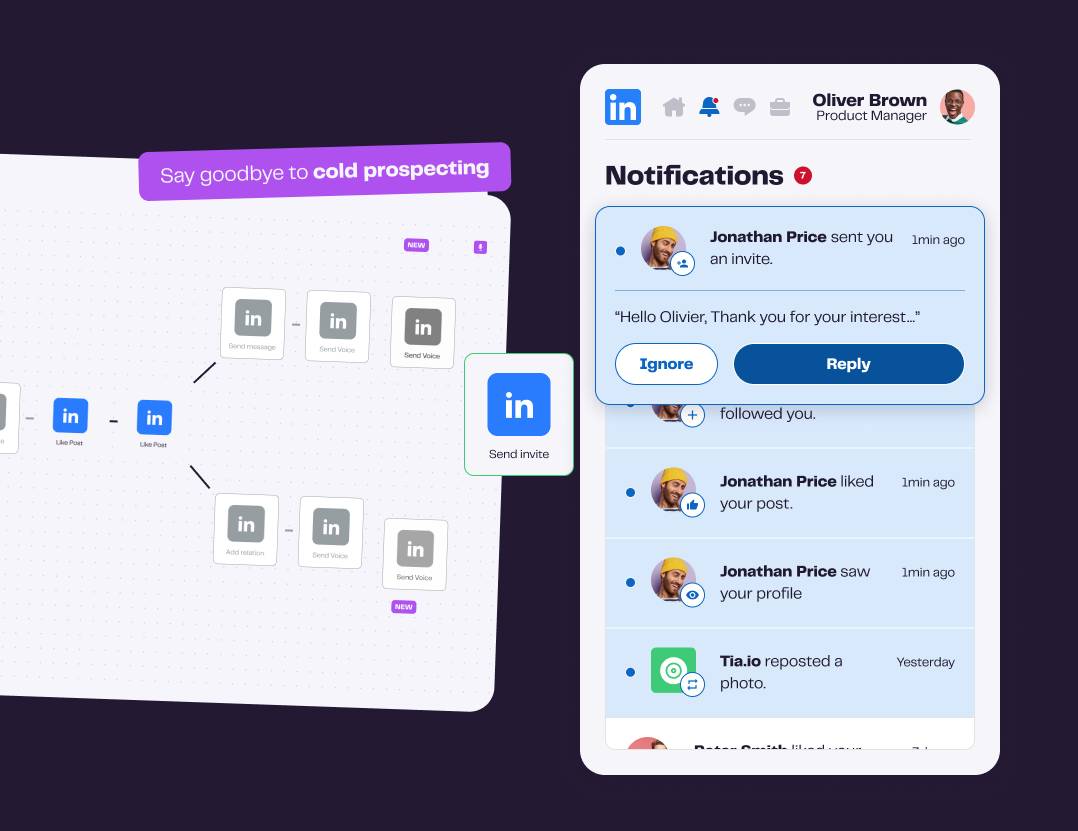
5 LinkedIn automation growth hacks that work in 2026
Forget generic outreach. These proven growth hacks leverage behavioral triggers and warm audiences to achieve acceptance rates 2-3x higher than cold prospecting.
Growth Hack #1: Content retargeting (72% acceptance rate)
Target people who engaged with viral posts in your industry. They’ve already shown interest in the topic—your outreach just needs to reference that shared interest.
How it works:
- Find a viral post (1000+ likes) from an industry influencer your target audience follows
- Export everyone who liked or commented on that post
- Filter by job title, company size, location to match your ICP
- Send connection request: “Hey [Name], saw you also found [Influencer]’s post on [Topic] interesting. Would love to connect and exchange ideas!”
- Follow up with value-based message once connected
Why it works: Shared context creates instant credibility. You’re not a random stranger—you’re someone who shares their professional interests.
Results: 72% connection acceptance rate, 40% reply rate to follow-ups
La Growth Machine advantage: Automatically import profiles from LinkedIn posts and trigger multichannel sequences.
Growth Hack #2: Website visitor re-engagement (60%+ acceptance)
People who visited your website are high-intent leads. They’re already familiar with your brand. Use LinkedIn to start a conversation while they’re still researching.
How it works:
- Use tools like Leadfeeder, Leadinfo, or Albacross to identify company visitors
- Export visitor data (company, pages viewed, time on site)
- Find decision-makers at those companies on LinkedIn
- Send personalized message: “Hi [Name], noticed someone from [Company] checked out our [specific page]. Curious what brought you there?”
- If no LinkedIn connection, trigger email sequence referencing website visit
Why it works: You’re capitalizing on existing interest. They’re already in buying mode.
Results: 60%+ acceptance rate, 50% reply rate, significantly shorter sales cycles
La Growth Machine advantage: CSV import + multichannel automation ensures you reach them via LinkedIn and email.
Growth Hack #3: Event attendee warm outreach (55% acceptance)
People who attended the same webinar, conference, or LinkedIn Live event as you have instant shared context.
How it works:
- Export attendee lists from webinars, LinkedIn events, or virtual conferences
- Filter attendees by ICP criteria
- Send connection request within 24-48 hours: “Hey [Name], great to ‘meet’ you at [Event]. What did you think of [Speaker]’s talk on [Topic]?”
- Continue conversation naturally—they’re already in learning mode
Why it works: Event attendance = warm audience. They expect networking messages post-event.
Results: 55% acceptance rate, high-quality conversations, natural transition to sales discussions
Growth Hack #4: Job change trigger (48% reply rate)
People who recently changed jobs are settling into new roles, evaluating tools/vendors, and receptive to relevant solutions.
How it works:
- Use LinkedIn Sales Navigator “Posted on LinkedIn in past 30 days” + “Changed jobs” filters
- Target people who moved into decision-making roles relevant to your solution
- Send congratulations message: “Congrats on the new role at [Company], [Name]! Curious—what are your top priorities in the first 90 days?”
- Listen for pain points, then offer relevant help
Why it works: Perfect timing + genuine interest = high engagement. They’re actively building their tech stack.
Results: 48% reply rate, 15-20% meeting booking rate
Growth Hack #5: Competitor’s audience hack (45% acceptance)
Find people engaging with your competitors’ content. They’re actively researching solutions in your space.
How it works:
- Identify your top 3-5 competitors on LinkedIn
- Find their most popular posts (product launches, case studies, thought leadership)
- Export people who engaged with those posts
- Send differentiated message: “Hi [Name], saw you’re interested in [Topic]. We take a different approach than [Competitor]—happy to share how we [unique value prop].”
Why it works: You’re reaching in-market buyers who are already researching solutions. You just need to present a better alternative.
Results: 45% acceptance rate, high-intent conversations, competitive wins
Pro tip: All five growth hacks work best with multichannel follow-up. If they don’t respond on LinkedIn, pivot to email automatically. La Growth Machine excels at this adaptive routing.
How to set up LinkedIn automated messaging (step-by-step)
Let’s walk through the complete setup process, from audience targeting to campaign launch.
Step 1: Define your ideal customer profile and targeting criteria
Bad targeting = low acceptance rates = LinkedIn restrictions. Start here.
Build your ICP framework:
- Industry: SaaS, Manufacturing, Healthcare, etc.
- Company size: 10-50, 50-200, 200-1000, 1000+ employees
- Job titles: Decision-makers, influencers, end-users
- Geography: Target locations where you operate/sell
- Technographic signals: Companies using specific tools (via BuiltWith, G2)
- Behavioral signals: Posted on LinkedIn recently, changed jobs, hiring, raised funding
Sales Navigator filters that work:
Sales Navigator is worth the investment ($99/month) because of its advanced filtering:
- Posted on LinkedIn (past 30 days): Targets active users who are more likely to engage
- Company headcount growth: Companies hiring aggressively are growing and need your solution
- Job posted (past 30 days): Indicates pain points or growth
- Shared experiences: Same school, company, groups = higher acceptance rates
- Seniority level + Function: Precise targeting (e.g., “VP level” + “Sales function”)
- Boolean search strings: Use AND, OR, NOT operators to combine criteria
Example Boolean search:
(VP OR "Vice President" OR Director) AND (Sales OR Revenue) NOT (Assistant OR Intern)This finds VP-level sales leaders while excluding assistants and interns.
Pro tip: Create narrow segments (100-500 people) instead of broad lists (10,000+ people). Narrower targeting = better personalization = higher conversion rates.
Step 2: Choose the right automation tool
Not all tools are equal. Here’s what to look for:
Safety features (non-negotiable):
- Cloud-based infrastructure (not Chrome extension)
- Random delays between actions
- Daily and weekly limit controls
- IP rotation
- Human behavior simulation
Essential features:
- Conditional branching (IF/THEN logic)
- Multichannel sequences (LinkedIn + Email minimum)
- CSV import for custom data
- Dynamic personalization variables
- A/B testing capability
- CRM integration
- Reply detection (auto-pause sequences when prospects reply)
Why La Growth Machine stands out:
- Multichannel by design: LinkedIn, Email, Twitter, and Phone in unified sequences
- Email enrichment: Automatically finds and verifies email addresses for LinkedIn prospects
- AI-powered copywriting: Generates campaign messages in minutes using AI personalization
- Cloud-based safety: Runs on dedicated servers with IP rotation and behavior randomization
- CRM sync: Bi-directional sync with HubSpot, Pipedrive, Salesforce
- Multichannel inbox: Manage all LinkedIn and Email conversations in one interface
Other solid options: Expandi (LinkedIn-focused, good safety), Lemlist (email-first with LinkedIn add-on), HeyReach (LinkedIn automation with team management).
Step 3: Build your target audience list
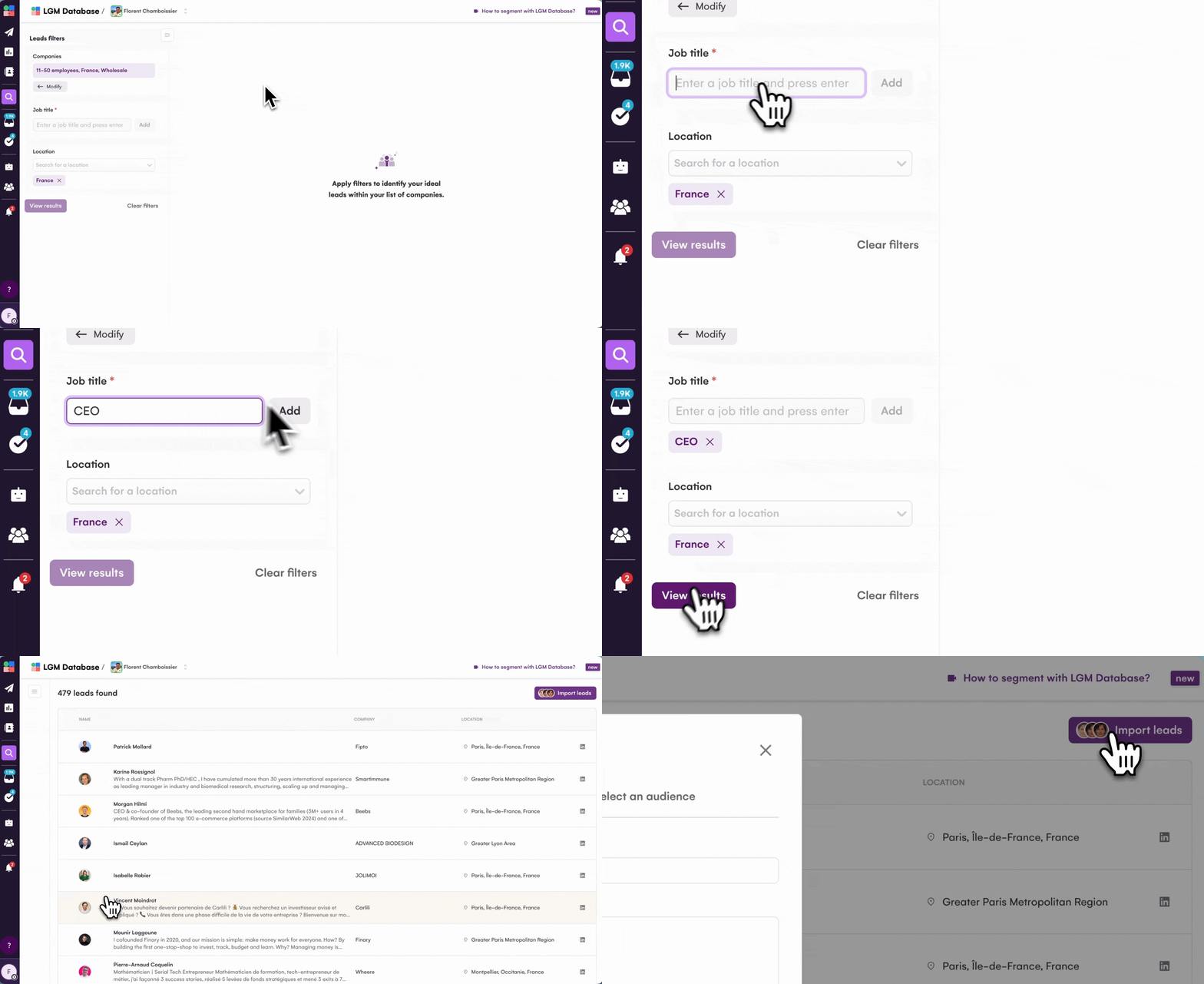
Quality over quantity. Always.
Pre-filtration strategies:
Use Sales Navigator or LinkedIn Search to filter prospects BEFORE exporting to your automation tool:
- Apply your ICP filters (see Step 1)
- Review the first 50-100 profiles manually
- Refine filters if you’re seeing irrelevant prospects
- Export to CSV (using LinkedIn’s native export or a tool like PhantomBuster)
Post-filtration strategies:
Further refine your list in your automation tool or spreadsheet:
- Remove profiles with suspicious activity (0 connections, no profile photo, incomplete profiles)
- Remove competitors and irrelevant job titles
- Add custom data fields for personalization (recent post topic, mutual connection, shared company)
- Segment by priority (hot leads vs. cold prospects)
List size recommendations:
- Start small: 100-200 prospects for your first campaign
- Test messaging and analyze results
- Scale to 500-1,000 prospects once you’ve proven the campaign works
- Continuously add new prospects to keep pipeline full
Step 4: Design your outreach sequence
This is where most people fail. They send one message and give up. High-performing campaigns use multi-touch sequences with strategic timing.
Sequence architecture basics
Core principle: If/Then branching based on prospect behavior.
If accepted path:
- Connection request accepted → Wait 1-2 days → First message → Wait 3-5 days → Follow-up #1 → Wait 5-7 days → Follow-up #2 → End or pivot to email
If not accepted path:
- Connection request not accepted after 5 days → Withdraw request → Wait 3 days → Send email → Wait 5 days → Follow-up email → End or retry LinkedIn with different angle
Optimal timing between steps:
- After connection acceptance: Wait 1-2 days (don’t message immediately—it screams automation)
- Between follow-ups: Increase delays each time (3 days, then 5 days, then 7 days)
- Maximum sequence length: 4-5 touchpoints total (more than that becomes spam)
When to end sequences:
- Prospect replies (obviously)
- After 3-4 no-responses across channels
- Prospect views your profile multiple times but doesn’t respond (indicates interest—try a different angle)
- Hard bounce on email
Campaign example 1: Cold outreach sequence (LinkedIn-only)
Target: SaaS CMOs at Series A/B companies
Objective: Book 15-minute intro call
Sequence:
- Day 0: View profile
- Day 1: Send connection request (no note)
- Why no note? For cold outreach, blank requests often have higher acceptance rates. LinkedIn users are skeptical of personalized notes from strangers.
- Day 2 (if accepted): Send first message
Hey [FirstName], thanks for connecting! I noticed [Company] recently raised a Series A—congrats! I work with SaaS CMOs scaling their teams post-funding and wanted to share a quick insight: 73% of Series A companies struggle with lead quality vs. quantity in their first year of scale. We've helped companies like [Similar Company] and [Similar Company 2] solve this with multichannel prospecting strategies. Worth a quick call to explore if there's fit? - Day 6 (if no reply): Follow-up #1
[FirstName], following up on my previous message. I'd love to show you how [Similar Company] increased qualified pipeline by 280% in 6 months using our multichannel approach. Quick 15-min call this week? - Day 12 (if no reply): Follow-up #2 with value add
[FirstName], last message from me—I don't want to be a pest! I put together a short guide on "5 Prospecting Mistakes SaaS CMOs Make Post-Series A" based on our work with 50+ companies. Thought it might be helpful. Want me to send it over? - End sequence or pivot to email
Results from this sequence structure:
- 28% connection acceptance rate
- 19% reply rate from connections
- 5.3% meeting booking rate
Campaign example 2: Multichannel LinkedIn + Email sequence
Target: VP Sales at mid-market B2B companies
Objective: Demo scheduling
Sequence:
- Day 0: View LinkedIn profile
- Day 1: Send LinkedIn connection request with note
Hey [FirstName], I help B2B sales teams automate their outreach. Thought we might have some good ideas to exchange. Interested in connecting? - Day 3 (if not accepted): Send email (tool auto-enriches email)
Subject: Quick question for [Company]'s sales team Hi [FirstName], I tried connecting on LinkedIn but figured email might be easier. I work with B2B sales teams at companies like [Similar Company] to automate their prospecting without losing the personal touch. We're seeing teams book 3-4x more meetings with multichannel sequences. Would a quick intro call make sense for [Company]? Best, [Your Name] - Day 3 (if accepted on LinkedIn): Send LinkedIn message
Thanks for connecting, [FirstName]! I noticed [Company] recently expanded to [New Market/Office]. How's the sales team adapting to the new territory? I work with B2B sales leaders navigating growth like this—happy to share what's working for companies like [Similar Company]. - Day 7 (if no reply on either channel): Follow-up via the channel that worked (email or LinkedIn)
[FirstName], wanted to follow up on my message. Would it be helpful if I sent over a quick case study showing how [Similar Company] scaled from 20 → 50 deals/month with multichannel outreach? - Day 12 (if still no reply): Final breakup message
Hey [FirstName], I'll take the silence as a "not right now" and get out of your inbox. If things change and you want to explore automated prospecting in the future, feel free to reach out. Good luck with [specific initiative you noticed]!
Why this works:
- Multichannel = reach prospects where they’re most active
- Adaptive = automatically pivots to email if LinkedIn doesn’t work
- Personalized = references specific company info and competitor results
- Value-first = offers insights and case studies before asking for a meeting
Results from multichannel sequences:
- 42% reply rate (vs. 12% LinkedIn-only)
- 11% meeting booking rate
- 3.5x ROI compared to single-channel campaigns
Campaign example 3: Event attendee warm sequence
Target: People who attended the same webinar/event as you
Objective: Turn warm connection into sales conversation
Sequence:
- Day 0: View profile
- Day 1: Send connection request with shared context
Hey [FirstName], saw you attended [Event Name] last week. I was there too—what did you think of [Speaker]'s talk on [Topic]? Would love to connect! - Day 2 (if accepted): Continue the conversation
[FirstName], glad we connected! I especially loved the part about [specific insight from event]. Have you had a chance to implement any of those strategies at [Company] yet? - Day 6 (if reply): Share related resource
That's awesome that you're working on [whatever they mentioned]. We actually have a similar approach with our multichannel prospecting sequences—I'd be happy to show you how [Similar Company] implemented it after attending the same event. Quick call next week?
Why warm sequences work better:
- Shared context (event attendance) = instant credibility
- Higher acceptance rates (40-60% vs. 25-30% cold)
- Easier to start genuine conversations
- Prospects are already in “learning mode” from the event
Step 5: Write personalized messages that get replies
Generic messages don’t work. But “personalization” doesn’t mean writing every message from scratch—it means using smart variables and frameworks that scale.
Personalization beyond first name
Dynamic variables your automation tool should support:
{{firstName}}– First name{{company}}– Company name{{jobTitle}}– Job title
Using CSV imports for deep personalization:
Upload a CSV with custom columns:
| firstName | company | customattribute1 | customattribute2 |
|---|---|---|---|
| John | Acme Corp | Recently launched new product | Uses HubSpot CRM |
| Sarah | Beta Inc | Just raised Series B | Posted about hiring challenges |
Then use these in your messages:
Hey {{firstName}}, I saw that {{company}} {{customattribute1}}. I work with companies going through similar launches, especially ones using {{customattribute2}}. Using AI to personalize LinkedIn messages at scale
AI tools like ChatGPT can 10x your personalization without manual work. Here’s how to leverage AI effectively:
AI use cases for LinkedIn automation:
- Profile research: Analyze LinkedIn profiles and extract talking points
Prompt: “Review this LinkedIn profile [paste profile] and identify 3 personalized talking points for outreach” - Icebreaker generation: Create custom openers based on recent activity
Prompt: “This person recently posted about [topic]. Write 3 natural icebreaker lines referencing this” - Message A/B testing: Generate 5+ variations for testing
Prompt: “Rewrite this LinkedIn message 5 different ways, varying tone from casual to professional” - Industry-specific messaging: Tailor tone/language by vertical
Prompt: “Adapt this message for [healthcare/finance/tech] industry with relevant terminology”
La Growth Machine AI features:
- AI-powered message generation: Generate campaign sequences in minutes
- AI intent detection: Segment prospects by buying signals
- Automatic response categorization: AI tags replies as interested/not interested/question
- Dynamic content optimization: AI suggests improvements to underperforming messages
Best practices for AI-generated messages:
- Always review and edit AI output—don’t send raw GPT text
- Use AI for research and drafts, then add your human voice
- Test AI-generated vs. human-written messages to find what works
- Avoid obvious AI patterns (“I hope this message finds you well”)
Pro tip: Use AI to analyze your best-performing messages and identify patterns, then build templates based on those insights.
Message templates that work
Template 1: The “Similar Company” Template
Hey {{firstName}},

I work with [industry] companies like [Similar Company 1] and [Similar Company 2] on [specific problem].

I noticed {{company}} is [specific situation—hiring, expanding, launched product]. Companies at this stage usually face [pain point].

We helped [Similar Company] solve this with [brief solution]. Worth exploring if there's fit?

[Your Name]
Why it works:
- Social proof (similar companies)
- Specific situation (not generic)
- Relevant pain point
- Low-friction ask
Template 2: The “Insight” Template
{{firstName}},

Quick insight for {{company}}: I noticed [specific observation about their business].

Most [job title]s I work with don't realize that [counterintuitive insight related to observation].

[Similar Company] was in the same position 6 months ago. They [specific result].

Want to see how?
Why it works:
- Demonstrates research
- Provides immediate value
- Creates curiosity gap
- Soft CTA
Template 3: The “Question” Template
Hey {{firstName}},

Saw you're [job title] at {{company}}. Quick question:

How are you currently handling [specific process relevant to your solution]?

I ask because most [industry] companies struggle with [common pain point], and there's usually a simpler way to do it.

Happy to share what's working for companies like [Similar Company] if you're interested.
Why it works:
- Genuine question (not pitch)
- Acknowledges common struggle
- Offers help without being pushy
Template 4: The “Content Share” Template
{{firstName}},

Loved your recent post about [topic from their LinkedIn].

You mentioned [specific point]—I've seen this play out with several [industry] companies. [Related insight or data point].

I put together a short guide on [related topic] based on our work with 50+ [industry] companies. Want me to send it over?
Why it works:
- References their content (genuine engagement)
- Adds value to their point
- Offers resource (not meeting request)
- Builds credibility
Step 6: Set your automation parameters
Technical setup matters. Configure these settings to maximize safety and deliverability.
Daily limits configuration:
Start conservative and increase gradually:
- Week 1-2: 20 connection requests/day, 30 messages/day
- Week 3-4: 30 connection requests/day, 50 messages/day
- Week 5-6: 40 connection requests/day, 75 messages/day
- Week 7+: Full limits based on account type (see table in Section 3)
Working hours settings:
Configure your tool to only send messages during business hours in your target’s timezone:
- Best sending times: 8-10am, 12-1pm, 5-6pm (local time)
- Avoid: Late night, early morning, weekends (unless targeting specific industries like hospitality/retail)
- Timezone-aware: If targeting US East Coast from Europe, set schedule for 1-7pm CET (8am-2pm EST)
Random delays between actions:
Human behavior isn’t uniform. Configure random delays:
- Between profile visits: 90-180 seconds
- Between connection requests: 120-240 seconds
- Between messages: 180-360 seconds
- Between sessions: 45-90 minutes
Reply detection settings:
Critical feature: Your tool must automatically pause sequences when prospects reply.
Configure to detect:
- Direct LinkedIn message replies
- Email replies
- Connection acceptance (pause for 24 hours before sending first message)
If your tool doesn’t have reply detection, you’ll send automated follow-ups to people who already responded—terrible user experience.
Step 7: Monitor and optimize your campaigns
Launch isn’t the end. High-performing campaigns require continuous optimization.
Key metrics to track:
| Metric | Good | Average | Poor | Action if Poor |
|---|---|---|---|---|
| Connection Acceptance Rate | >30% | 20-30% | <20% | Improve targeting, remove note from request, or add note if sending blank |
| Message Reply Rate | >15% | 10-15% | <10% | Rewrite messaging, improve personalization, adjust timing |
| Meeting Booking Rate | >30% | 20-30% | <20% | Soften CTA, add value first, improve qualification |
| LinkedIn Restrictions | 0 | 0 | Any | Pause immediately, reduce limits, improve personalization |
When to pause or adjust:
- Acceptance rate drops below 20%: Your targeting is off or LinkedIn is flagging you. Pause for 5-7 days, then resume at 50% volume.
- Reply rate below 8%: Your messaging isn’t resonating. A/B test new approaches.
- Meeting booking rate below 15%: You’re attracting interest but not converting. Your CTA might be too aggressive or your qualification too loose.
A/B testing approaches:
Test one variable at a time:
- Message length: Short (50 words) vs. Long (150 words)
- Opening line: Question vs. Statement vs. Insight
- CTA: Soft ask (“Worth exploring?”) vs. Direct ask (“15-min call Tuesday?”)
- Personalization level: Basic (name/company) vs. Deep (recent post/company news)
- Timing: Delay between connection and first message (1 day vs. 3 days)
Run each test for at least 100 prospects before declaring a winner.
Advanced LinkedIn automated messaging strategies
Once you’ve mastered the basics, these advanced tactics will further improve performance.
Warm-up sequences for higher acceptance rates
Don’t cold-connect. Warm up prospects first with engagement.
Social warming sequence:
- Day 0: View prospect’s profile
- Day 1: Like their most recent post
- Day 2: Leave a thoughtful comment on another post
- Day 3: Endorse 2-3 skills
- Day 4: Send connection request with context
Hey {{firstName}}, I've been following your content on [topic]—really insightful stuff. Would love to connect and keep learning from you!
Social warming significantly increases acceptance rates because prospects recognize your name when the connection request arrives.
Data: Social warming sequences show 45-60% acceptance rates vs. 25-30% for cold requests.
Multi-touch engagement tactics
Post-connection nurture sequence:
After someone accepts your connection request, don’t pitch immediately. Nurture first:
- Day 1: Send thank you message
Thanks for connecting, {{firstName}}! Looking forward to staying in touch. - Day 3-7: Engage with their content (like and comment on posts)
- Day 8: Share relevant content
Hey {{firstName}}, thought you might find this interesting: [link to relevant article/resource]. Let me know what you think! - Day 12: Start sales conversation (if they engaged with your content)
This builds familiarity before pitching.
Segmented messaging by prospect behavior
Hot leads (engaged with your content, visited your profile multiple times):
- Shorter sales cycle
- More direct CTA
- Reference their engagement: “I saw you checked out our website—curious what caught your attention?”
Warm leads (accepted connection, didn’t engage):
- Longer nurture cycle
- Value-first approach
- Content shares before pitch
Cold leads (haven’t engaged at all):
- Maximum personalization required
- Focus on pain points
- Multiple touchpoints before asking for meeting
Retargeting sequences:
For prospects who went cold after initial interest:
Hey {{firstName}},

I know we talked a few months ago about [topic], but timing wasn't right.

I wanted to reach back out because [new relevant development—company news, industry trend, new feature launch].

Worth revisiting the conversation?
LinkedIn automated messaging best practices
Follow these rules to maximize results and minimize risk.
Do’s and don’ts checklist
DO:
- ✓ Personalize every single message (use variables, custom fields, and research)
- ✓ Start with low daily limits and increase gradually over weeks
- ✓ Use cloud-based automation tools, not Chrome extensions
- ✓ Respond to replies immediately (automation handles outreach; you handle conversations)
- ✓ Monitor acceptance rates weekly and adjust targeting if it drops
- ✓ Use multichannel sequences (LinkedIn + Email) for better coverage
- ✓ Set random delays between actions to mimic human behavior
- ✓ Test different messaging approaches with A/B testing
- ✓ Withdraw old pending connection requests (keep under 100 pending)
- ✓ Provide value before asking for meetings
DON’T:
- ✗ Send identical messages to everyone
- ✗ Use Chrome extension automation tools
- ✗ Send connection requests with links
- ✗ Pitch in the first message after connection acceptance
- ✗ Ignore LinkedIn warnings or restrictions
- ✗ Exceed daily limits (even if your tool allows it)
- ✗ Use spam trigger words (“opportunity,” “limited time,” “investment”)
- ✗ Send more than 4-5 follow-ups in a sequence
- ✗ Let pending connection requests pile up above 500 (ideally keep under 200)
- ✗ Forget to pause sequences when prospects reply
- ✗ Add LinkedIn connections to email lists without permission
- ✗ Spam LinkedIn groups or events with automated messages
Common mistakes that get accounts restricted
Mistake #1: Using Chrome extensions
LinkedIn can detect Chrome extensions easily. Stick to cloud-based tools.
Mistake #2: Ramping up too fast
Going from 0 → 100 connection requests/day overnight screams bot behavior. Ramp gradually over 2-3 weeks.
Mistake #3: Low acceptance rates
Acceptance rates below 20% signal to LinkedIn that you’re spamming. Improve targeting or pause.
Mistake #4: Ignoring LinkedIn warnings
If LinkedIn sends a warning, take it seriously. Pause automation for 7-14 days immediately.
Mistake #5: No randomization
Sending messages exactly every 120 seconds like clockwork is suspicious. Use random delays.
Mistake #6: Excessive pending invites
Having 500+ pending connection requests signals poor targeting to LinkedIn. Keep it under 200, ideally under 100. Set up automatic withdrawal of old pending requests.
Mistake #7: Adding connections to email lists without permission
Don’t automatically add new LinkedIn connections to your email marketing lists. This violates privacy policies and damages trust. Always ask permission first.
Mistake #8: Spamming groups and events
Using automation to mass-message LinkedIn group members or event attendees violates group guidelines and appears insincere. Engage authentically first, then use automation to complement your participation.
How to make automation feel human
Write like a human:
- Use contractions (you’re, I’m, don’t)
- Keep sentences short
- Add personality
- Make small “mistakes” (occasional typos, casual language)
Reference specific details:
- Recent posts they shared
- Mutual connections
- Company news
- Shared interests or background
Respond immediately when they reply:
- Automation handles the first touch
- Humans handle the conversations
- Don’t let automated follow-ups continue after a reply
Use voice messages:
- LinkedIn voice messages feel incredibly personal
- Tools like La Growth Machine let you automate voice message sending
- 50% higher reply rates compared to text messages
Frequently asked questions about LinkedIn automated messaging
Is LinkedIn message automation safe?
Yes, when done correctly. The key is using cloud-based tools (not Chrome extensions) and respecting LinkedIn’s limits. Millions of professionals automate LinkedIn safely every day. The risk comes from aggressive tactics: sending too many messages too fast, using spam trigger words, targeting poorly, or using detectable Chrome extensions.
Can LinkedIn detect automation?
LinkedIn can detect obvious automation (Chrome extensions, rapid-fire actions, identical messages), but they can’t easily detect sophisticated cloud-based tools that mimic human behavior with randomized delays, IP rotation, and natural activity patterns. Millions of users automate safely by using the right tools and following best practices.
How many messages can I send per day?
Depends on your account type and age:
- New free accounts: 20-30 connection requests/day, 50 messages/day
- Established free accounts: 40-60 connection requests/day, 100 messages/day
- Sales Navigator: 60-80 connection requests/day, 150 messages/day
Start at the lower end and increase gradually. Your SSI score also affects safe limits.
What is SSI and why does it matter for automation?
LinkedIn’s Social Selling Index (SSI) is a score from 0-100 that measures your effectiveness at social selling. Your SSI score directly affects how many automated actions you can safely perform daily. Higher SSI = higher safe limits. Check your SSI at linkedin.com/sales/ssi.
What’s the difference between InMail and automated messages?
InMail is LinkedIn’s paid messaging feature that lets you message people you’re not connected to (requires Premium or Sales Navigator). Regular automated messages only reach your 1st-degree connections. Most automation tools handle both, but InMail has separate monthly limits (20-50 depending on plan).
Can I automate LinkedIn messages for free?
You need a paid automation tool (like La Growth Machine, which starts at €50/month), but you don’t need LinkedIn Premium—a free LinkedIn account works. However, Sales Navigator significantly improves targeting and increases safe sending limits, so most serious users upgrade.
How long does account warm-up take?
Account warm-up typically takes 2-3 weeks. You start with low daily limits (10-15 actions/day) and gradually increase to full limits. This builds trust with LinkedIn’s algorithms and improves your SSI score before scaling to higher volumes.
How do I avoid getting banned?
Follow these rules:
- Use cloud-based automation (not Chrome extensions)
- Start with low daily limits and increase gradually
- Personalize every message
- Keep connection acceptance rate above 20%
- Never exceed 500 pending connection requests (keep under 200)
- Use random delays between actions
- Stop immediately if you get any LinkedIn warning
- Don’t send spam trigger words or links in connection requests
What are the best LinkedIn automation tools?
The best tools are cloud-based and offer multichannel capabilities:
- La Growth Machine: Best for multichannel prospecting (LinkedIn + Email + Calls), includes email enrichment, AI features, and safety infrastructure
- Expandi: LinkedIn-focused with good safety features
- Lemlist: Email-first with LinkedIn add-on
- HeyReach: LinkedIn automation with team management
Choose based on whether you want LinkedIn-only or multichannel prospecting. For best results, go multichannel.
Can I use multiple LinkedIn accounts with one automation tool?
Yes, most cloud-based tools like La Growth Machine support multiple LinkedIn accounts on a single subscription. This is useful for agencies, teams, or when you want to scale outreach beyond single-account limits safely.
What happens if I get a LinkedIn warning?
If you receive a LinkedIn warning or restriction, immediately pause all automation for 7-14 days. Review your targeting (aim for >30% acceptance rate), improve message personalization, and reduce your daily limits by 50% when you resume. Most restrictions are temporary if you correct the behavior.
Can I combine LinkedIn automation with email?
Absolutely—and you should. Multichannel campaigns (LinkedIn + Email) get 3.5x better reply rates than single-channel campaigns. Tools like La Growth Machine let you build unified sequences that combine both channels: send a LinkedIn connection request, and if they don’t accept within 3 days, automatically send an email instead. This maximizes reach and response rates.
Ready to automate your LinkedIn outreach?
Manual prospecting limits your pipeline. LinkedIn automation scales it.
The difference between teams booking 10 meetings per month and 40 meetings per month isn’t effort—it’s infrastructure. Automation handles the repetitive tasks (profile visits, connection requests, follow-ups, data entry) so you can focus on the conversations that actually close deals.
Get 3.5X more leads!
Do you want to improve the efficiency of your sales department? With La Growth Machine you can generate on average 3.5x more leads while saving an incredible amount of time on all your processes.
By signing up today, you’ll get a free 14-day trial to test our tool!